How to Enable Automatic Brightness in Ubuntu Linux

You enable automatic brightness in Ubuntu Linux to make your screen adjust its brightness based on ambient light conditions.
This feature, known as adaptive brightness, utilizes your device’s integrated light sensor to dynamically set the optimal screen brightness. It’s designed to reduce eye strain and conserve battery power.
For instance, on many laptops running Ubuntu 22.04 LTS (Jammy Jellyfish) or later, the system can automatically dim your display in dimly lit environments and brighten it when exposed to strong sunlight, maintaining excellent readability without any manual input from you.
Open System Settings, click on the Power tile, and then toggle the Automatic Screen Brightness switch to the On position. This feature uses your device’s light sensor to adjust screen brightness automatically.
How to enable or disable automatic brightness in Ubuntu Linux
As mentioned above, on laptops with advanced graphics cards and integrated light sensors, Ubuntu Linux automatically adjusts the screen’s brightness based on the surrounding lighting conditions.
Let’s walk through how to enable or disable adaptive brightness in Ubuntu Linux.
Most of Ubuntu’s settings live in one place: the System Settings panel. You can manage everything from system configurations to user accounts and updates there.
To open System Settings, head to the Activities overview and type ‘Settings‘.

Alternatively, look for the System menu in the top-right corner of your desktop.
On the System menu, select Settings, as shown below.

In the Settings app, click on the Power tile to expand it.
In the Power Saving section, make sure the Automatic Screen Brightness switch is set to On to enable it.
To disable automatic screen brightness, flip the switch to Off.
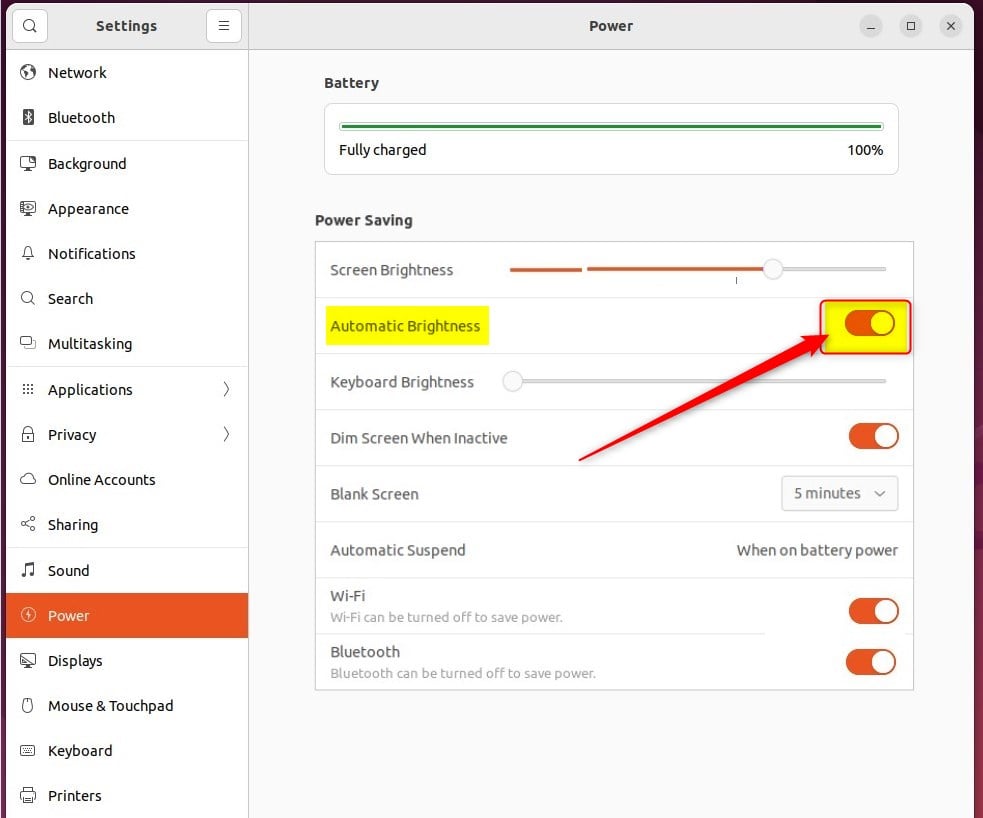
That’s it! You can now close the settings app.
Conclusion:
- Ubuntu Linux’s adaptive brightness feature adjusts the screen’s brightness based on surrounding lighting conditions, providing optimal brightness and contrast levels while saving power and prolonging battery life.
- Enabling automatic brightness ensures the screen is always easy to see in different ambient light conditions and helps reduce battery consumption.
- To enable or disable automatic brightness in Ubuntu Linux, access the System Settings panel, navigate to the Power section, and toggle the Automatic Screen Brightness switch to the desired position.
This guide should help you manage Ubuntu Linux’s adaptive and automatic brightness settings, making your experience better and saving energy.
Was this guide helpful?

About the Author
Richard
Tech Writer, IT Professional
Richard, a writer for Geek Rewind, is a tech enthusiast who loves breaking down complex IT topics into simple, easy-to-understand ideas. With years of hands-on experience in system administration and enterprise IT operations, he’s developed a knack for offering practical tips and solutions. Richard aims to make technology more accessible and actionable. He's deeply committed to the Geek Rewind community, always ready to answer questions and engage in discussions.


[…] to adjust to the lighting condition. If your computer features an integrated light sensor, the screen brightness will automatically be adjusted for […]
[…] Ubuntu Linux automatically adjusts screen brightness for some laptops or computers based on the current lighting conditions. This automatic setting helps make sure your screen is readable wherever you go. […]