Enable or Disable Dim Screen in Ubuntu Linux

You enable or disable Ubuntu Linux’s dim screen feature to control automatic brightness adjustments.
This feature dims your screen based on inactivity or ambient light, saving power and reducing eye strain.
For instance, if your screen dims unexpectedly while you’re working on Ubuntu 22.04, you can easily manage this setting.
You’ll find this option typically under “Power” or “Power Management” in your system settings.
Go to Settings, then Power. Find the “Dim Screen When Inactive” option and toggle the switch to On to enable it or Off to disable it. This setting controls automatic screen dimming due to inactivity.
How to turn on or off the dim screen in Ubuntu Linux
You can easily turn the dim screen feature on or off in Ubuntu Linux to save battery or keep your display at a steady brightness.
If you prefer your screen to stay at its current brightness, you can turn this feature off. If you want to save battery, keep it on.
Follow these steps to change the setting:
- Open your Activities overview and type Settings.
- Click on the Settings icon.
ubuntu linux activities overview - Alternatively, click the system menu in the top-right corner of your screen and select Settings.

ubuntu linux system menu top bar settings - In the sidebar on the left, click on Power (or Power & Battery, depending on your hardware).
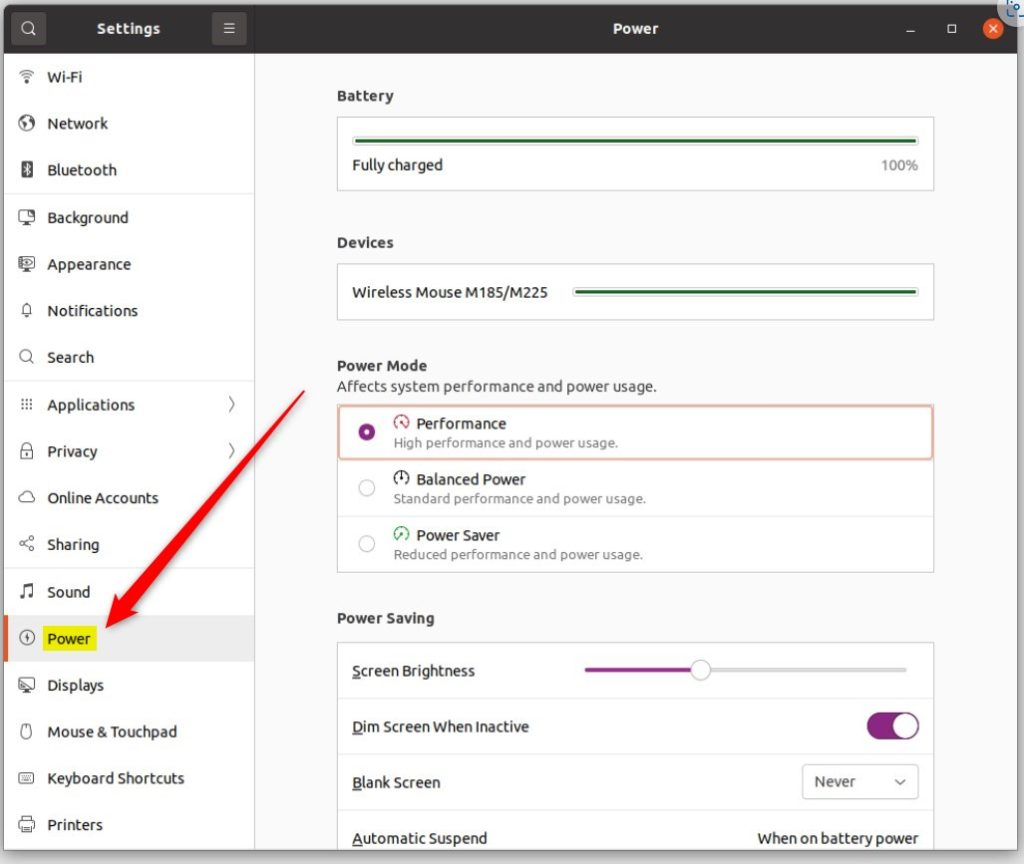
ubuntu linux power tile - Look for the Power Saving section.
- Find the Dim Screen When Inactive option.
- Toggle the switch to On to save power, or Off to keep your screen bright.
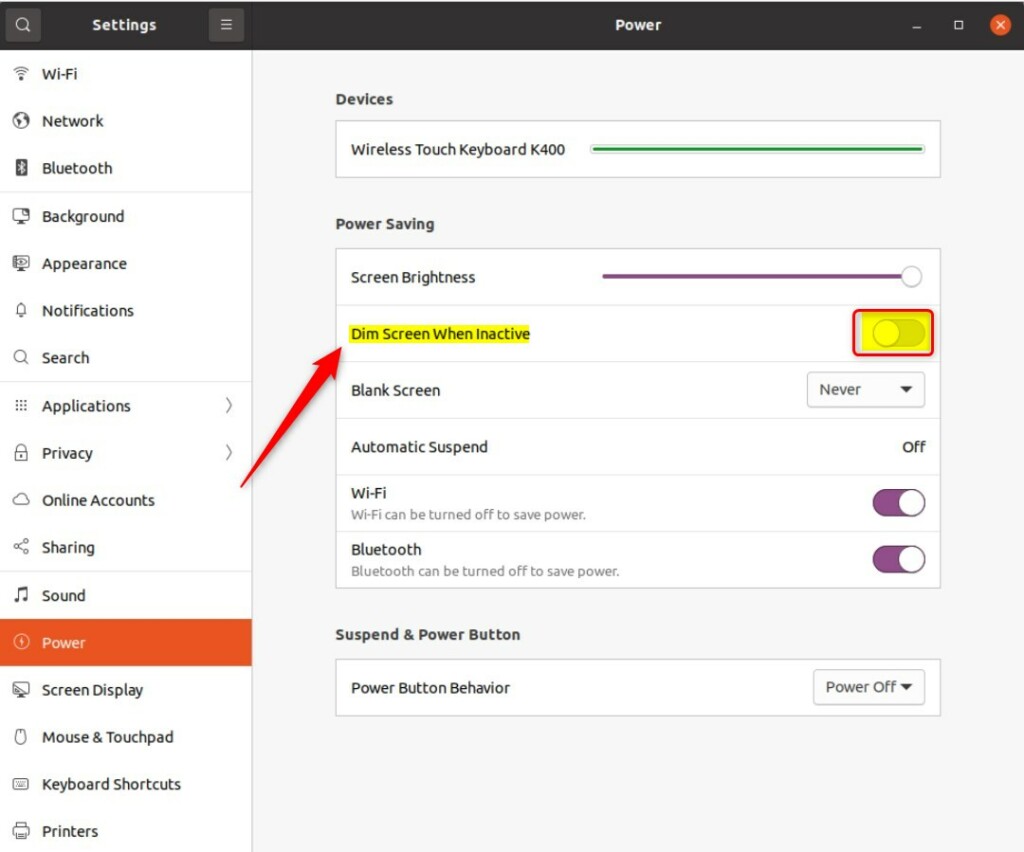
ubuntu linux dim screen button
Conclusion
Adjusting your screen’s dimming behaviour in Ubuntu Linux is simple and helps manage your laptop’s energy use, but remember other power settings can also affect brightness.
How do I dim the screen in Ubuntu?
On Ubuntu, it's easy to change the brightness of the built-in monitor. Just click the system menu on the right side of the top bar and adjust the screen brightness slider to the value you want to use. The change should take effect immediately.
How do I turn off dim screen in Ubuntu?
In the Settings application, go to the Power settings from the left sidebar. Under the Power Saving option, you can see the Automatic Brightness option. Toggle the button to turn it off or on.
How do I decrease my screen brightness?
And right here. You can toggle this option off the adaptive brightness or toggle this option. On this way you will adjust your screen brightness through the settings.
Was this guide helpful?

About the Author
Richard
Tech Writer, IT Professional
Richard, a writer for Geek Rewind, is a tech enthusiast who loves breaking down complex IT topics into simple, easy-to-understand ideas. With years of hands-on experience in system administration and enterprise IT operations, he’s developed a knack for offering practical tips and solutions. Richard aims to make technology more accessible and actionable. He's deeply committed to the Geek Rewind community, always ready to answer questions and engage in discussions.



No comments yet — be the first to share your thoughts!