How to Change Windows 11 Lock Screen Background

You change your Windows 11 lock screen background by navigating to the Personalization settings within the Windows Settings app.
Your lock screen background is the visual display that appears when your computer is locked, before you enter your password to sign in. Windows 11 offers Windows Spotlight, which automatically updates with curated images, or you can choose your own custom pictures.
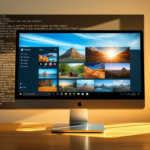
To set a personal image, head to Settings > Personalization > Lock screen. From there, you can select a single picture, configure a slideshow, or keep using the automatic Windows Spotlight feature.
Access Settings, then go to Personalization and Lock screen. You can then select Windows Spotlight for automatic image changes, choose a single Picture, or set up a Slideshow of your own photos.
How to Change Your Lock Screen Background
You can easily change your Windows 11 lock screen background right from the Settings app.
- Press Windows key + I on your keyboard at the same time.
- Click the Start button (Windows icon at the bottom left), then click Settings.
- Or, type Settings into the search box on the taskbar and click the Settings app.
Once you open Settings, look for and click Personalization from the list on the left. Then, click Lock screen on the right.
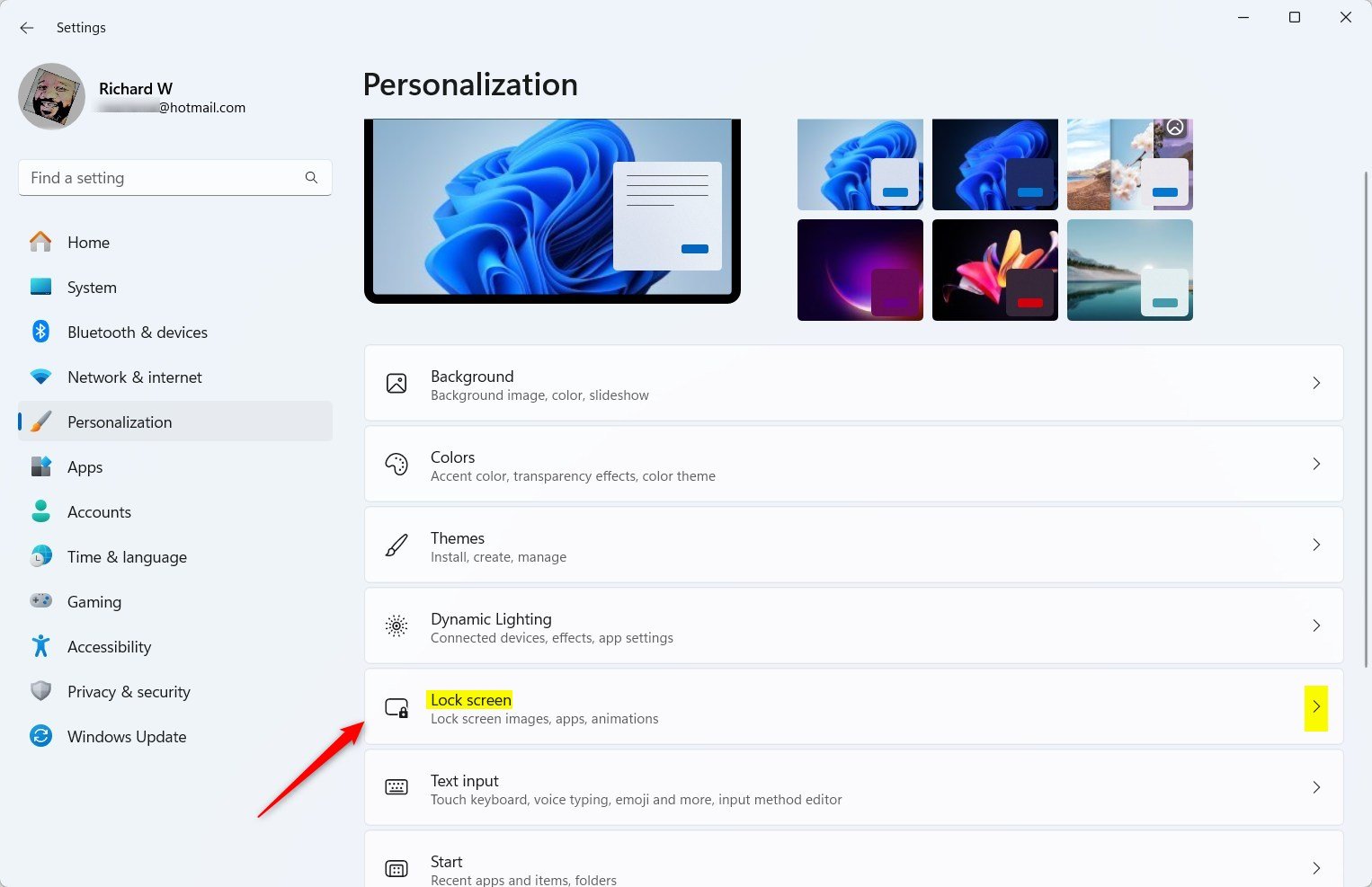
Here, you’ll see options to pick what shows on your lock screen background. You have three choices:
- Windows Spotlight: Shows beautiful pictures from Microsoft that change daily. It also gives you tips about Windows.
- Picture: Lets you pick one photo you like. You can choose from Windows pictures or any photo saved on your computer.
- Slideshow: Lets you pick a folder of photos. Your lock screen will cycle through them like a slideshow.
By default, Windows Spotlight is turned on, so you see new pictures every day. To check how it looks, press Windows key + L to lock your screen. You should see a new image from Spotlight.
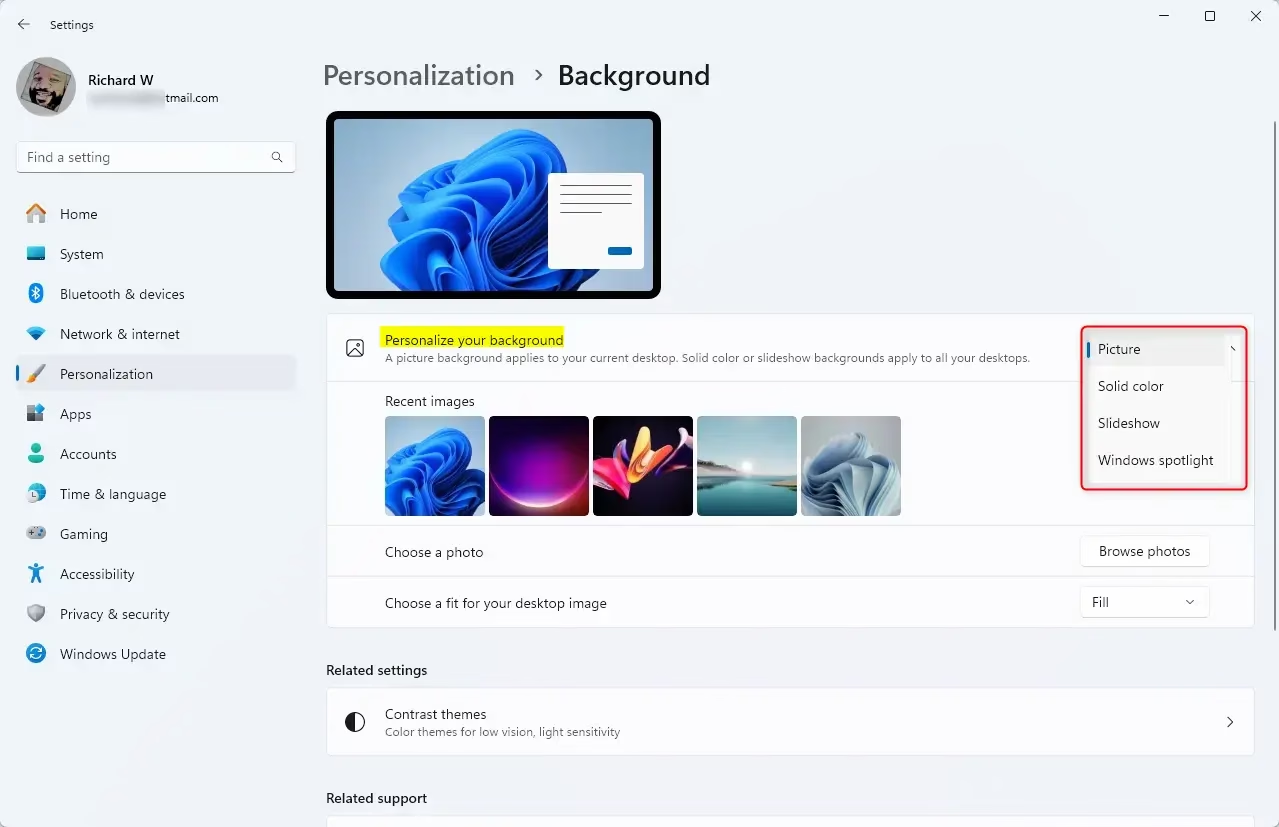
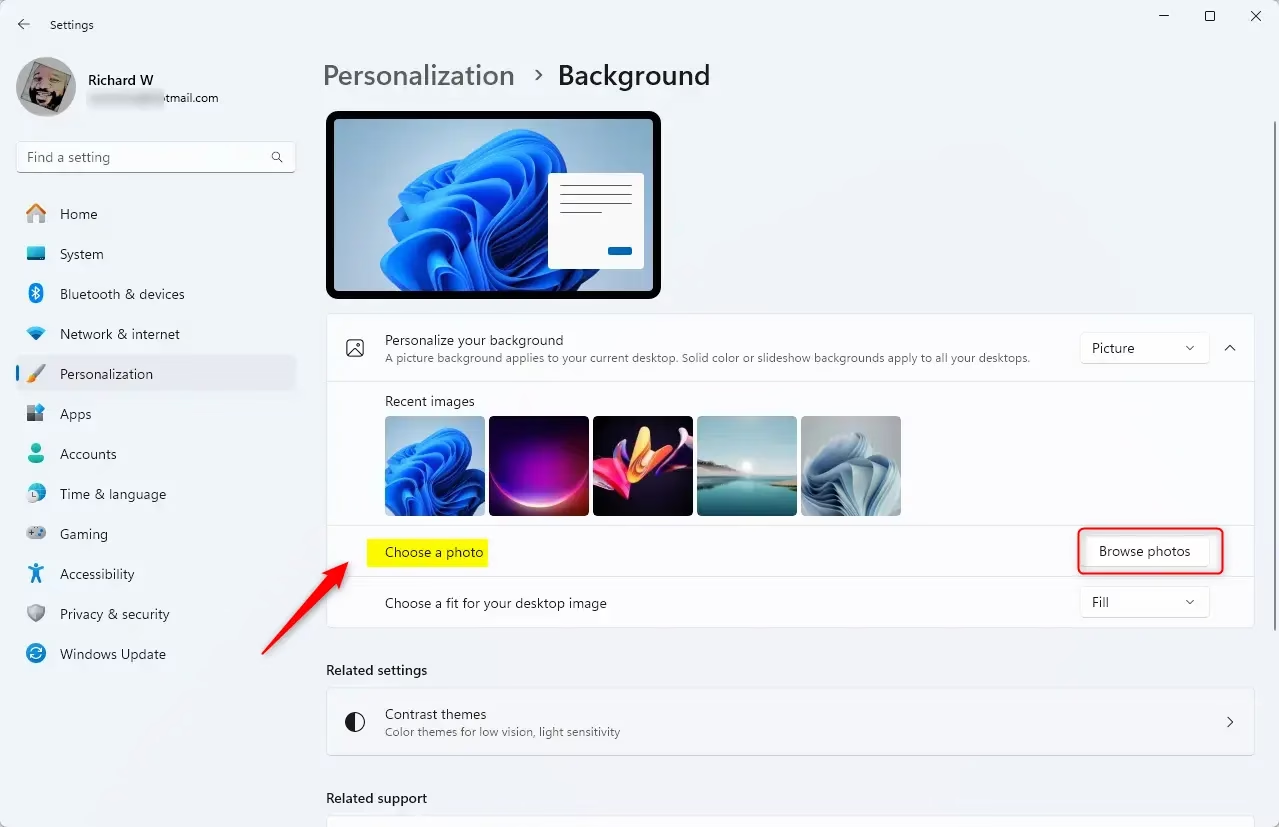
If you pick Picture, click the Browse button to find a photo on your computer you want to use. If you choose Slideshow, select a folder with pictures you like.
Troubleshooting Tips
If you don’t see your chosen lock screen picture or the Windows Spotlight photos, try this:
- Go to Start > Settings > Personalization > Lock screen.
- Make sure the option Show lock screen picture on the sign-in screen is turned ON.
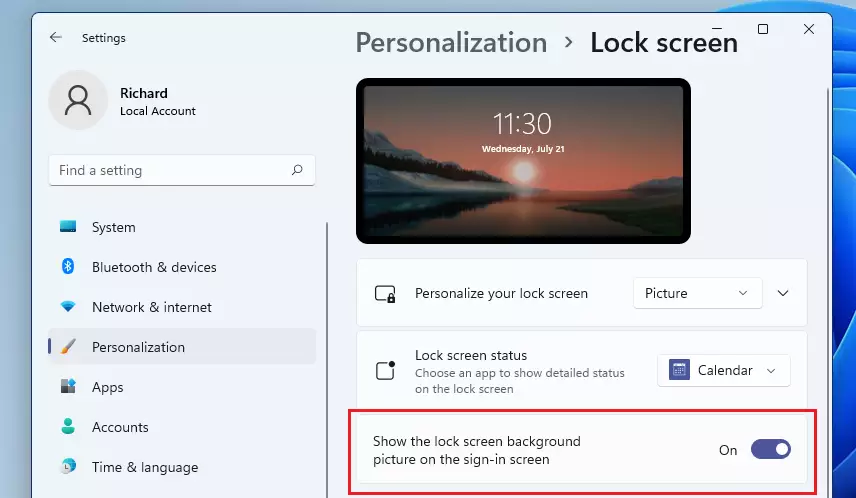
This should fix most problems with your lock screen background.
Summary
- Changing your lock screen background lets you personalize your Windows 11 PC.
- You can use Windows Spotlight, a single picture, or a slideshow of photos.
- Choose photos that make you happy or show your favorite memories!
- Enable the lock screen picture on sign-in to see it before logging in.
- Follow the simple steps above to easily customize your lock screen.
Changing your lock screen background is a simple way to make your Windows 11 PC feel more like yours.
Why can't i change the Lock screen on 🪟 Windows 11?
Why can’t I change Lock Screen settings in Windows 11? If your copy of Windows 11 is not activated, personalization settings—including lock screen options—may be unavailable until the system is activated.
How to make 🪟 Windows 11 Lock screen look like 🪟 Windows 7?
Want Windows 7’s logon screen on Windows 11 (or lock screen, as some call it)? There’s a tool called AuthUX for that. It mimics most of Windows 7’s logon screen features, though it’s only been tested on Win11 versions 21H2-24H2.
Was this guide helpful?

About the Author
Richard
Tech Writer, IT Professional
Richard, a writer for Geek Rewind, is a tech enthusiast who loves breaking down complex IT topics into simple, easy-to-understand ideas. With years of hands-on experience in system administration and enterprise IT operations, he’s developed a knack for offering practical tips and solutions. Richard aims to make technology more accessible and actionable. He's deeply committed to the Geek Rewind community, always ready to answer questions and engage in discussions.



No comments yet — be the first to share your thoughts!