How to Secure Your Windows 11 Device Portal

You secure your Windows 11 Device Portal by enabling HTTPS and configuring authentication settings.
The Windows 11 Device Portal is a web-based interface that lets you remotely manage your PC, offering features like performance monitoring and app deployment. It’s particularly useful for developers and IT professionals.
By securing this portal, you prevent unauthorized access to sensitive system information and control over your device. For example, ensuring only trusted users can access it via specific IP addresses or hostnames protects against potential breaches.
This guide helps you implement these crucial security measures, ensuring your Windows 11 device remains protected.
To secure your Windows 11 Device Portal, open Settings, go to System > For developers, and turn on “Restrict to loopback connections only”. This ensures the portal only accepts connections from your local machine, enhancing security.
Why Restrict Device Portal Access?
When the Device Portal is active, it opens a door to your computer over the network. This can be a security risk. If you do not need remote access, you should limit it. Restricting access keeps your system safe from unwanted visitors on your network.
What Happens When Done?
Once you apply these settings, the portal will only accept connections from your own computer. This is called a loopback connection. Any attempt to reach the portal from another device on your network will be blocked. Your system becomes much more secure.
Enterprise vs. Local Restriction Methods
There are two main ways to manage this. You can use local settings for a single computer. Or, you can use enterprise tools for many computers at once. Local settings are best for home users. Enterprise tools are best for businesses with many devices.
Local Loopback Restriction
This method limits access to the local machine only. It is the fastest way to secure one device.
- Open the Settings app. Press Windows key + I.
- Click System on the left.
System in the Settings app - Click For developers.
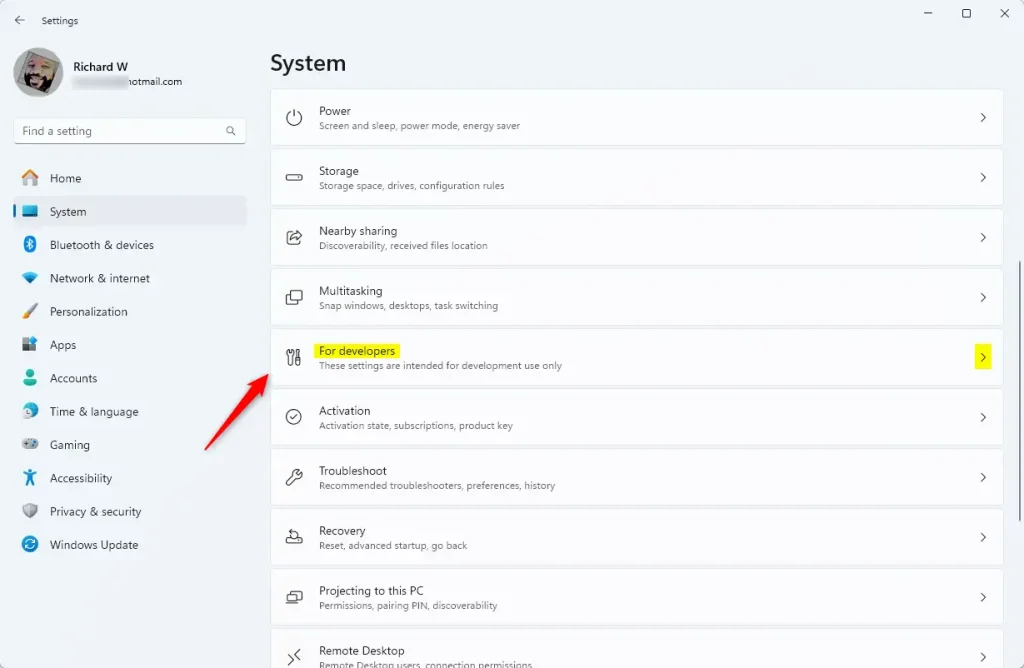
For developers in the Settings app - Ensure Developer Mode is On. [Admin privileges required]
- Turn on Device Portal.
- Toggle Restrict to loopback connections only to On.
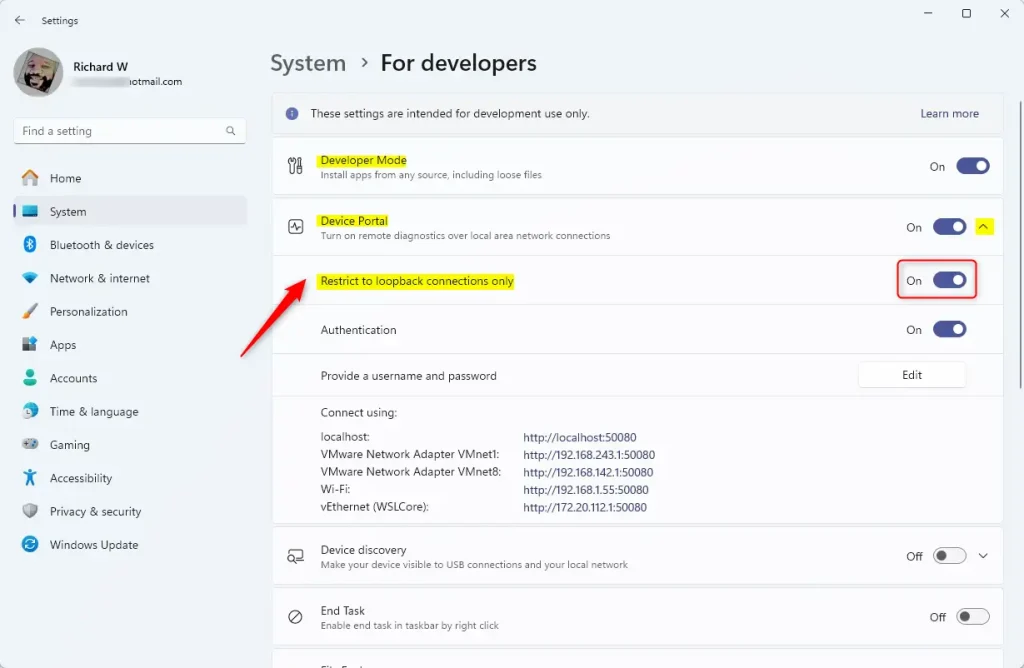
Windows Device Portal loopback address only
Enterprise Management via Microsoft Intune
Businesses use the Microsoft Intune Admin Center to manage many devices. Admins can create configuration profiles to disable the portal entirely. This prevents users from turning it on by mistake. You can use MDM enrollment restrictions to enforce these rules across your whole company.
Best Practices for Securing Windows Endpoints
- Always keep Developer Mode off unless you are actively coding.
- Use strong authentication for any remote management tools.
- Regularly check your firewall settings for open ports.
- Apply security policies through Intune for all company devices.
- Monitor logs for unauthorized access attempts to the Device Portal.
Summary
Securing your Device Portal is vital for system safety. Whether you are a home user using local settings or an IT admin using Intune, you must restrict access. By following these steps, you prevent remote threats and keep your data private. Always remember to turn off developer features when you are finished with your work.
How do I disable the Windows Device Portal entirely via Group Policy?
You can disable the portal using Group Policy by navigating to Computer Configuration > Administrative Templates > Windows Components > App Package Deployment. Locate the policy to allow development of Windows Store apps and set it to Disabled. This prevents the Device Portal from running on managed enterprise endpoints.
Can I restrict Device Portal access to specific IP addresses?
Windows does not have a built-in setting to whitelist specific IP addresses for the Device Portal. To achieve this, you must use a firewall rule. Create an Inbound Rule in Windows Defender Firewall to block port 50443 for all connections except those from your trusted IP address range.
Was this guide helpful?

About the Author
Richard
Tech Writer, IT Professional
Richard, a writer for Geek Rewind, is a tech enthusiast who loves breaking down complex IT topics into simple, easy-to-understand ideas. With years of hands-on experience in system administration and enterprise IT operations, he’s developed a knack for offering practical tips and solutions. Richard aims to make technology more accessible and actionable. He's deeply committed to the Geek Rewind community, always ready to answer questions and engage in discussions.



No comments yet — be the first to share your thoughts!