How to Enable or Disable Developer Mode in Windows 11

This guide shows you how to turn Developer Mode on or off on your Windows 11 PC.
Open Settings by pressing ⊞ Win+I, then navigate to System > Advanced > Advanced Developer Settings. Find Developer Mode and toggle the switch to On or Off.
What is Developer Mode?
So, what exactly is Developer Mode? It’s a special setting in Windows 11 that lets you install apps from places other than the Microsoft Store. It also lets developers test and debug (find and fix errors in) their apps right on their PC.
Important: If you just use your computer for everyday tasks like browsing the web, playing games, or using Office apps, you likely don’t need Developer Mode. It’s mostly for people who write software or test apps.
If you’re a developer using tools like Visual Studio and want to test your apps on your PC or other devices, you’ll want to turn this mode on.
What Happens When You Turn On Developer Mode?
- You can install apps from anywhere, not just the Microsoft Store.
- Extra features like debugging and app testing become available.
- Services like SSH (a way to connect remotely to your PC) can be turned on for app deployment.
How to Turn On or Off Developer Mode
Option 1Using Windows Settings
- Press ⊞ Win+I on your keyboard to open Settings.
- Click System on the left menu.
- Click Advanced on the right side. Open Advanced Developer Settings
- Find Developer Mode and switch it On or Off.
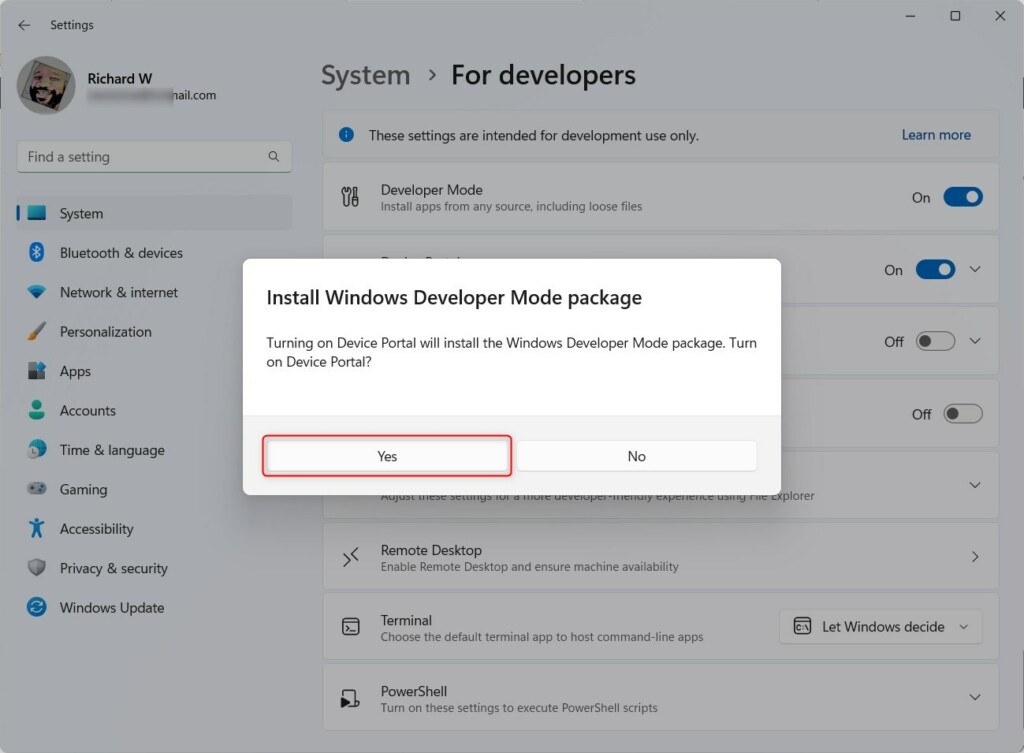
- If turning on, Windows will ask you to confirm. Click Yes.
- Close Settings when done.
Here are some images to help you:
Go to System > Advanced
Option 2Using the Registry Editor (Advanced)
⚠️ You’ll need administrator privileges for this.
A quick heads-up: messing with the Registry can cause issues if it’s not done right, so follow these steps very carefully.
To Turn On Developer Mode:
reg add "HKEY_LOCAL_MACHINE\SOFTWARE\Microsoft\Windows\CurrentVersion\AppModelUnlock" /v AllowDevelopmentWithoutDevLicense /t REG_DWORD /d 1 /fTo Turn Off Developer Mode:
reg add "HKEY_LOCAL_MACHINE\SOFTWARE\Microsoft\Windows\CurrentVersion\AppModelUnlock" /v AllowDevelopmentWithoutDevLicense /t REG_DWORD /d 0 /fOption 3Using Local Group Policy Editor (For 🪟 Windows 11 Pro, Enterprise, Education)
⚠️ You’ll need administrator privileges for this.
This tool isn’t available on Windows 11 Home edition.
- Press ⊞ Win+R, type
gpedit.msc, and press Enter to open Local Group Policy Editor. - In the left sidebar, go to: Computer Configuration > Administrative Templates > Windows Components > App Package Deployment
- On the right, double-click Allow development of Windows Store apps and installing them from an integrated development environment (IDE).
- You’ll see options to:
- Leave it Not Configured (default, lets you turn Developer Mode on/off manually).
- Select Enabled with Force Allow to always turn Developer Mode on.
- Select Enabled with Force Deny to always turn Developer Mode off.
- Choose the option you want, click OK, then close the editor.
Images for this:
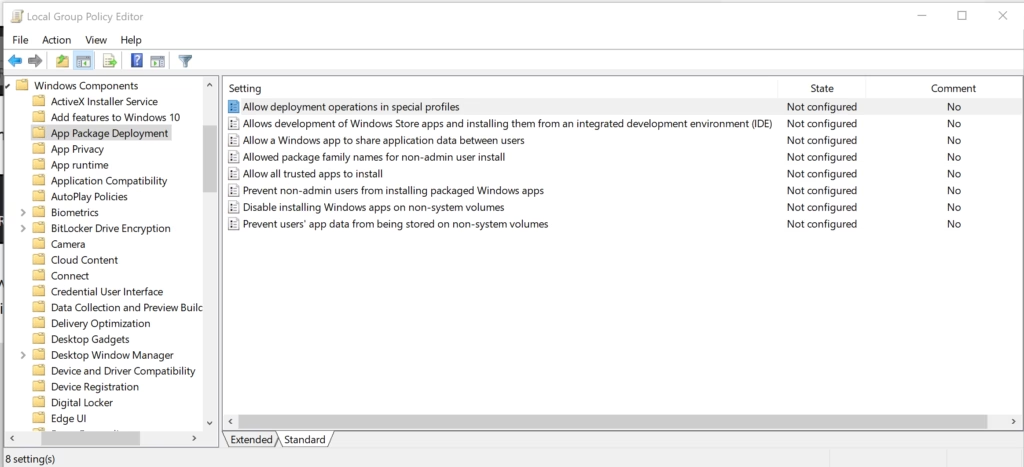
Navigate to App Package Deployment
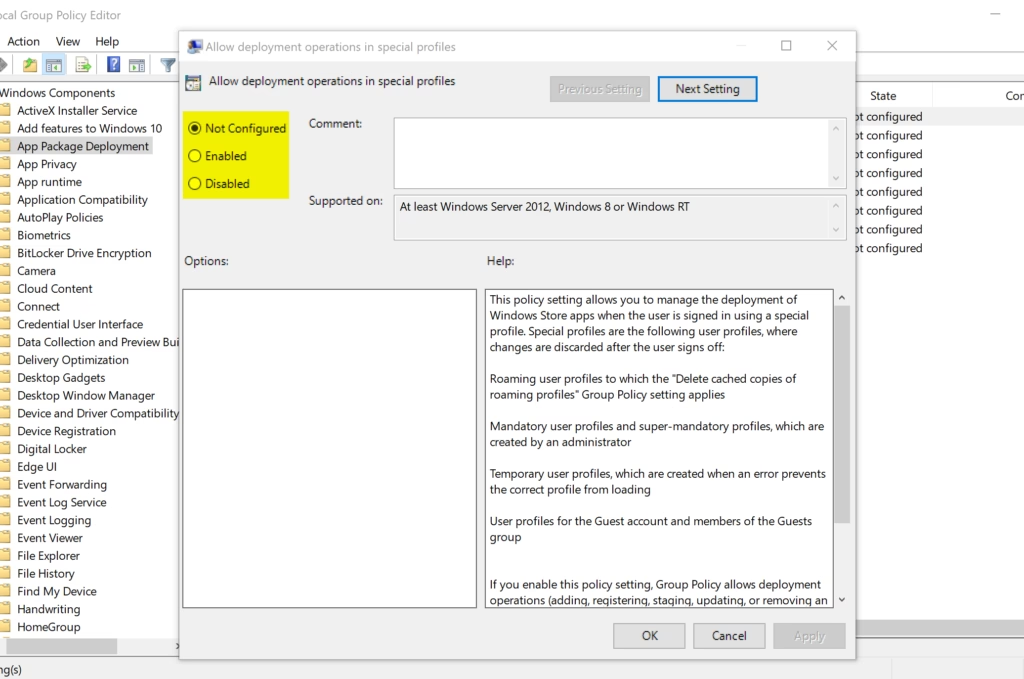
Enable & Force Allow Developer Mode
Option 4Using Registry Policy (Advanced)
⚠️ You’ll need administrator privileges for this.
This option is similar to Option 3 but done by editing the Registry directly to enforce Developer Mode settings.
To remove any policy and allow manual control:
reg delete "HKLM\SOFTWARE\Policies\Microsoft\Windows\Appx" /v AllowDevelopmentWithoutDevLicense /fTo always enable Developer Mode:
reg add "HKLM\SOFTWARE\Policies\Microsoft\Windows\Appx" /v AllowDevelopmentWithoutDevLicense /t REG_DWORD /d 1 /fTo always disable Developer Mode:
reg add "HKLM\SOFTWARE\Policies\Microsoft\Windows\Appx" /v AllowDevelopmentWithoutDevLicense /t REG_DWORD /d 0 /fThings to Remember
- Who needs Developer Mode? Only developers or people testing apps should turn it on.
- Extra features: Developer Mode lets you install apps from outside the store, debug apps, and use remote tools.
- How to change it: You can use Settings, Registry Editor, or Local Group Policy Editor (for some Windows editions).
- Administrator access: You must be signed in as an administrator to change Developer Mode.
- Be careful: Turning on Developer Mode can expose your PC to security risks if you install untrusted apps.
More Information
For official details, visit Microsoft’s page on Settings for Developers.
Summary
Developer Mode is a Windows 11 feature that lets you install and test apps outside the Microsoft Store. It’s only needed if you write software or test applications. You can turn it on or off using Settings, the Registry Editor, or Local Group Policy Editor (a tool for managing Windows settings), depending on your Windows edition. Always remember to be an administrator when making these changes, and be careful about installing apps from untrusted sources when Developer Mode is enabled. And that’s how you enable or disable Developer Mode in Windows 11!
Is turning on developer mode safe in 🪟 Windows 11?
Developer Mode disables certain safety checks to make development easier. This can introduce risks: You can install unverified apps, which may be harmful if you're not careful. Remote diagnostics and device discovery may expose your device if misconfigured.
Was this guide helpful?

About the Author
Richard
Tech Writer, IT Professional
Richard, a writer for Geek Rewind, is a tech enthusiast who loves breaking down complex IT topics into simple, easy-to-understand ideas. With years of hands-on experience in system administration and enterprise IT operations, he’s developed a knack for offering practical tips and solutions. Richard aims to make technology more accessible and actionable. He's deeply committed to the Geek Rewind community, always ready to answer questions and engage in discussions.




[…] How to turn on Developer Mode in Windows 11 […]