How to Sign In/Out of Manage Mobile Devices in Windows 11

Signing out of Manage Mobile Devices in Windows 11 disconnects your phone from your PC, stopping data syncing and access to mobile features from your desktop.
Manage Mobile Devices, often called Phone Link, allows you to control aspects of your Android or iPhone directly from your Windows 11 computer, like sending texts and viewing notifications.
This feature requires you to be signed in with your Microsoft account on both your phone and PC to establish a connection.
Disconnecting your phone ensures that your computer will no longer display your mobile notifications or allow file transfers, effectively breaking the link.
Open Settings, go to Bluetooth & devices, then Mobile devices. Click Manage devices and then Sign in using your Microsoft account to connect. To sign out, return to the Mobile devices screen and click the Sign out link.
Sign in to Mobile Devices
Signing in to mobile devices in Windows 11 lets you easily connect your phone to your PC. You can transfer files and see notifications right on your computer, making it simpler to manage everything. To start, open the Windows Settings app by pressing Windows key + I.
- Open the Windows Settings app. You can find this by clicking the Start menu and selecting Settings, or by pressing the Windows key + I on your keyboard to open Settings app.
- Click Bluetooth & devices on the left side of the window.
- Click the Mobile devices tile on the right.

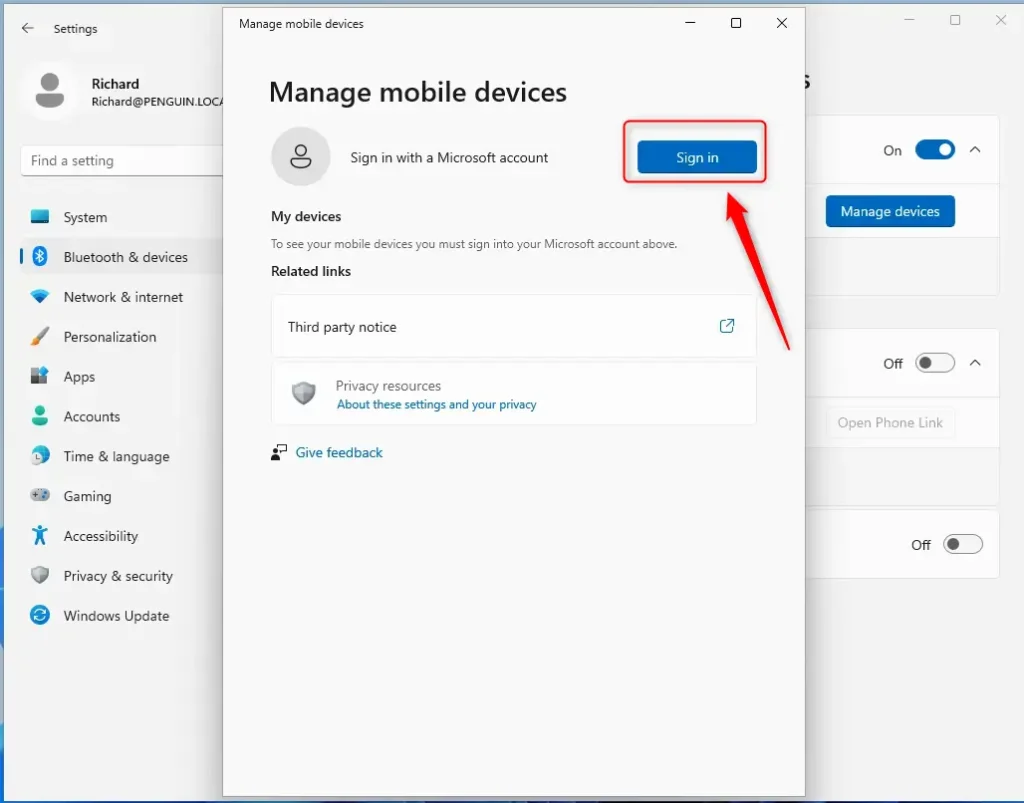
- Click the Manage devices button under Allow this PC to access your mobile device.

- Click the Sign in button.
- Enter your Microsoft account email address and follow the prompts to finish.
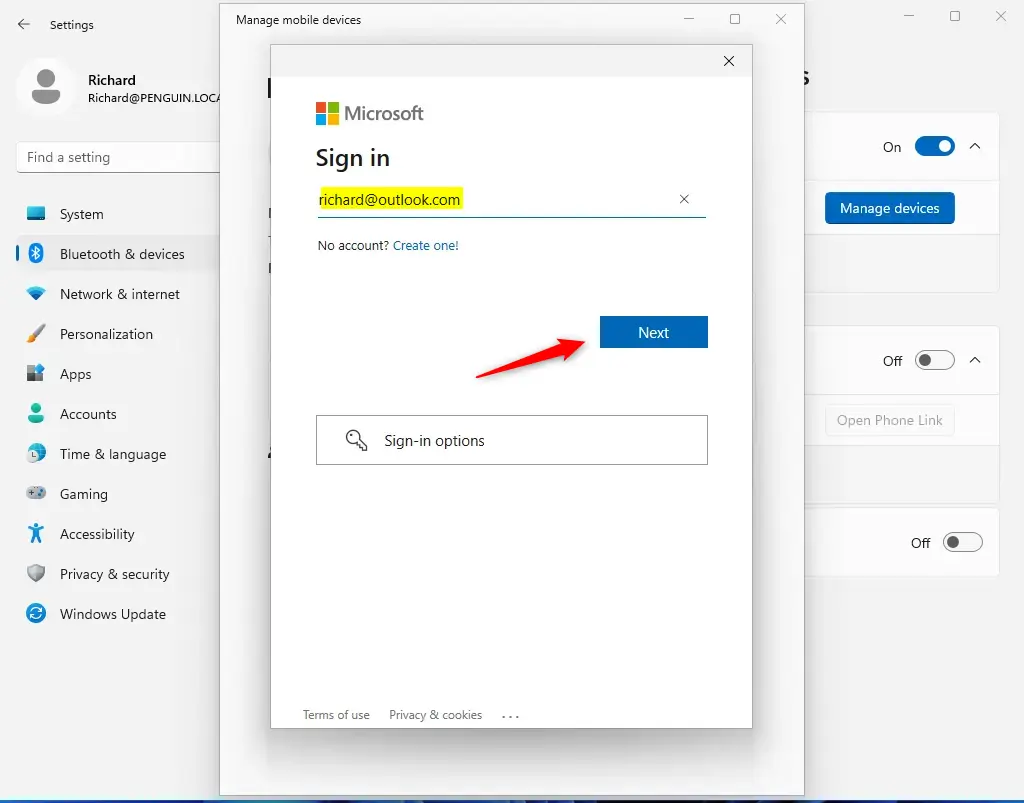
Once finished, you can close the window and start using your connected devices.
Sign out of Mobile Devices
If you no longer want your phone connected to your PC, you can sign out.
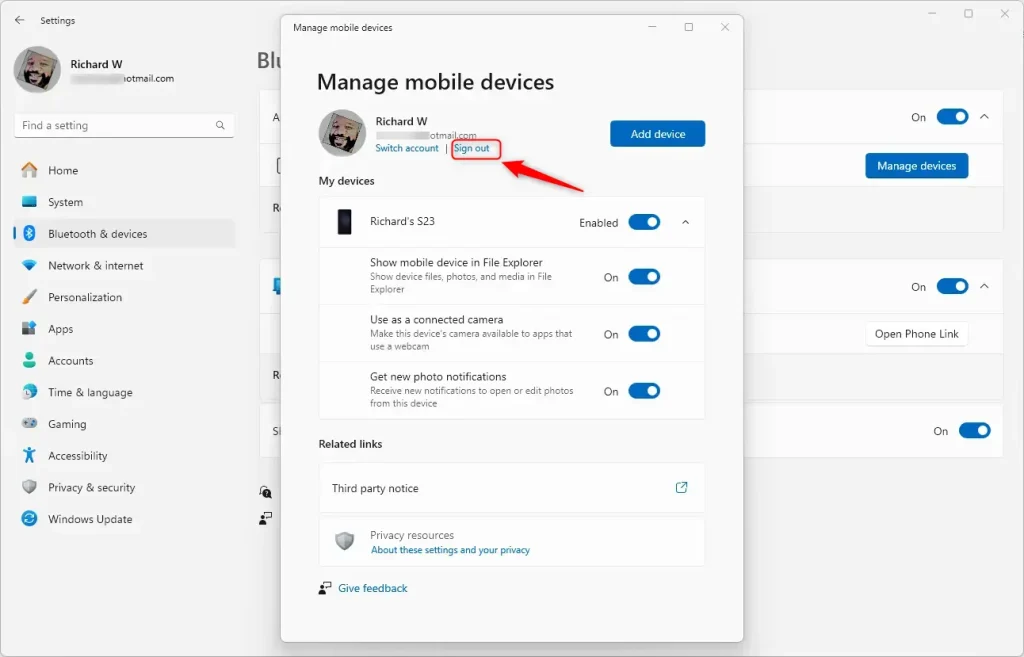
- Go back to the Mobile devices settings screen using the steps listed above.
- Click the Sign out link located under your account name.
Summary
Connecting your mobile devices to Windows 11 keeps your digital life organized in one place. You can sign in to transfer files and see notifications instantly. If you need to stop the connection, you can sign out anytime through the Bluetooth & devices menu in your settings.
What are mobile devices on startup in 🪟 Windows 11?
After a recent Windows 11 update, many users have noticed a new panel labeled on the right side of the Start menu with mobile devices as choice options. This panel is part of Microsoft's Phone Link feature, which connects your smartphone to your PC. For some, this may be helpful. For others, it is unnecessary clutter.
How to enable mobile devices on 🪟 Windows 11?
Open Settings on your Windows 11 PC. Go to Bluetooth & devices > Mobile Devices. Click on Manage devices. Toggle features on to enable or off to disable them based on your preferences under your linked enabled device.
Was this guide helpful?

About the Author
Richard
Tech Writer, IT Professional
Richard, a writer for Geek Rewind, is a tech enthusiast who loves breaking down complex IT topics into simple, easy-to-understand ideas. With years of hands-on experience in system administration and enterprise IT operations, he’s developed a knack for offering practical tips and solutions. Richard aims to make technology more accessible and actionable. He's deeply committed to the Geek Rewind community, always ready to answer questions and engage in discussions.


[…] How to sign in and out of mobile devices on Windows 11 […]