How to Remove Mobile Devices from Microsoft Account on Windows 11

You remove mobile devices from your Microsoft account on Windows 11 by accessing your account settings online.
This process severs the connection between your phone or tablet and your Windows profile, preventing them from appearing in your linked devices list.
This is especially useful when you’re selling or gifting a device, or simply want to maintain a clean list of connected hardware. Microsoft rolled out an update in early 2024 that streamlined this unlinking process.
You can typically complete the removal in under two minutes through your Microsoft account dashboard.
Open Settings and go to Bluetooth & devices, then select Mobile devices. Click Manage devices, expand your mobile device, and select Remove from account to unlink it.
Remove a Mobile Device from 🪟 Windows 11
As mentioned, a recent update to Microsoft lets you remove your mobile devices from your Microsoft account directly from Windows 11.
Here’s how to do that.
Step 1Open the Settings App
First, open the Windows Settings app.
You can do that by clicking on the Start menu and selecting Settings. Or press the keyboard shortcut Windows key + I to launch the Settings app.
Step 2Navigate to Bluetooth & Devices
When the Settings app opens, click the Bluetooth & devices button on the left.
Step 3Select Mobile Devices
Select the Mobile devices tile under ‘ Bluetooth & devices’ on the right to expand it.

Step 4Open Manage Devices
Next, select the Manage devices button under “Allow this PC to access your mobile device.”

Step 5Remove the Device
Under ‘My devices,’ find the mobile device tile you want to manage. Select ‘Remove from account,’ then click the ‘Remove’ button. You’re all set!
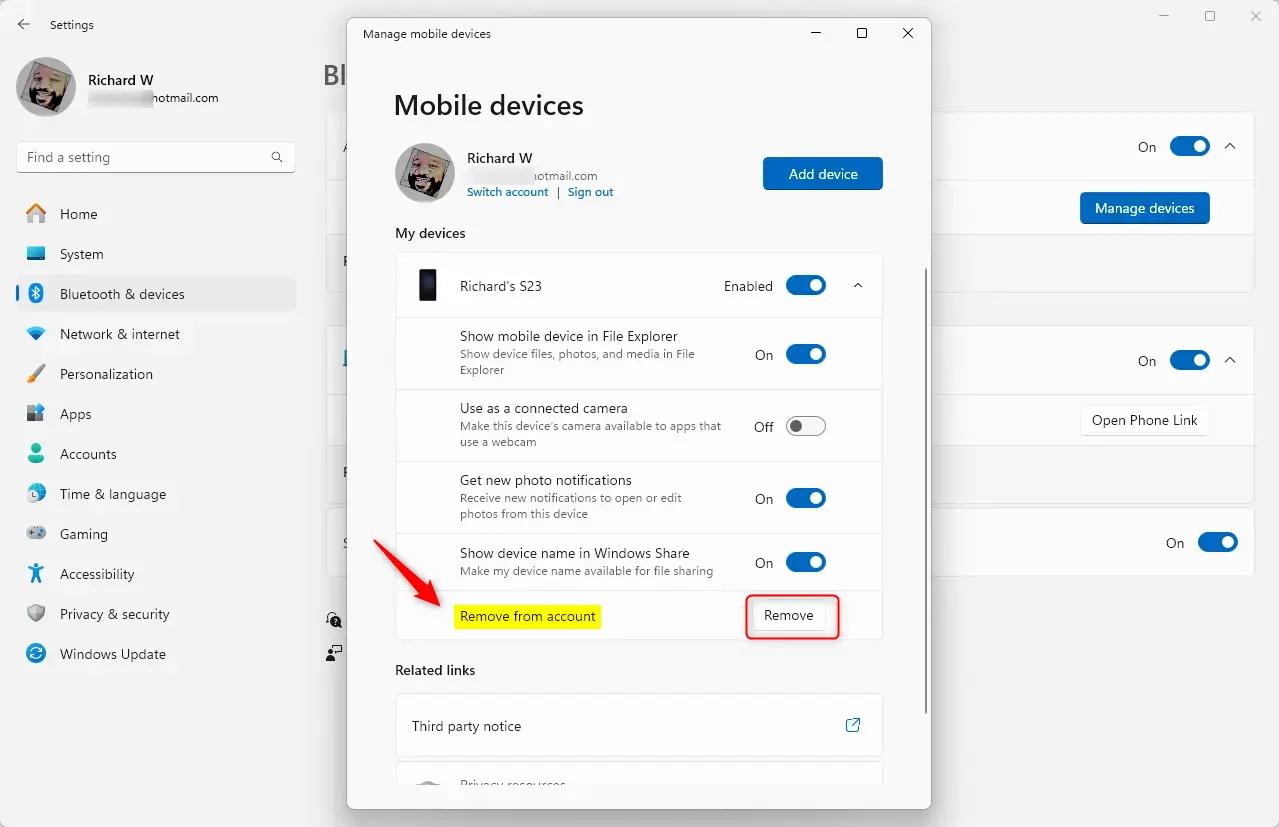
You’ve successfully removed the device.
Summary
Removing mobile devices from your Microsoft account on Windows 11 is a straightforward process using the Settings app.
- Make sure you have the latest Windows update to access the “Manage mobile devices” feature.
- Use the Settings app to navigate to Bluetooth & devices.
- Select Mobile devices to manage your linked devices.
- Expand your device list to remove any unwanted mobile devices quickly.
- This feature gives you better control over your devices and improves your experience with Windows 11.
Was this guide helpful?

About the Author
Richard
Tech Writer, IT Professional
Richard, a writer for Geek Rewind, is a tech enthusiast who loves breaking down complex IT topics into simple, easy-to-understand ideas. With years of hands-on experience in system administration and enterprise IT operations, he’s developed a knack for offering practical tips and solutions. Richard aims to make technology more accessible and actionable. He's deeply committed to the Geek Rewind community, always ready to answer questions and engage in discussions.

No comments yet — be the first to share your thoughts!