How to Enable or Disable Copilot Model Training on Windows 11

Want to control how your Copilot conversations are used for training? This guide shows you exactly how to manage that setting on Windows 11.
Go to Copilot settings online or in the app, sign in, click your profile picture, select Privacy, and use the toggle to enable or disable Model training. This controls whether your conversations are used to improve AI models.
Why should you care?
Copilot is an AI assistant that helps you change settings and work faster. By default, Microsoft uses your chats to help train its AI. If you prefer to keep your chat data private, you may want to turn this feature off.
What happens when you are done?
Turning off Copilot model training in Windows 11 means Microsoft won’t use your chats to improve its AI, but you can still use Copilot for everything else.
Once Copilot is installed, you can do so much more! You can enable or disable it, control when it opens, pin or unpin its side panel, resize it, clear your chat history, create a desktop shortcut, and even change the Copilot key.
How to turn Copilot “Model training” on or off
You can easily turn Copilot model training on or off directly from your Copilot account settings by following a few simple steps.
- Open Copilot by visiting copilot.microsoft.com or by using the Copilot app on Windows.
- sign in to Copilot if you are not already logged in.
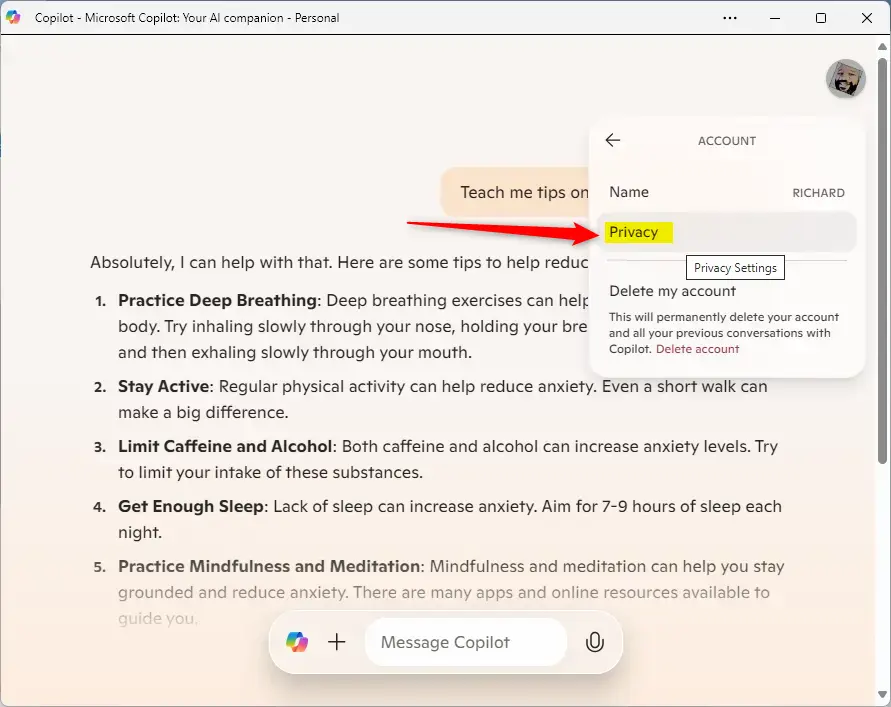
- Click the Settings icon (your profile picture) at the top right corner and select your account name.
- Select Privacy from the menu that appears.
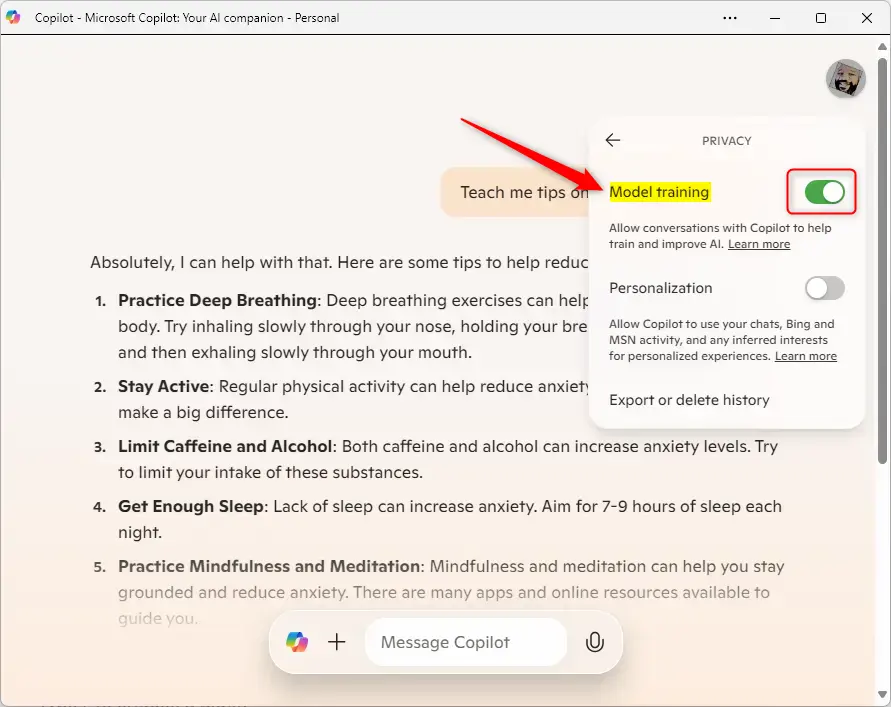
- Use the toggle switch to turn Model training to either On or Off based on your preference.
Summary
Copilot model training uses your chat history to make its AI smarter, and it’s on by default for most people, except those in the UK or Europe.- What it is: Copilot uses your chat history to learn and improve its AI performance.
- The Default: This feature is turned on automatically for most users, except in the UK and the European Economic Area.
- Your Control: You can use the privacy settings in the Copilot app to opt out of this training at any time.
- Privacy: Disabling this feature ensures your personal conversations are not used for future model development.
Can Copilot for 🪟 Windows 11 create 3D models?
Microsoft Copilot has a new tool that lets you create a 3D model with only a few clicks. Copilot 3D can convert a single flat image into a 3D model that's ready for games, animation, 3D printing, and virtual reality.
How do I turn off Copilot training in 🪟 Windows 11?
You can go to Group Policy Editor (gpedit. msc), then navigate to User Configuration > Administrative Templates > Windows Components > Windows Copilot and enable the 'Turn off Windows Copilot' option. If you don't have gpedit, you can also disable it using Registry Editor.
Was this guide helpful?

About the Author
Richard
Tech Writer, IT Professional
Richard, a writer for Geek Rewind, is a tech enthusiast who loves breaking down complex IT topics into simple, easy-to-understand ideas. With years of hands-on experience in system administration and enterprise IT operations, he’s developed a knack for offering practical tips and solutions. Richard aims to make technology more accessible and actionable. He's deeply committed to the Geek Rewind community, always ready to answer questions and engage in discussions.



You wrote: “Model training is enabled by default, except in specific regions like the EEA”
Any ideas how to enable it in EEA? (The buttons are not even displayed)