How to Disable or Enable Copilot Quick View Shortcut on Windows 11

You disable or enable the Copilot Quick View shortcut on Windows 11 by changing the behavior of the Alt + Spacebar key combination.
Copilot Quick View is a feature that lets you quickly access the Windows AI assistant using a keyboard shortcut, acting as a speedy gateway to its functions.
This shortcut, specifically Alt+Space, is a convenient way to launch Copilot without needing to click through menus, and it’s present in recent Windows 11 builds that include the integrated Copilot.
You might want to disable it if you find yourself accidentally activating Copilot, or you can enable it to streamline how you use the AI assistant for tasks.
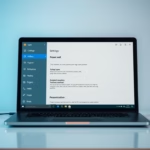
Disable or enable the Copilot Quick View shortcut by opening the Copilot app, clicking the three dots, selecting Settings, and then toggling the “Enable Alt+Space shortcut” option. Uncheck the box to disable it or check it to enable.
Enable or Disable Quick View Shortcut for Copilot
You can quickly turn the Copilot Quick View shortcut on or off directly from the Copilot app’s settings menu.
- Open the Copilot app.
- Click the Settings and more button (the three dots).
- Select Settings.
- Click the Enable Alt+Space shortcut option. Check the box to turn it on, or uncheck the box to turn it off.
And you’re done!
Summary
Managing the Copilot Quick View shortcut lets you decide how you want to open Copilot on your Windows 11 computer.
- Windows 11 includes Copilot, which you can open with a specific keyboard key.
- You can manage the Alt+Space shortcut inside the Copilot app settings menu.
- Keeping the shortcut active saves time if you use the tool frequently.
- The Copilot app updates often to bring you new features.
Is there a shortcut key for Copilot?
In Windows, you can launch the Copilot app at any time in one of the following ways: Press the Copilot key on your keyboard. Using the Windows key + C keyboard shortcut.
How do I change my Copilot view?
It seems this setting only affects the Copilot chat directly, not when you’re interacting with specific agents.
Was this guide helpful?

About the Author
Richard
Tech Writer, IT Professional
Richard, a writer for Geek Rewind, is a tech enthusiast who loves breaking down complex IT topics into simple, easy-to-understand ideas. With years of hands-on experience in system administration and enterprise IT operations, he’s developed a knack for offering practical tips and solutions. Richard aims to make technology more accessible and actionable. He's deeply committed to the Geek Rewind community, always ready to answer questions and engage in discussions.



[…] Click the Account button and select Settings in full view mode. […]