How to Uninstalling and Reinstalling Copilot on Windows 11

You can uninstall and reinstall Copilot on Windows 11 to manage or reset its functionality.
Copilot in Windows 11 acts as your built-in AI assistant, enabling you to control your PC and applications using natural language commands.
This AI integration now functions more like a standard application, allowing for direct uninstallation and reinstallation, unlike previous iterations that were deeply integrated into the OS.
As of Windows 11 version 23H2, you have the flexibility to remove and reinstall Copilot for either your individual user account or for all users on the machine.
Uninstall Copilot by right-clicking it in the Start menu and selecting Uninstall, or go to Settings > Apps > Installed apps, find Copilot, click the three dots, and choose Uninstall. To reinstall, download the Microsoft Copilot installer from the Microsoft Store and run the .exe file.
How to Remove or Reinstall Copilot
Remove Copilot from the Start Menu
Why use this method? This is often the quickest method for most users.
What happens: This method deletes the app from your computer.
- Open the Start menu.
- Click All apps.
- Find the Copilot app in the list.
- Right-click on Copilot.
- Click Uninstall.
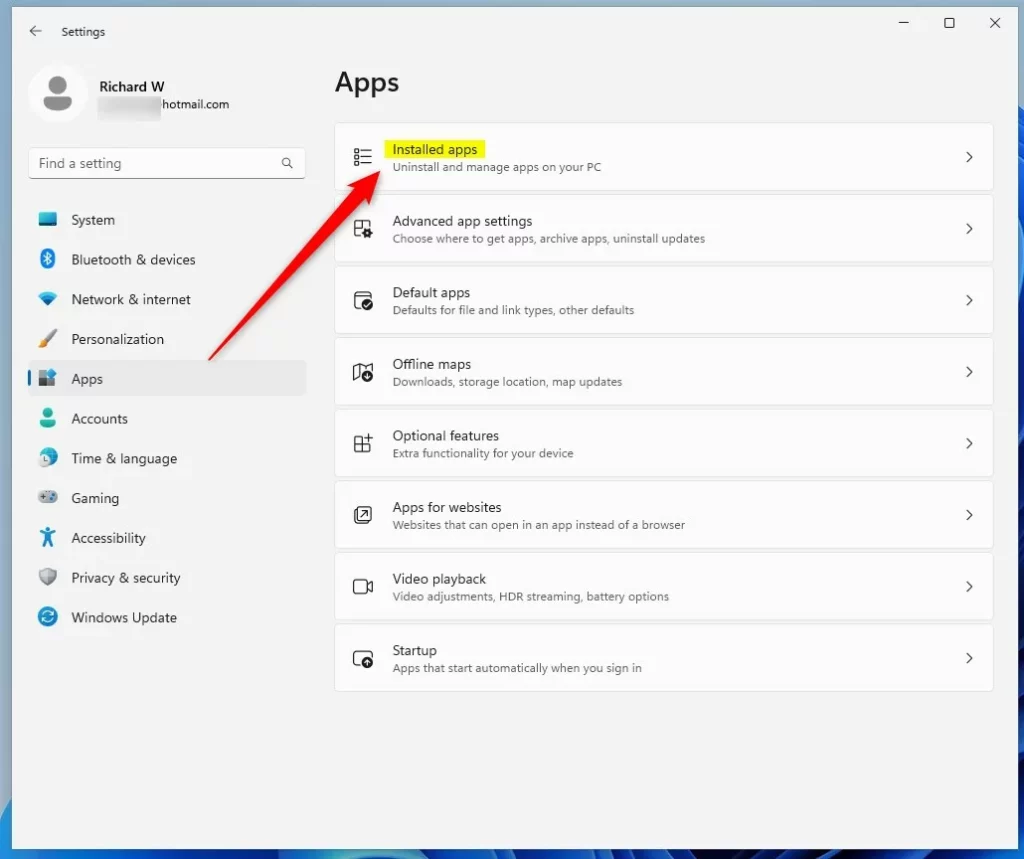
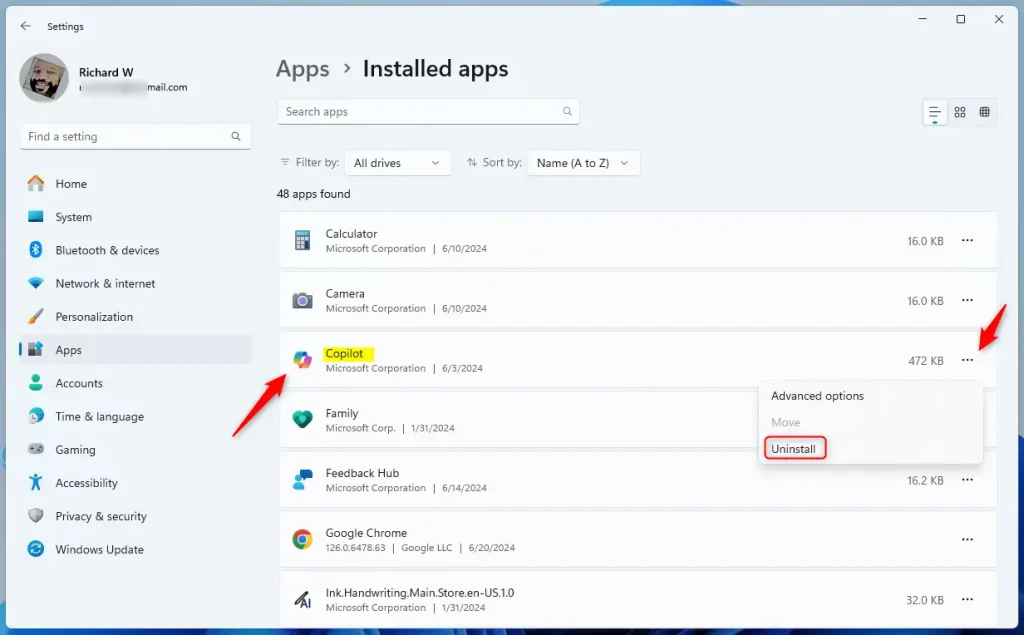
Remove Copilot from Settings
Uninstalling Copilot on Windows 11 is simple using the Settings app, just like removing any other program you’ve installed.
What happens: Copilot will be removed from your system.
- Open the Start menu and click Settings. Or press Windows key + I.
- Click Apps on the left side.
- Click Installed apps on the right side.
- Scroll down and find Copilot in the list.
- Click the three dots (…) next to Copilot.
- Click Uninstall.
Remove Copilot Using Microsoft Edge
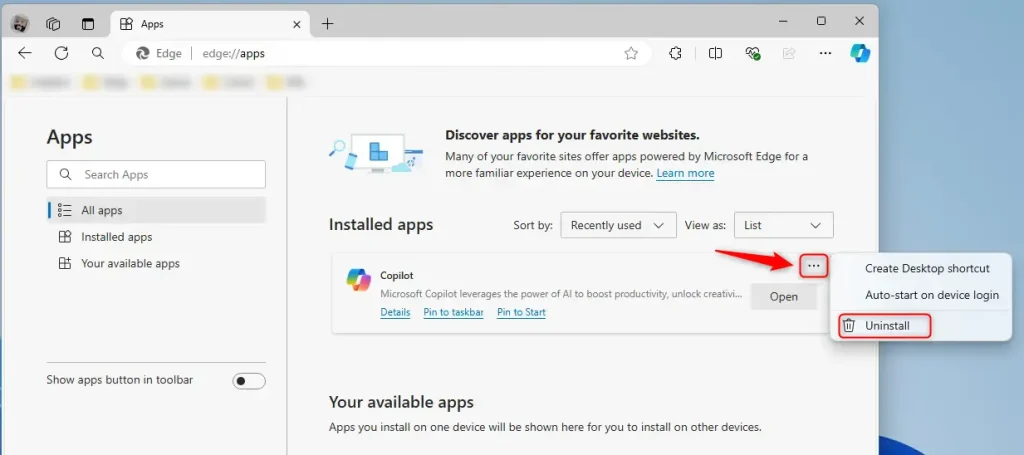
If you use Microsoft Edge, you can easily uninstall Copilot straight from the browser’s own app list.
What happens: Copilot will no longer appear in your Edge browser apps.
- Open Microsoft Edge Microsoft Edge.
- In the address bar, type:
edge://apps/ - Press Enter.
- Find Copilot on the Apps page.
- Click the three dots (…) next to Copilot.
- Click Uninstall.
Remove Copilot Using PowerShell open PowerShell
You can uninstall Copilot on Windows 11 quickly using PowerShell commands, which lets you remove it for just your account or for everyone on the computer.
What happens: The app files are deleted from your computer.
To remove Copilot for just your account:
- Open the Windows Terminal app.
- Open PowerShell.
- Copy and paste this command:
Get-AppxPackage | Where-Object {$_.Name -Like '*Microsoft.Copilot*'} | Remove-AppxPackage -ErrorAction Continue- Press Enter.
To remove Copilot for all users on the computer:
⚠️ Admin privileges required — You need admin rights to do this.
- Open the Windows Terminal app.
- Open PowerShell as administrator. open Windows Terminal ad administrator
- Copy and paste this command:
Get-AppxPackage -AllUsers | Where-Object {$_.Name -Like '*Microsoft.Copilot*'} | Remove-AppxPackage -AllUsers -ErrorAction Continue- Press Enter.
How to Reinstall Copilot on Windows
Reinstalling Copilot on Windows 11 is easy if you want it back after uninstalling or if you’re having problems with the app.
What happens: Copilot will download and install again on your computer.
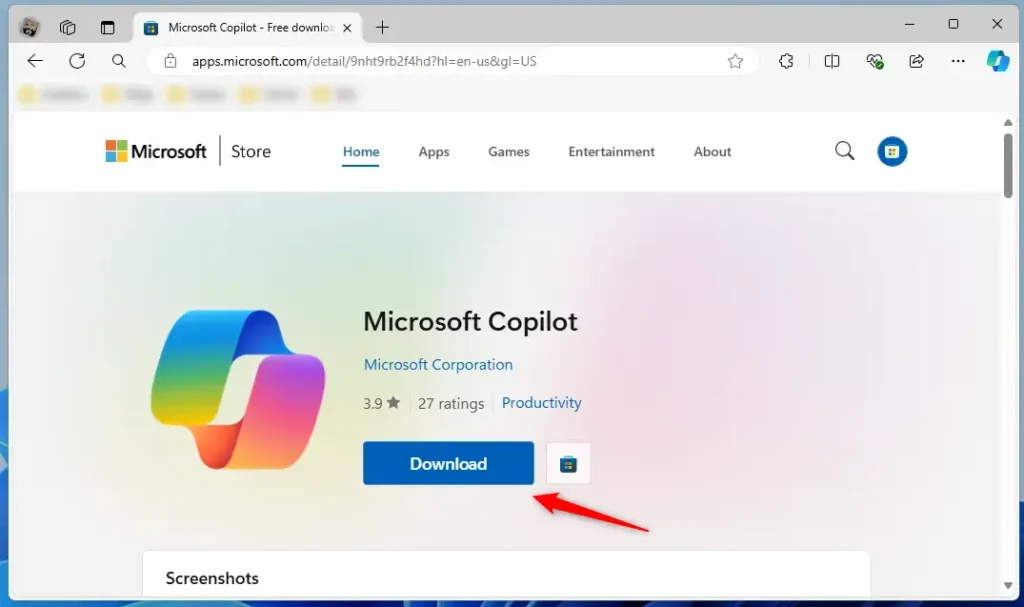
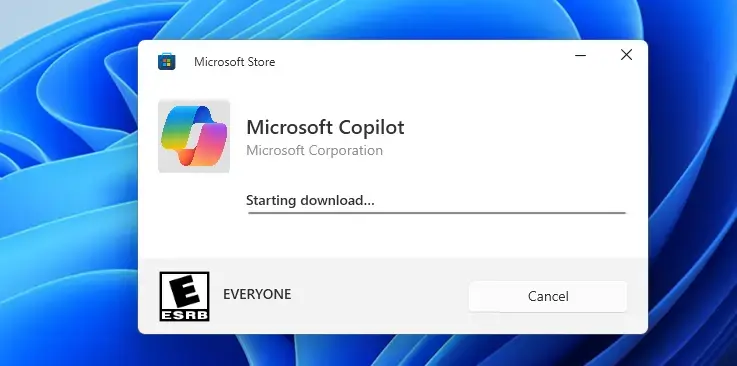
- Download Microsoft Copilot app page Microsoft Copilot from the Microsoft Store.
- Find the file called Microsoft Copilot Installer.exe on your computer.
- Double-click the file to start the installation.
- Wait for Copilot to download and install.
- When finished, Copilot will be ready to use.
Summary
You can uninstall Copilot on Windows 11 using a few simple methods, like the Settings app, Microsoft Edge, or PowerShell.
- Start menu: Right-click and uninstall. The easiest way.
- Settings app: Find installed apps and remove it. Good for managing all apps.
- Microsoft Edge: Remove it from your Edge apps. Quick if you use Edge.
- PowerShell: Use commands to remove it. Works for one person or everyone on the computer.
To get Copilot back, download the installer from the Microsoft Store and run it. This process usually takes only a few minutes. Choose the method that works best for you.
Was this guide helpful?

About the Author
Richard
Tech Writer, IT Professional
Richard, a writer for Geek Rewind, is a tech enthusiast who loves breaking down complex IT topics into simple, easy-to-understand ideas. With years of hands-on experience in system administration and enterprise IT operations, he’s developed a knack for offering practical tips and solutions. Richard aims to make technology more accessible and actionable. He's deeply committed to the Geek Rewind community, always ready to answer questions and engage in discussions.




[…] Open the Copilot app. […]
[…] Open the Copilot app. […]