Using your Android phone with Windows 11 Copilot

You can use your Android phone with Windows 11 Copilot to access your personal data, significantly enhancing its AI capabilities.
The Phone Link feature is what connects your Android device to Windows 11 Copilot, granting it permission to read your messages, view contacts, and access other personal information.
This deep integration transforms Copilot into a highly personalized assistant, especially beneficial on Windows 11 Copilot+ PCs which boast a dedicated Copilot key for instant access. For this to work, you must first link your Android phone to your Microsoft account.
Open the Copilot app, click your profile, go to Settings, find ‘Phone Connection’, select your Android device, and toggle the button to On or Off. You can also manage this setting via the copilot.microsoft.com website.
Turn On or Off Phone Connection in Copilot
You can easily turn your Android phone connection on or off right inside the Copilot app after you’ve linked it to your Microsoft account.
- Open the Copilot app.
- Click your Account profile button and select Settings.
- In the Settings pane, look for ‘Phone Connection.’
- Select the Android phone you want to use with Copilot.
- Toggle the button to turn it On or Off.
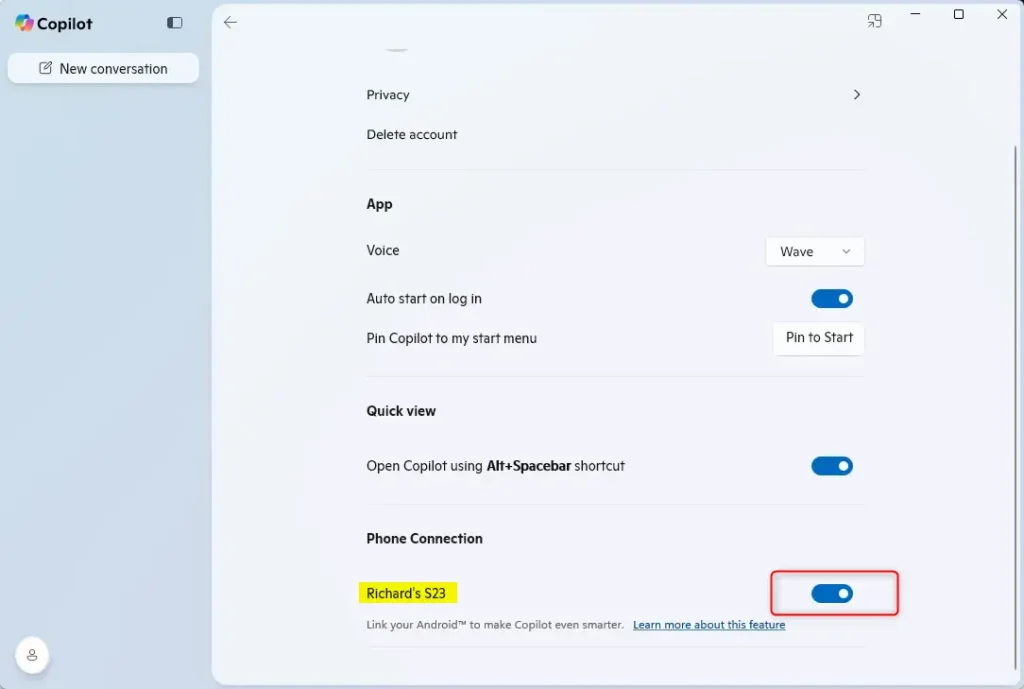
Close the Settings pane when you’re done.
Turn On or Off Phone Connection From the Web
You can manage your Android phone connection for Copilot from the web too, making it simple to switch it on or off.
- Open the copilot.microsoft.com site in your web browser.
- Sign in with your Microsoft account.
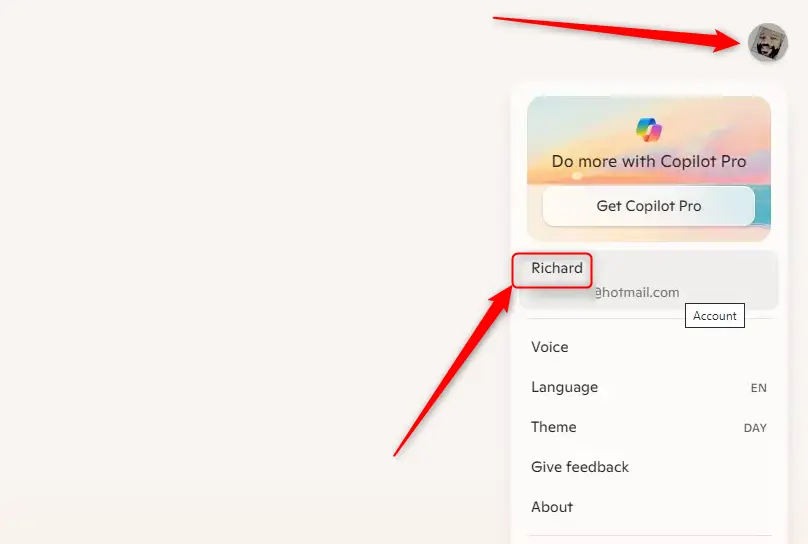
- Click your profile button in the top right corner.
- Select your account name.
- Find the ‘Phone connection’ tile on your account settings page.
- Switch the button to On or Off based on what you want.
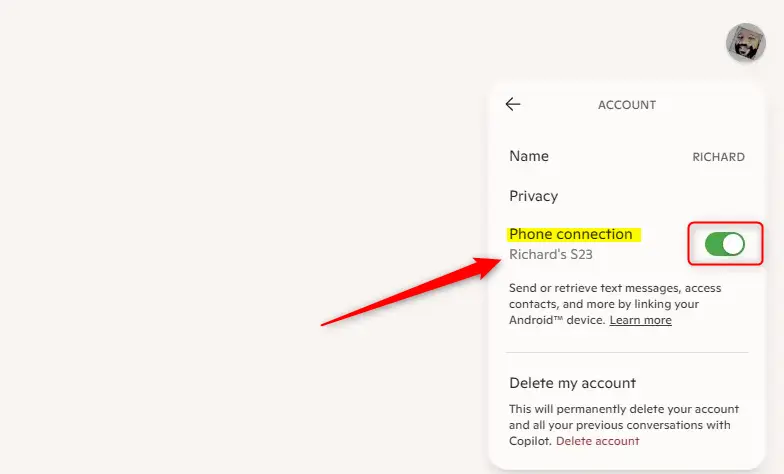
That’s it! Your phone connection is now set.
Summary
Connecting your Android phone to Windows 11 Copilot makes it smarter by letting you quickly see your messages and contacts without switching apps.
What happens when you enable it? Copilot can see information from your phone to help you. You work faster and stay more productive.
Key points to remember:
- Integration: Your Android phone connects to Copilot. You get personal access to messages and contacts.
- Easy to use: You can turn Phone connection on or off in the Copilot app or on the web.
- Control: Choose when to use this feature based on what you need.
- Simple steps: Connecting your phone takes just a few clicks.
- Better productivity: Get the information you need from your phone without opening separate apps.
Using Phone Connection with Windows 11 Copilot helps you work smarter. Your important phone data is right there when you need it.
Does Microsoft Copilot work on Android phones?
Download or open the app: Find Microsoft 365 Copilot in your app store, available for both iOS and Android. Sign In: Log in with your work or school account. Chat with Copilot: With a Microsoft 365 subscription, Copilot resources are generated with the latest information from the web.
Can I run 🪟 Windows 11 on an Android phone?
You can’t install Windows 11 on an Android Phone. If you are trying to make a bootable Windows 11 installation USB for a Windows PC, you need to use the official Media Creation Tool on another working Windows PC.
Can I connect an Android phone to 🪟 Windows 11?
The Phone Link experience comes preinstalled on your PC with Windows 10 or Windows 11; search “Phone Link” in the Start menu. If you can’t find Phone Link on Windows 10, you might need to update to a later version or download it directly from the Microsoft Store.
Was this guide helpful?

About the Author
Richard
Tech Writer, IT Professional
Richard, a writer for Geek Rewind, is a tech enthusiast who loves breaking down complex IT topics into simple, easy-to-understand ideas. With years of hands-on experience in system administration and enterprise IT operations, he’s developed a knack for offering practical tips and solutions. Richard aims to make technology more accessible and actionable. He's deeply committed to the Geek Rewind community, always ready to answer questions and engage in discussions.
📚 Related Tutorials


[…] chat history in Copilot, create a desktop shortcut, hide the sidebar, use your phone with Copilot, and […]