Using your Android phone with Windows 11 Copilot

This article explains how to connect your Android phone to the copilot-app-on-windows-11/" class="sal-link" rel="noopener" target="_blank" data-sal-id="2113">Copilot app on Windows 11. Why do this? It makes Copilot smarter by using information from your phone like messages and contacts.
If you have a Windows 11 Copilot+ PC, you’ll see a special Copilot key on your keyboard. Press it and the Copilot app opens right away.
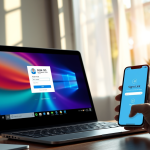
Copilot now works with your Android phone. This new feature is called Phone connection. What happens when you use it? Copilot becomes more personal. It can access your phone’s messages and contacts to help you better.
To use this feature, you first need to add your Android phone to your Microsoft account.
Turn On or Off Phone Connection in Copilot
Once your Android phone is connected to your Microsoft account, you can enable Phone connection in the Copilot app. Here’s how:
- Open the Copilot app.
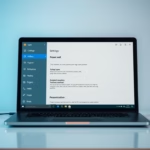
- Click your Account profile button and select Settings.
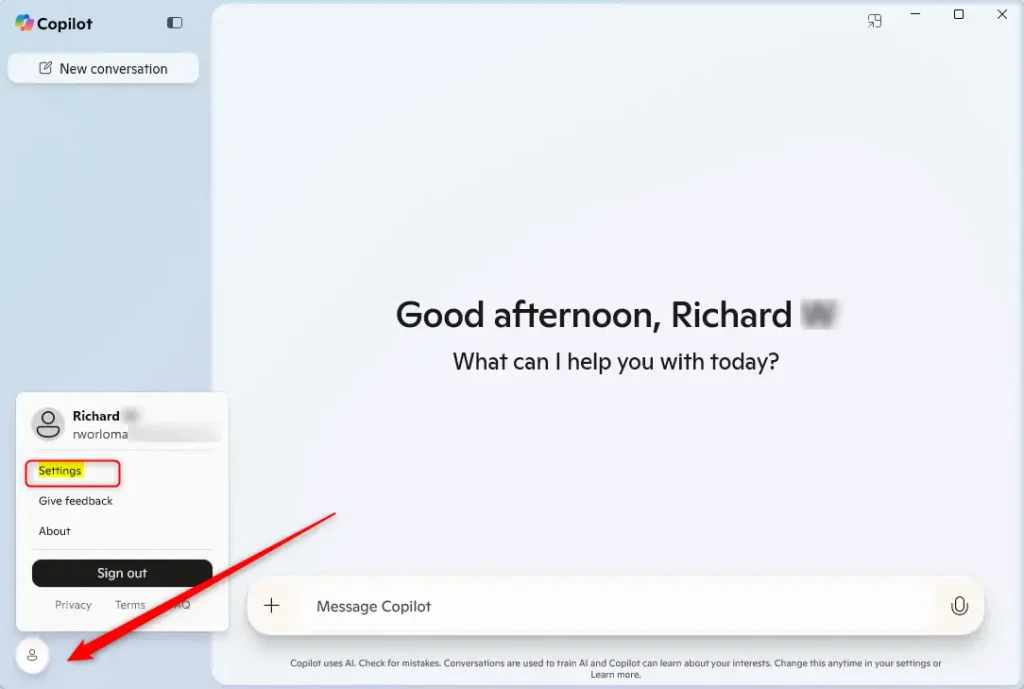
- In the Settings pane, look for ‘Phone Connection.’
- Select the Android phone you want to use with Copilot.
- Toggle the button to turn it On or Off.
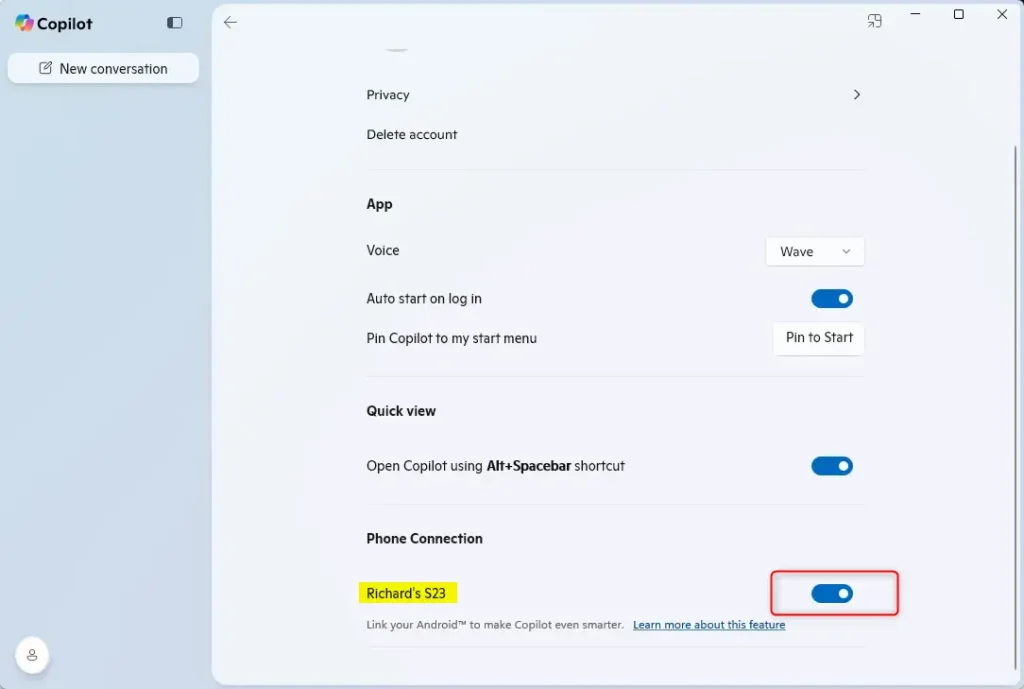
Close the Settings pane when you’re done.
Turn On or Off Phone Connection From the Web
You can also enable or disable Phone connection using the web. Here’s how:
- Open the copilot.microsoft.com site in your web browser.
- Sign in with your Microsoft account.
- Click your profile button in the top right corner.
- Select your account name.
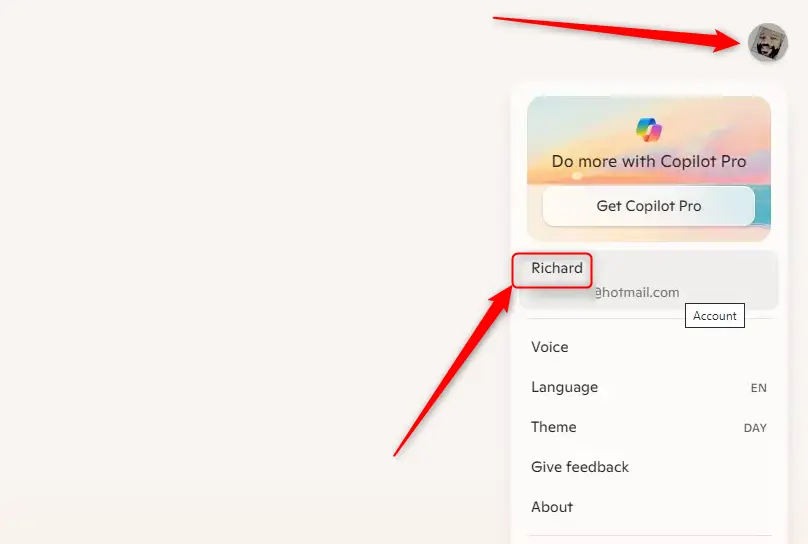
- Find the ‘Phone connection’ tile on your account settings page.
- Switch the button to On or Off based on what you want.
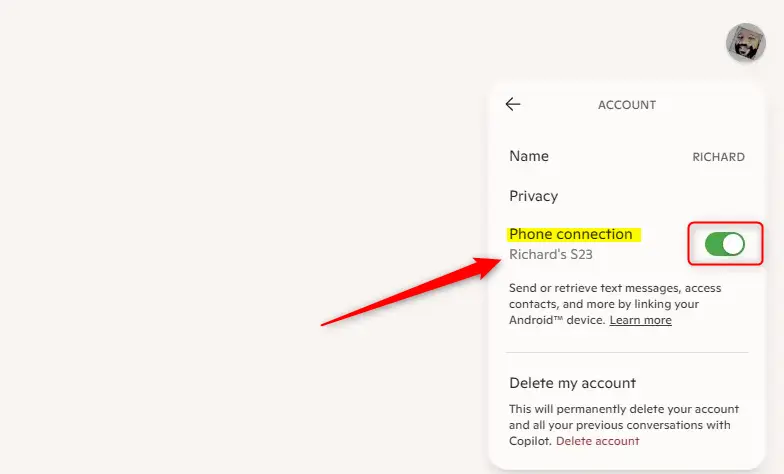
That’s it! Your phone connection is now set.
Summary
Why use Phone connection? It makes Copilot smarter by connecting to your Android phone. You get quick access to your messages and contacts without switching between apps.
What happens when you enable it? Copilot can see information from your phone and use it to help you. You work faster and stay more productive.
Key points to remember:
- Integration: Your Android phone connects to Copilot. You get personal access to messages and contacts.
- Easy to use: You can turn Phone connection on or off in the Copilot app or on the web.
- Control: Choose when to use this feature based on what you need.
- Simple steps: Connecting your phone takes just a few clicks.
- Better productivity: Get the information you need from your phone without opening separate apps.
Using Phone connection with Windows 11 Copilot helps you work smarter. Your important phone data is right there when you need it.
Frequently Asked Questions
How do I connect my Android phone to Windows 11 Copilot?
Can I disable the Phone connection feature in Copilot?
What benefits does connecting my Android phone to Copilot provide?
Is there a way to manage Phone connection settings from the web?
What is the Copilot app in Windows 11?
Was this guide helpful?

About the Author
Richard
Tech Writer, IT Professional
Richard, a writer for Geek Rewind, is a tech enthusiast who loves breaking down complex IT topics into simple, easy-to-understand ideas. With years of hands-on experience in system administration and enterprise IT operations, he’s developed a knack for offering practical tips and solutions. Richard aims to make technology more accessible and actionable. He's deeply committed to the Geek Rewind community, always ready to answer questions and engage in discussions.

[…] chat history in Copilot, create a desktop shortcut, hide the sidebar, use your phone with Copilot, and […]