How to See Devices Connected to Your Microsoft Account in Windows 11

Open Settings, click Accounts, then select Linked devices. This page shows all devices connected to your Microsoft account and allows you to manage them.
What is a Microsoft Account?
A Microsoft account is the email and password you use to sign in to Microsoft services. Think of things like OneDrive, Outlook, Xbox, and Windows itself. When you sign in to a device with this account, that device gets connected to your Microsoft account.
Why Check Your Linked Devices?
By seeing which devices are connected, you can:
- Know which PCs or Xbox consoles are signed in with your account
- Remove old or unused devices for security
- Manage your devices all in one place
How to View Linked Devices Online
You can always see your linked devices on the Microsoft website.
Head over to your Microsoft Devices page
and view your linked devices online.
How to View Linked Devices Right on 🪟 Windows 11
Windows 11 now lets you see your connected devices right in the Settings app. You’ll see this option if you’re using the Home or Pro edition and are signed in with your Microsoft account.
Steps to Check Linked Devices in 🪟 Windows 11
- Open the Settings app:
- Click the Start menu and select Settings, or
- Press Windows key + I on your keyboard.
- In Settings, click on Accounts on the left side.
- On the right, click the Linked devices tile to open it.
- You will see a list of all your devices connected to your Microsoft account. From here, you can manage them.
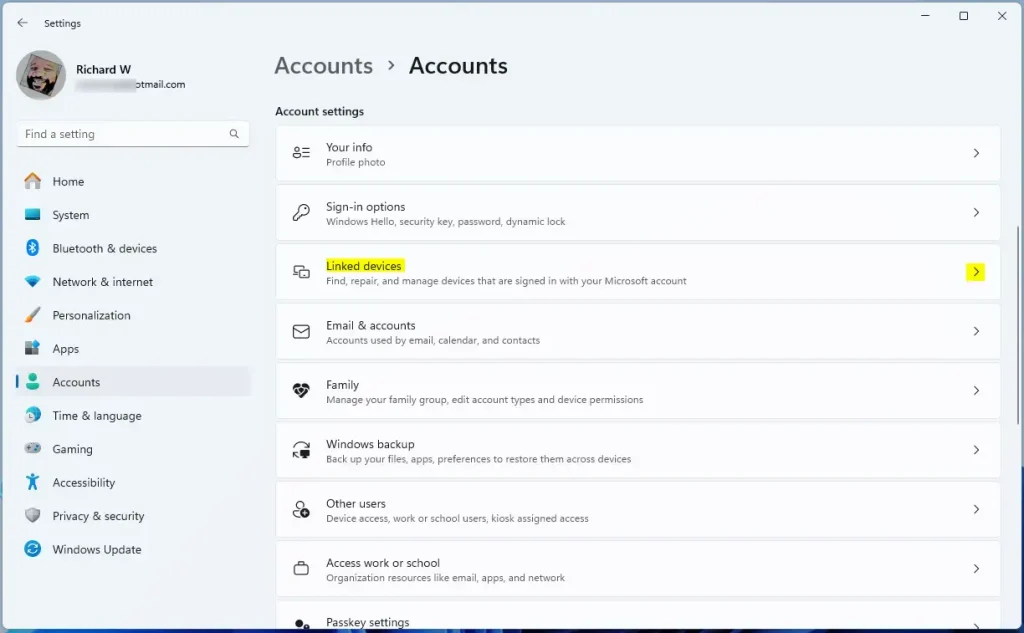
Checking which devices are linked to your Microsoft account in Windows 11 is straightforward using the Settings app.
The Linked Devices tile in the Windows 11 Settings app
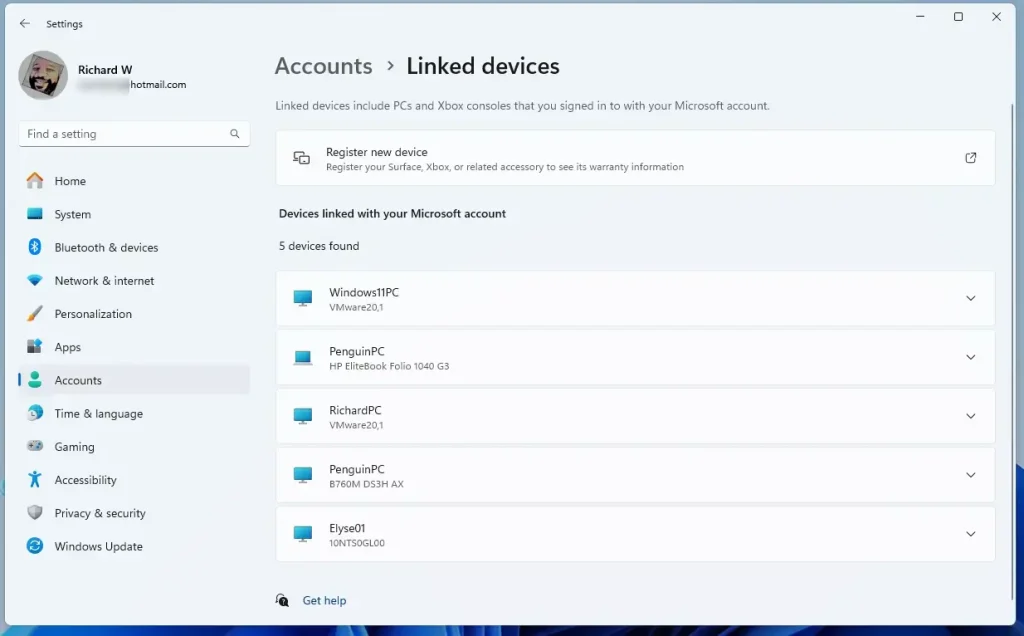
Checking which devices are linked to your Microsoft account in Windows 11 is straightforward using the Settings app.
Manage your connected devices
Summary
You can easily see and manage all your linked devices for your Microsoft account right within Windows 11 Settings, or check them online.
How to see Microsoft linked devices?
Sign in to your Microsoft account: Go to the Microsoft account sign-in page and enter your credentials. Access the devices section: After signing in, find the Devices section. You’ll usually find it within your account management area, showing all devices linked to your Microsoft account.
Was this guide helpful?

About the Author
Richard
Tech Writer, IT Professional
Richard, a writer for Geek Rewind, is a tech enthusiast who loves breaking down complex IT topics into simple, easy-to-understand ideas. With years of hands-on experience in system administration and enterprise IT operations, he’s developed a knack for offering practical tips and solutions. Richard aims to make technology more accessible and actionable. He's deeply committed to the Geek Rewind community, always ready to answer questions and engage in discussions.



No comments yet — be the first to share your thoughts!