How to Enable or Disable Do Not Disturb in Teams During Screen Sharing

You can turn Do Not Disturb on or off in Microsoft Teams, especially when you’re sharing your screen.
This feature stops pop-up notifications from interrupting your presentation or focused work. When Do Not Disturb is on, calls and messages won’t pop up. They’ll go straight to your activity feed.
Turning on Do Not Disturb while screen sharing keeps your meetings professional and helps you stay focused. For example, if you’re showing off new software, you don’t want personal messages appearing on screen.
Teams usually sets your status to Do Not Disturb automatically during screen sharing. You can confirm or change this by going to Settings > Privacy and toggling “Set my status to do not disturb when I’m sharing my screen.
Enable or Disable Do Not Disturb During Screen Sharing
You can easily set Microsoft Teams to automatically turn on Do Not Disturb when you start sharing your screen, so you won’t be interrupted by notifications during important calls or presentations.
1. Open Microsoft Teams from your Start menu.
2. Click the Settings and more (…) button near your profile picture.

3. Select Settings. Go to the Privacy tab.
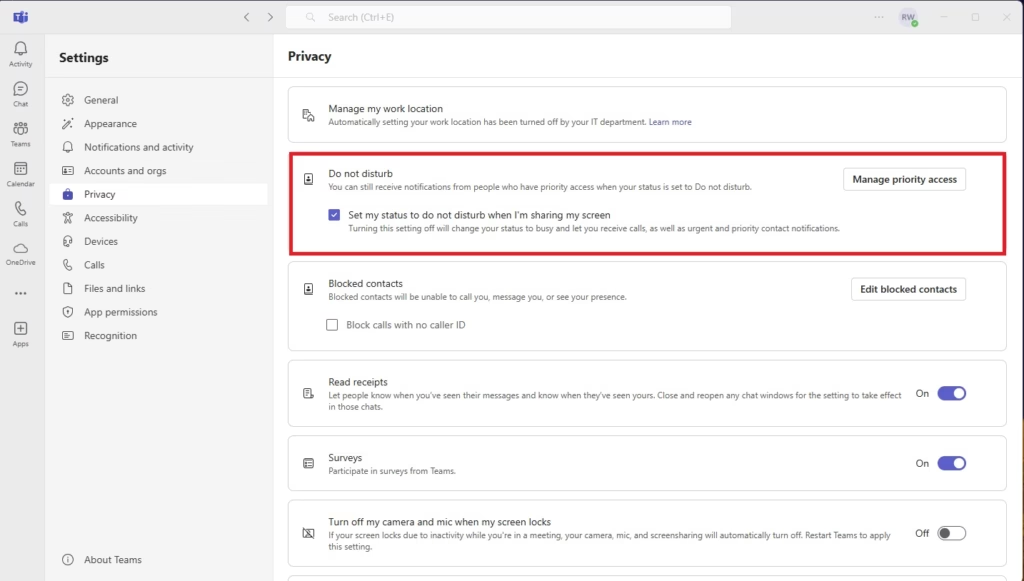
4. Toggle the box for Set my status to do not disturb when I’m sharing my screen.
Managing Priority Access
What if your boss or a teammate absolutely needs to reach you, even when you’re busy? You can use Priority Access to allow specific people to message you.
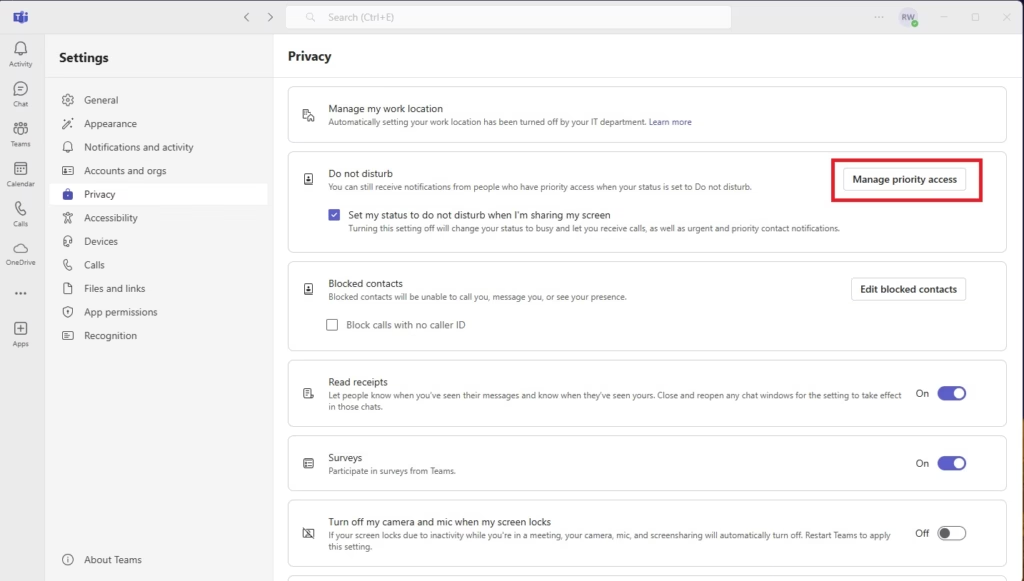
1. Go to Settings > Privacy.
2. Click Manage priority access.
3. Add the names of people who can always reach you.
Mobile vs. Desktop Configuration
Keep in mind that your computer settings don’t always carry over to your phone. To set this on mobile, open the Teams mobile app, tap your profile picture, and select Notifications. You can set Quiet Hours here to stop alerts during specific times of the day.
Troubleshooting Notification Bugs
If you’re still seeing notifications pop up even when Do Not Disturb should be on, first check your Windows notification settings to make sure Teams is allowed to show alerts.
Status Duration and Scheduling
You can control how long your status in Teams, such as Do Not Disturb, stays active by setting a specific time limit. This helps manage your availability and ensures your status changes back automatically when you want it to.
Pro-tip: You can sync your Teams status with your computer’s Focus mode. In Windows, go to Settings > System > Focus and enable the integration to keep your work-life balance in check.
For more details, visit the official Microsoft Support status page.
Summary
Using Do Not Disturb Teams helps you stay focused. You can toggle this for screen sharing in Privacy settings. Use Priority Access for important contacts. Remember to check both desktop and mobile apps for full control. Adjusting these settings helps you manage your work-life balance effectively.
Why do I still get Teams notifications when Do Not Disturb is on?
You may have added specific people to your Priority Access list. Check your Privacy settings in Teams to see who is allowed to bypass your status. Also, ensure your Windows Focus Assist or macOS Focus mode is not overriding your Teams settings.
Does Do Not Disturb sync between my phone and computer?
Generally, your status syncs across devices if you are logged into the same account. However, notification settings like Quiet Hours are often managed separately on the mobile app. Always check both your desktop and mobile app settings to ensure they match your needs.
Was this guide helpful?

About the Author
Richard
Tech Writer, IT Professional
Richard, a writer for Geek Rewind, is a tech enthusiast who loves breaking down complex IT topics into simple, easy-to-understand ideas. With years of hands-on experience in system administration and enterprise IT operations, he’s developed a knack for offering practical tips and solutions. Richard aims to make technology more accessible and actionable. He's deeply committed to the Geek Rewind community, always ready to answer questions and engage in discussions.


No comments yet — be the first to share your thoughts!