Manage Missed Activity Emails in Microsoft Teams

You manage missed activity emails in Microsoft Teams by adjusting notification settings within the application.
Missed activity emails send you a summary when you’ve been away from Teams, ensuring you don’t overlook important conversations or updates. This feature helps you stay informed even when you’re offline.
For example, Teams allows you to receive email digests every 10 minutes, every hour, or once a day, depending on your preferences and activity levels.
You can control how often these summaries arrive and what they contain, directly from your Teams settings, so you get the information you need without being overwhelmed.
Open Microsoft Teams, click the three dots next to your profile picture, and select Settings. Navigate to the Notifications tab and adjust the “Missed activity emails” setting to on or off. You can also customize the frequency and types of emails received.
Why use missed activity emails?
Missed activity emails in Microsoft Teams help you catch up on conversations you might have missed, especially when you’re away from your computer, letting you respond directly from your inbox.
What happens when done?
Once you finish these steps, you will either start receiving email updates for your missed messages or stop getting them, depending on your choice. This helps you control how much your inbox is interrupted by Teams alerts.
How to manage your email settings
- Open the Microsoft Teams app and sign in.
- Click the More options button (three dots) located next to your profile picture.
- Select Settings from the menu that appears.
- Click on the Notifications tab.
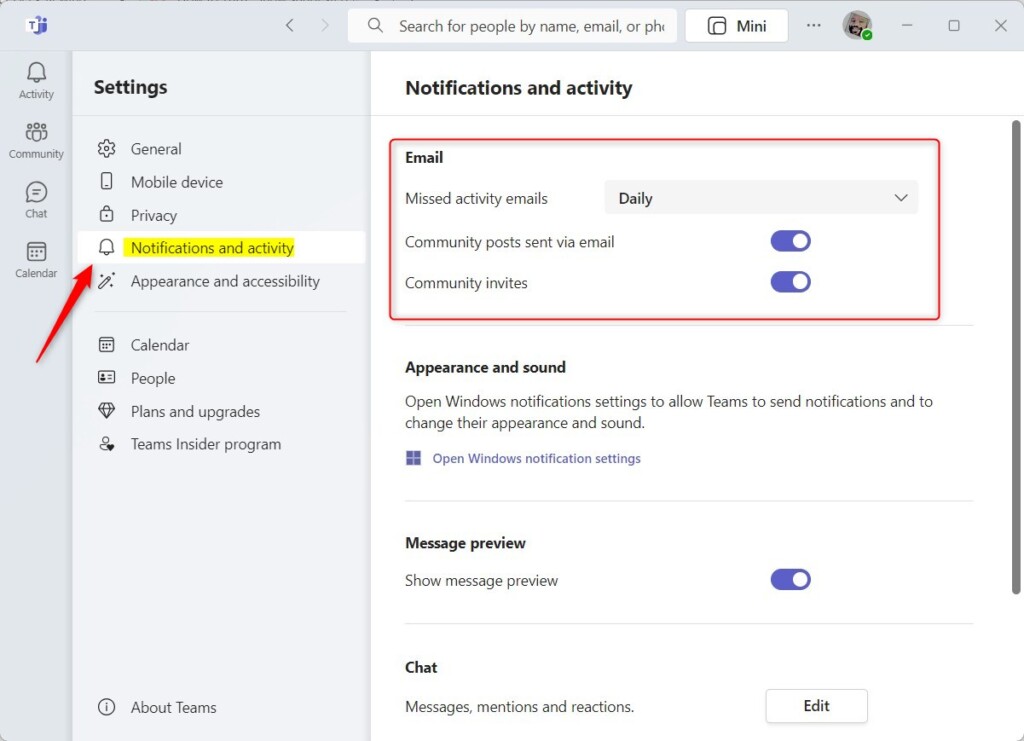
- Look for the Emails section to find Missed activity emails.
- Use the drop-down menu to turn these notifications on or off.
You can easily manage your missed activity emails in Teams by opening the app and going to your notification settings.
Customizing your notifications
After turning on missed activity emails in Teams, you can customize how often you get them, choosing from options like ‘as they happen,’ ‘every few hours,’ or ‘once a day,’ and pick which activities you want alerts for.
- Frequency: You can choose to get emails as they happen, every few hours, or just once a day.
- Activities: You can choose to be notified about specific things, such as community posts or invites.
In the Settings window, select Notification and Activity on the left sidebar. Then, change the ‘Missed activity emails’ settings that suit your environment.
Summary
Managing missed activity emails in Microsoft Teams lets you stay updated on important chats without being constantly online, offering options to get summaries, turn them off, or customize their frequency and content to keep your inbox organized.
Will missed activity emails for Teams will now come from a unified domain?
To support a more consistent and secure email experience across Microsoft 365, we are transitioning to a unified domain for all product-generated emails. As part of this change, missed activity emails for Microsoft Teams will now be sent from teams. mail. microsoft instead of the previous teams.
Was this guide helpful?

About the Author
Richard
Tech Writer, IT Professional
Richard, a writer for Geek Rewind, is a tech enthusiast who loves breaking down complex IT topics into simple, easy-to-understand ideas. With years of hands-on experience in system administration and enterprise IT operations, he’s developed a knack for offering practical tips and solutions. Richard aims to make technology more accessible and actionable. He's deeply committed to the Geek Rewind community, always ready to answer questions and engage in discussions.



No comments yet — be the first to share your thoughts!