How to Manage Phone Number Visibility in Microsoft Teams

You control your phone number’s visibility in Microsoft Teams to decide who can see and use it to contact you.
Microsoft Teams offers PSTN calling, letting you make and receive calls like a traditional phone. Managing who sees your number is key to protecting your privacy and maintaining a professional image.
For instance, you might share your direct dial number with colleagues for faster collaboration but keep it hidden from external clients.
When your number is visible, it shows up in your Teams profile, making you searchable by phone number. If you hide it, people will need to use your email or username to find your contact details.
Control phone number visibility by going to Settings, then Privacy, and managing contact information. Toggle the switch next to your phone number to On to make it searchable or Off to hide it from your profile.
Administrative Control: Caller ID Policies
For IT administrators, managing Teams caller ID policy settings is a core task. You can control how numbers are presented to external parties using the Teams Admin Center. This is often used to mask individual user numbers with a main company line.
How to configure Caller ID Policies (Admin Only)
Microsoft Teams phone number visibility for your whole company is managed by admins using Caller ID policies in the Teams Admin Center, which decides how everyone’s number shows up.
- Log in to the Teams Admin Center.
- Navigate to Voice > Caller ID policies.
- Select an existing policy or create a new one.
- Toggle Mask caller ID to hide the user’s specific number and show a service number instead.
- Assign the policy to specific users via the Users tab.
PowerShell Automation for Teams
Admins can quickly change Microsoft Teams phone number visibility for lots of people at once using PowerShell, a tool that lets you run commands to set specific caller IDs automatically.
# Example: Set a specific number as the caller ID for a user
Set-CsCallingLineIdentity -Identity "user@domain.com" -CallingLineId "+15550100123" -EnableUserOverride $false
Refer to the official Microsoft documentation for more details on these cmdlets.
Troubleshooting Phone Number Visibility
If your Microsoft Teams phone number visibility isn’t showing correctly, it’s often because settings take time to update, privacy options are on, or the right licenses aren’t assigned.
- Policy Latency: Changes made in the Teams Admin Center or via PowerShell can take up to 24 hours to propagate.
- User Privacy Settings: Ensure the end-user has not manually disabled their contact information visibility in the Teams desktop client.
- License Requirements: Ensure the user is assigned the correct Audio Conferencing or Phone System license.
Steps to show or hide your phone number (End-User)
You can easily change how your Microsoft Teams phone number visibility appears to others right inside the Teams app, without needing help from an admin.
- Open the Start menu and find Microsoft Teams in your apps list.
Turn on or off automatically starting Microsoft Teams - You can also open it from the Taskbar.

Turn on or off automatically starting Microsoft Teams - If the small window opens, click the expansion button to open the full Teams window.

Turn on or off automatically starting Microsoft Teams - Click the Settings and more (…) button near your profile picture and select Settings.

Turn on or off automatically starting Microsoft Teams - Click the Privacy tab on the left side of the window.
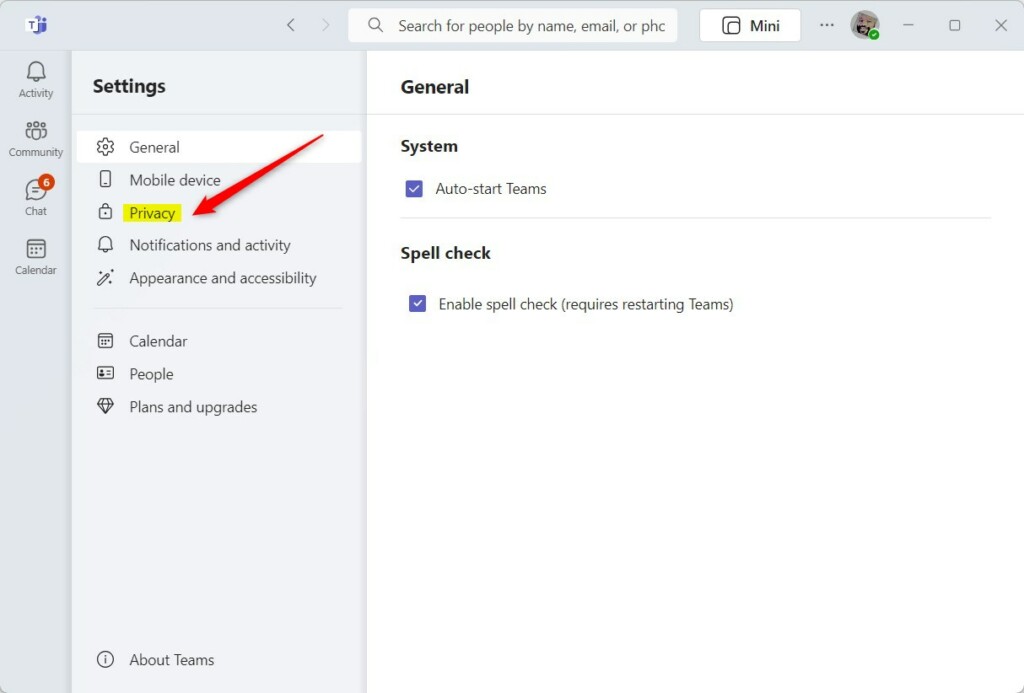
Microsoft Teams Privacy settings - Select the button labeled Manage contact information.
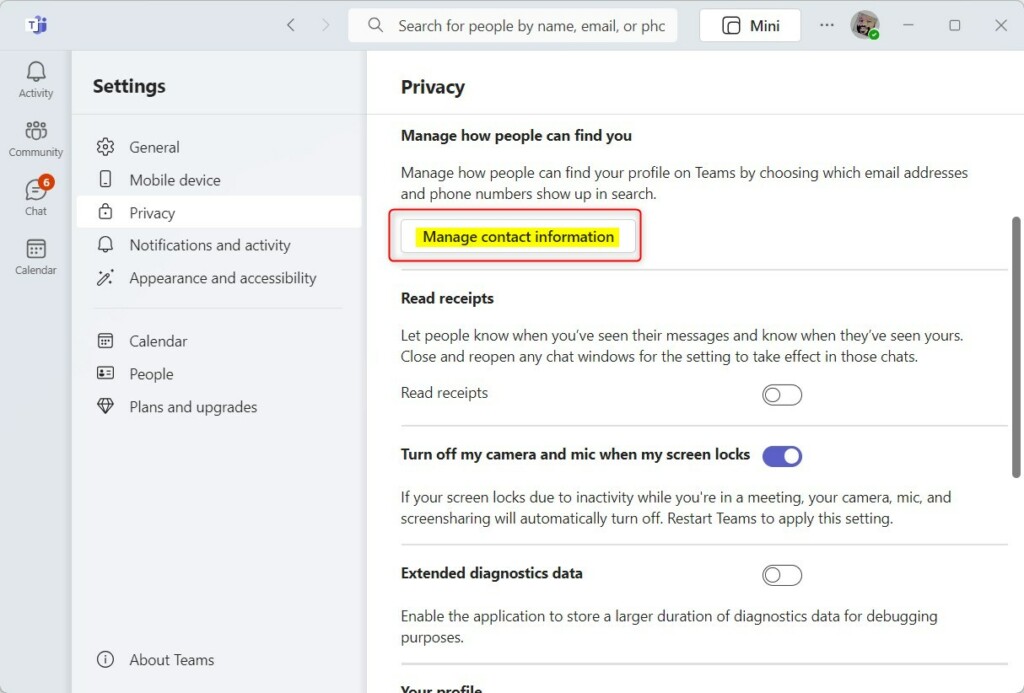
Microsoft Teams privacy settings interface for phone number visibility - Find your phone number tile. Toggle the switch to On to make it searchable or Off to hide it.
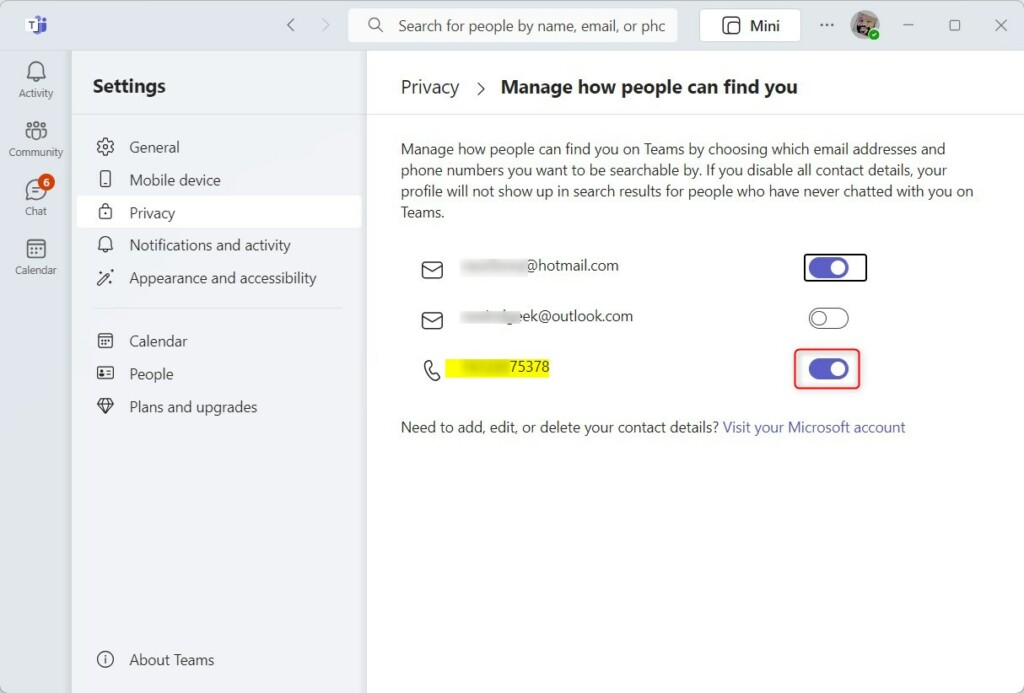
Buttons for managing phone number visibility in Microsoft Teams
Summary
Effectively managing Microsoft Teams phone number visibility combines user privacy choices with administrator-controlled caller ID policies, ensuring professional calls and personal privacy.
What is the difference between masking and hiding a phone number in Teams?
In Microsoft Teams, masking a phone number replaces your personal number with a company number, while hiding it makes the call anonymous, which might be blocked by spam filters.
Why can’t external participants see full phone numbers in my meetings?
External participants may not see full phone numbers in Microsoft Teams meetings because of organizational privacy settings or PSTN masking policies designed to protect user data.
Was this guide helpful?

About the Author
Richard
Tech Writer, IT Professional
Richard, a writer for Geek Rewind, is a tech enthusiast who loves breaking down complex IT topics into simple, easy-to-understand ideas. With years of hands-on experience in system administration and enterprise IT operations, he’s developed a knack for offering practical tips and solutions. Richard aims to make technology more accessible and actionable. He's deeply committed to the Geek Rewind community, always ready to answer questions and engage in discussions.




[…] your mobile device, turning message preview on or off, turn spell check on or off, turn on or off phone number in search results, manage notifications, turn on or off suggested replies in chat, enable or disable […]
[…] your mobile device, turning message preview on or off, turn spell check on or off, turn on or off phone number in search results, manage notifications, turn on or off suggested replies in chat, enable or disable […]
[…] your mobile device, turning message preview on or off, turn spell check on or off, turn on or off phone number in search results, manage notifications, turn on or off suggested replies in chat, enable or disable […]
[…] your mobile device, turning message preview on or off, turn spell check on or off, turn on or off phone number in search results, manage notifications, turn on or off suggested replies in chat, enable or disable sound […]
[…] your mobile device, turning message preview on or off, turn spell check on or off, turn on or off phone number in search results, manage notifications, turn on or off suggested replies in chat, enable or disable sound […]
[…] your mobile device, turning message preview on or off, turn spell check on or off, turn on or off phone number in search results, manage notifications, turn on or off suggested replies in chat, and […]