How to Manage Chat Notifications in Microsoft Teams


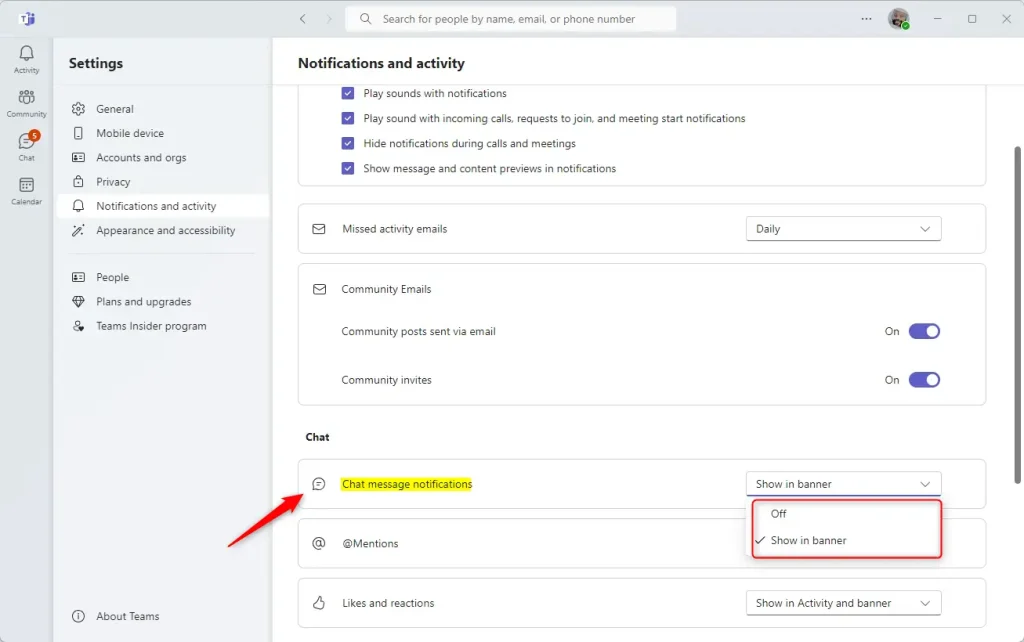
Manage Microsoft Teams chat notifications by going to Settings and more (…) > Settings > Notifications and activity. In the Chat section, choose “Show in banner” for pop-up alerts or “Off” to disable them.
How to change your chat notifications
Changing Your Chat Notifications: Adjusting your Microsoft Teams chat notifications helps you control when and how you receive alerts for messages. This way, you won’t miss important chats, and you won’t be bothered by too many distractions. Managing these settings starts within the Teams app itself.

You can also open the application from your Taskbar.

If a smaller window appears, click the expansion button on the top menu bar to see the full application.

In the main window, click the “Settings and more (…)” button next to your profile picture. Select Settings from the menu.

Click the Notifications and activity tab on the left. Look for the “Chat” section on the right. Use the drop-down menu to pick your preference:
- Show in banner: You will see a pop-up alert for every message.
- Off: You will not see pop-up alerts.
Administrator rights are not required to change Microsoft Teams notification settings. These adjustments apply only to your personal user profile. This means that if you choose to turn off banner notifications, only you will stop seeing them on your computer.
Summary
- Open Microsoft Teams from your Start menu or taskbar.
- Expand the window if it is in mini-mode.
- Go to the Settings and more (…) menu and click Settings.
- Select Notifications and activity.
- Adjust the “Chat” settings to “Show in banner” or “Off” to match your needs.
Was this guide helpful?

About the Author
Richard
Tech Writer, IT Professional
Richard, a writer for Geek Rewind, is a tech enthusiast who loves breaking down complex IT topics into simple, easy-to-understand ideas. With years of hands-on experience in system administration and enterprise IT operations, he’s developed a knack for offering practical tips and solutions. Richard aims to make technology more accessible and actionable. He's deeply committed to the Geek Rewind community, always ready to answer questions and engage in discussions.
[…] incoming calls and meetings, enable or disable notifications during calls and meetings, enable or disable chat message notifications, turn @mentions notifications banners on or off, turn notifications for likes and […]