How to Sync Google Contacts with Microsoft Teams on Windows 11

You sync Google Contacts with Microsoft Teams on Windows 11 by exporting your Google Contacts to a CSV file and then importing that file into Teams.
Microsoft Teams on Windows 11 does not offer a direct, built-in integration for syncing your Google Contacts. This means your contact lists remain separate by default, even if you link your Google Calendar.
To bridge this gap and make your Google Contacts accessible within Teams, you’ll manually export them from Google and import them into Teams. This process works reliably for most users on Windows 11.
Microsoft Teams does not have direct Google Contacts integration. To sync, export your Google Contacts as a CSV file, then import it into Outlook. Your Outlook contacts will then appear in Microsoft Teams.
Why Sync Your Contacts?
Syncing your contacts makes it much easier to find people. You won’t have to switch between different apps to start a chat or a meeting. Having your contact info ready inside Teams helps you stay organized and get more work done. It creates a unified communication experience.
What Happens When Done?
Once you’ve followed these steps, your Google contacts will appear in your Outlook account, and from there, they’ll show up in Microsoft Teams. You can then quickly call or message them without leaving the platform. Your contact management becomes centralized.
How to Sync via Outlook (The Middle-Man Method)
Syncing your Google Contacts with Microsoft Teams is possible using Outlook as a go-between, since Teams doesn’t have a direct connection for this.
- Go to Google Contacts and click Export to save your contacts as a .csv file.
- Open Outlook on the web or your desktop app.
- Go to People, select Manage Contacts, and choose Import Contacts.
- Upload your CSV file.
- Once imported, your contacts will sync with your Microsoft account and appear in Teams.
Automation Workarounds with Power Automate
For a more automatic way to sync Google Contacts with Microsoft Teams, you can use Power Automate to build a workflow that moves your contacts for you.
Third-Party Solutions and Data Privacy
There are third-party middleware tools that offer automatic sync. Be careful when using these. Always check their data privacy compliance. Giving a third-party app access to your contacts means they can read your personal data. Only use trusted, well-known services.
How to Avoid Duplicate Contacts
When you import contacts, you might get duplicates. To avoid this, clean your Google contact list before exporting. Remove old or empty entries. If you use Outlook, use the Clean up contacts feature to merge duplicates after the import is finished.
How to sync your contacts
Opening the Microsoft Teams app is the first step to syncing your contacts.
You can also launch the app from the Taskbar or Taskbar overflow.

If a small window pops up, click the expansion button to see the full Teams window.

Click the Settings and more button (it looks like three dots) near your profile picture, then select Settings.

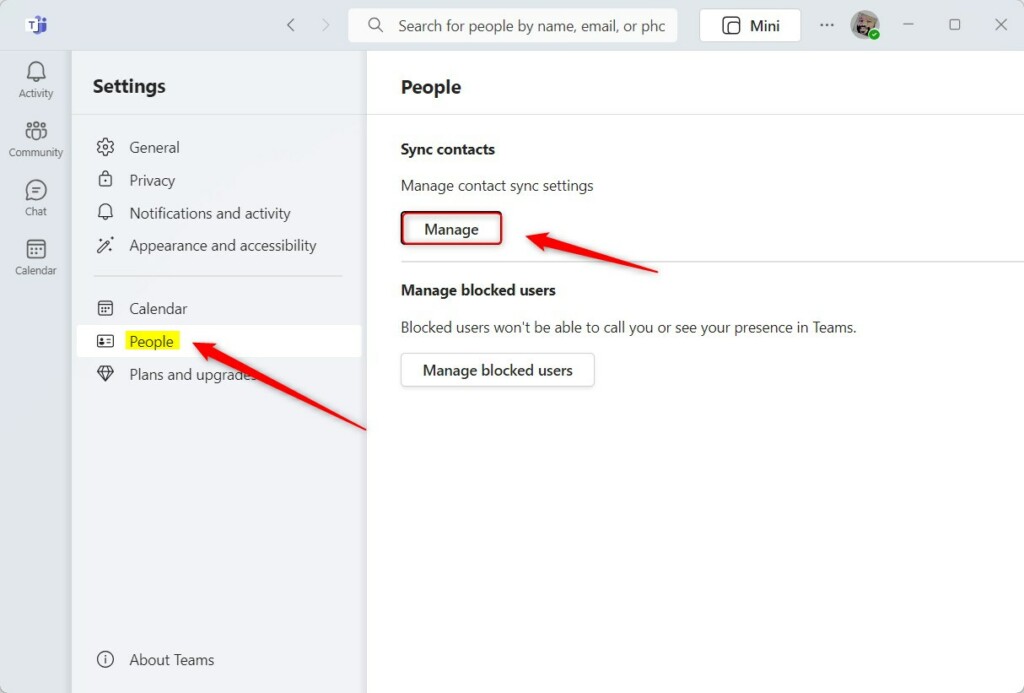
Click the People tab on the left side. Then, click the Manage button under the Sync contacts section.
You will see a list of sources. You can choose to sync with Google, Skype, Outlook.com, or your mobile device.
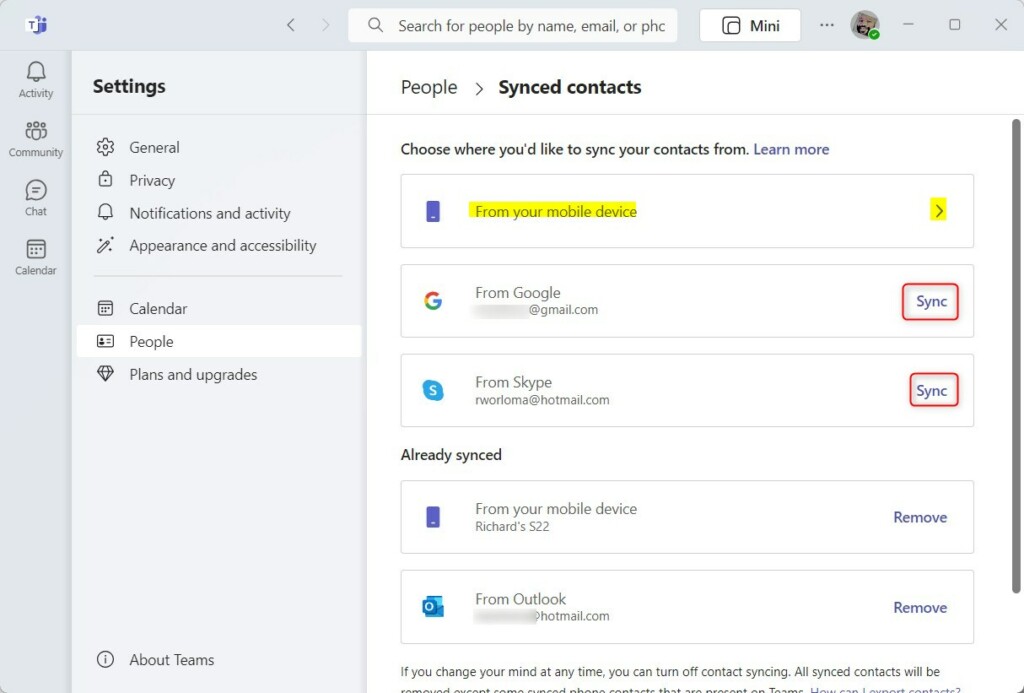
Click the Sync link for Google. If you are syncing from a phone, scan the QR code that appears on your screen to let the app access your contacts.
Good news: you don’t need special admin privileges for these steps. They’re all handled within your own user profile settings. However, if you’re on a work computer managed by your organization, they might have these settings restricted through group policies. If you cannot see these options, contact your IT department.
If you ever want to stop, you can turn off syncing in the same menu. To remove all Google data from Microsoft services entirely, visit Privacy settings..
Summary
Syncing Google Contacts with Microsoft Teams isn’t a direct feature, so you’ll need to use Outlook as a middle-man or set up Power Automate for automation.
Can I sync Google Contacts to Teams for free?
Yes, you can sync Google Contacts to Teams for free by using Outlook as a middle-man, which involves exporting your contacts as a CSV file and importing them into Outlook.
Does Microsoft Teams support direct Google account integration?
No, Microsoft Teams does not support direct, native integration for Google Contacts, meaning you can’t link them automatically.
Was this guide helpful?

About the Author
Richard
Tech Writer, IT Professional
Richard, a writer for Geek Rewind, is a tech enthusiast who loves breaking down complex IT topics into simple, easy-to-understand ideas. With years of hands-on experience in system administration and enterprise IT operations, he’s developed a knack for offering practical tips and solutions. Richard aims to make technology more accessible and actionable. He's deeply committed to the Geek Rewind community, always ready to answer questions and engage in discussions.


[…] screen, turn read receipts on or off, auto start Teams, disable Teams chat, sync contacts with Teams, connect to Google Calendar, link your mobile device, turning message preview on or […]
[…] the lock screen, turn read receipts on or off, auto start Teams, disable Teams chat, sync contacts with Teams, connect to Google Calendar, and […]
[…] are many settings one can enable in the Microsoft Teams app. You can sync contacts with Teams, connect to Google Calendar, link your mobile device, turn message preview on or off, manage […]
[…] are many settings one can enable in the Microsoft Teams app. You can sync contacts with Teams, connect to Google Calendar, link your mobile device, turn message preview on or off, manage […]
[…] are many settings one can enable in the Microsoft Teams app. You can sync contacts with Teams, connect to Google Calendar, link your mobile device, turn message preview on or […]
[…] are many settings one can enable in the Microsoft Teams app. You can sync contacts with Teams, connect to Google Calendar, link your mobile device, turn message preview on or off, manage […]
[…] are many settings one can enable in the Microsoft Teams app. You can sync contacts with Teams, connect to Google Calendar, link your mobile device, turn message preview on or off, and […]
[…] are many settings one can enable in the Microsoft Teams app. You can sync contacts with Teams, connect to Google Calendar, link your mobile device, turn message preview on or off, manage […]
[…] are many settings one can enable in the Microsoft Teams app. You can sync contacts with Teams, connect to Google Calendar, link your mobile device, turn message preview on or off, manage […]
[…] are many settings one can enable in the Microsoft Teams app. You can sync contacts with Teams, connect to Google Calendar, link your mobile device, turn message preview on or […]
[…] are many settings one can enable in the Microsoft Teams app. You can sync contacts with Teams, connect to Google Calendar, link your mobile device, turn message preview on or […]
[…] How to sync contacts with Teams […]
[…] on or off on the lock screen, turn read receipts on or off, auto start Teams, disable Teams chat, sync contacts with Teams, connect to Google Calendar, link your mobile device, and turning message preview on or […]