Filter Profane Words in Microsoft Teams Captions

You can filter profane words in Microsoft Teams live captions by enabling the “Offensive language” setting.
This feature automatically masks inappropriate language with asterisks, ensuring a more professional and inclusive meeting environment for everyone.
For instance, if a speaker uses a curse word, Teams will display it as ‘****’ in the live captions.
Enabling this filter helps you maintain focus on the meeting’s content, rather than being distracted by unsuitable vocabulary.
Enable the “Offensive language” setting in Microsoft Teams Accessibility settings. Navigate to Settings, then Accessibility, and toggle “Filter out profane words in live captions” to On. This masks inappropriate words with asterisks for your view.
What happens when you enable the filter?
Turning on the filter to filter profane words in Teams means the AI checks the meeting’s audio live.
How to toggle profanity filtering
You can turn the profanity filter on or off in Microsoft Teams by opening your Settings and going to the Accessibility tab.
- Launch the Microsoft Teams app from your Start menu or Taskbar.
Microsoft Teams in Start menu 
Turn on or off automatically starting Microsoft Teams - Click the Settings and more (…) icon located near your profile picture.
- Select Settings from the drop-down menu.

Microsoft Teams settings button for filtering captions - Navigate to the Accessibility tab on the left sidebar.
- Under the Captions section, locate Filter out profane words in live captions.
- Toggle the switch to On to mask words, or Off to see all text.
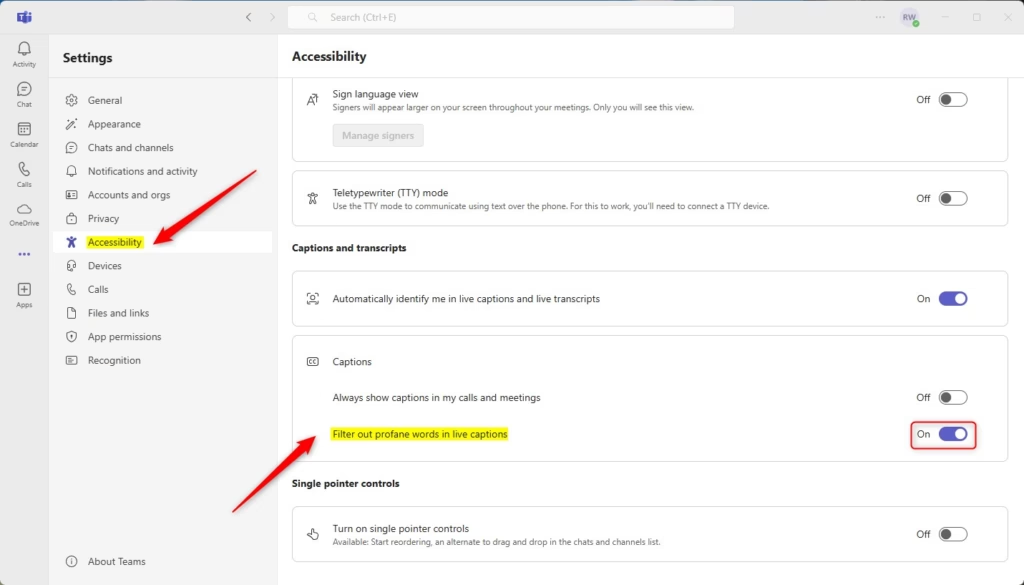
Filter out profane words in live caption with Teams
Note: This setting is user-specific. Changing it only affects your view of the captions.
Supported platforms and limitations
The profanity filter in Teams works on Windows, Mac, and the web, but it’s mainly for English and only affects live captions.
Summary
Filtering profane words in Teams is a straightforward way to make your meetings more professional and accessible for everyone.
Can administrators enforce profanity filtering for an entire organization?
Currently, Microsoft Teams does not provide a global policy for administrators to force this setting on all users. It is designed as an individual accessibility preference. Users must manually enable or disable the filter within their own app settings to suit their personal or professional requirements during meetings.
Does the profanity filter work in all languages supported by Teams?
The profanity filter is primarily designed for English-language captions. While Microsoft continues to update its accessibility features, the masking technology may not reliably detect or filter offensive terms in other supported languages. For the best results, ensure your meeting language settings are correctly configured in the Teams app.
Was this guide helpful?

About the Author
Richard
Tech Writer, IT Professional
Richard, a writer for Geek Rewind, is a tech enthusiast who loves breaking down complex IT topics into simple, easy-to-understand ideas. With years of hands-on experience in system administration and enterprise IT operations, he’s developed a knack for offering practical tips and solutions. Richard aims to make technology more accessible and actionable. He's deeply committed to the Geek Rewind community, always ready to answer questions and engage in discussions.




No comments yet — be the first to share your thoughts!