Filter Profane Words in Microsoft Teams Captions

In a professional setting, maintaining a respectful environment is essential. Live transcription and real-time subtitles help people follow meetings, but sometimes speakers use language that is not appropriate for the workplace. By enabling the filter, Teams automatically masks offensive language with asterisks. This promotes inclusivity and keeps the focus on the meeting content rather than distracting speech.
What happens when you enable the filter?
When you turn on the profanity filter, the Microsoft Teams AI engine scans the audio stream in real-time. If it detects a word flagged as profane, it replaces the text in the caption box with symbols. This happens instantly during your live call or meeting, ensuring that the visual text remains clean for all participants.
How to toggle profanity filtering
Follow these simple steps to manage your caption settings:
- Launch the Microsoft Teams app from your Start menu or Taskbar.

- Click the Settings and more (…) icon located near your profile picture.
- Select Settings from the drop-down menu.

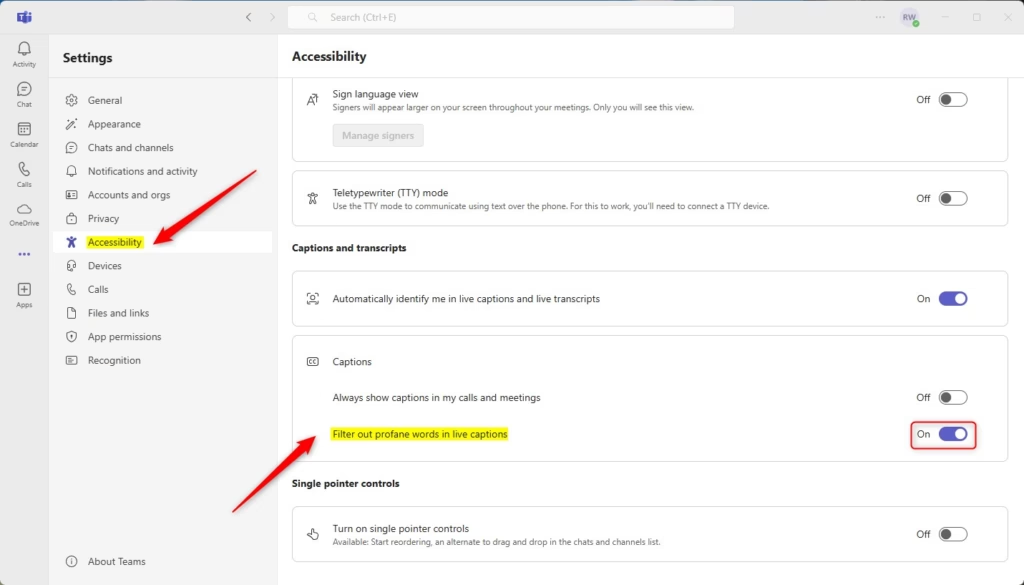
- Navigate to the Accessibility tab on the left sidebar.
- Under the Captions section, locate Filter out profane words in live captions.
- Toggle the switch to On to mask words, or Off to see all text.
Note: This setting is user-specific. Changing it only affects your view of the captions.
Supported platforms and limitations
The profanity filter is available on the desktop version of Microsoft Teams for Windows and macOS. It also works on the web client. Please note that this feature is currently optimized for English. If you are using other languages, the filter may not be as effective. Additionally, this filter does not apply to recorded meetings after the fact; it only affects the live viewing experience during the meeting.
Summary
Filtering profane words in Microsoft Teams is a simple way to improve meeting accessibility and professionalism. By following the steps in the Accessibility menu, you can ensure your live captions remain appropriate. While this feature is a personal setting and currently limited to specific languages, it remains a powerful tool for creating a better virtual workspace. For more details, visit the official Microsoft documentation.
Can administrators enforce profanity filtering for an entire organization?
Currently, Microsoft Teams does not provide a global policy for administrators to force this setting on all users. It is designed as an individual accessibility preference. Users must manually enable or disable the filter within their own app settings to suit their personal or professional requirements during meetings.
Does the profanity filter work in all languages supported by Teams?
The profanity filter is primarily designed for English-language captions. While Microsoft continues to update its accessibility features, the masking technology may not reliably detect or filter offensive terms in other supported languages. For the best results, ensure your meeting language settings are correctly configured in the Teams app.
Was this guide helpful?

About the Author
Richard
Tech Writer, IT Professional
Richard, a writer for Geek Rewind, is a tech enthusiast who loves breaking down complex IT topics into simple, easy-to-understand ideas. With years of hands-on experience in system administration and enterprise IT operations, he’s developed a knack for offering practical tips and solutions. Richard aims to make technology more accessible and actionable. He's deeply committed to the Geek Rewind community, always ready to answer questions and engage in discussions.




No comments yet — be the first to share your thoughts!