How to Change Live Captions Language in Windows 11

You change the Live Captions language in Windows 11 by accessing the Captions settings within the Accessibility menu.
Live Captions is a Windows 11 feature that turns any audio on your PC into real-time text transcriptions (written text from audio as it happens). This includes everything from streaming videos to video calls, making it an invaluable tool for those with hearing impairments or anyone who prefers reading along.
You can turn on Live Captions instantly with the keyboard shortcut: ⊞ Win+Ctrl+L. Once enabled, you’ll see captions appear directly on your screen for all audio.
If you frequently consume content in different languages, you can switch the spoken language that Live Captions transcribes. For instance, if you’re watching a French tutorial but your system defaults to English captions, you can change it to French for clearer comprehension.
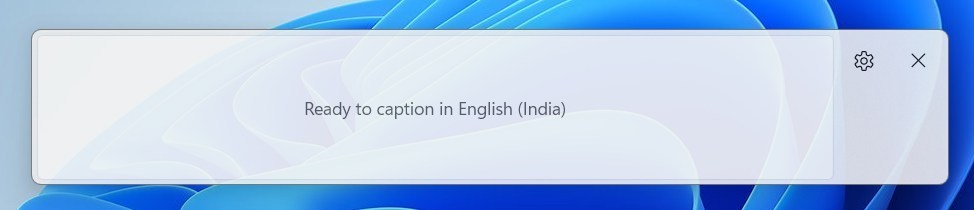
Press ⊞ Win+Ctrl+L to open Live Captions, click the Settings icon, select Caption language, and choose your preferred language. This ensures accurate transcriptions for audio in different languages.
How to Switch Live Captions Language
You can change the live captions language in Windows 11 by first turning on Live Captions with the shortcut ⊞ Win+Ctrl+L, then opening the Live Captions settings.
- Turn on Live Captions by pressing
Windows + Ctrl + L. - Look for the Settings icon (gear symbol) in the Live Captions bar on your screen and click it.
- Click on Caption language.
- Choose the language you want from the list.
Once you pick a language, you will see a message on the captions bar. This message tells you the captions are ready to show in your chosen language.
Why Change Live Captions Language?
- If you speak more than one language, you can pick the captions language that’s easiest for you.
- If you watch videos or listen to audio in another language, switching captions helps you understand better.
- It makes the captions more accurate because they match the spoken language.
Need More Help?
Learn more about turning Live Captions on or off here: How to Turn On or Off Live Captions in Windows 11.
Want to add more languages to use with Live Captions? Check this guide: Add Other Languages for Live Captions.
Summary
Windows 11 Live Captions show spoken words from your computer’s audio as text, and you can easily change the live captions language windows 11 by using the settings within the Live Captions window.
How do I change the language in live captions?
Change Live Caption settings On your device, open Settings . Live Caption. Under Settings, you can find or change these settings: For supported languages: To manage and select your preferred language, tap Languages & translation.
Was this guide helpful?

About the Author
Richard
Tech Writer, IT Professional
Richard, a writer for Geek Rewind, is a tech enthusiast who loves breaking down complex IT topics into simple, easy-to-understand ideas. With years of hands-on experience in system administration and enterprise IT operations, he’s developed a knack for offering practical tips and solutions. Richard aims to make technology more accessible and actionable. He's deeply committed to the Geek Rewind community, always ready to answer questions and engage in discussions.


No comments yet — be the first to share your thoughts!