How to turn off camera mic Teams: A Complete Guide

You turn off your camera and microphone in Microsoft Teams by using the in-meeting controls or adjusting device settings before joining a call.
Microsoft Teams is a popular collaboration tool for video conferencing and communication. Controlling your camera and mic ensures privacy and prevents accidental disruptions during meetings.
To instantly mute your microphone during a call, simply click the microphone icon within the meeting controls. Your audio will be off for all participants until you choose to unmute.
Teams also lets you manage your camera and mic access before you even enter a meeting. For example, you can configure Teams to always ask you if you want your camera or microphone on before joining a session.
Turn off your camera and microphone in Microsoft Teams by clicking the microphone or camera icon in the meeting controls. For automatic privacy, go to Settings, then Privacy, and toggle “Turn off my camera and mic when my screen locks” to On.
Why do this?
Privacy is vital. If you step away during a meeting, you might leave your camera or microphone on. Enabling automatic lock features ensures your devices shut off when you are away. This prevents accidental broadcasts and protects your personal space.
What happens when done?
Once enabled, your computer will detect when you lock your screen. Microsoft Teams will immediately stop your video feed and mute your audio. You remain safe until you return and unlock your device.
Steps to adjust your settings
- Open the Microsoft Teams app from your Start menu or via Taskbar overflow.
Turn on or off automatically starting Microsoft Teams 
Turn on or off automatically starting Microsoft Teams - If the app opens in a small window, click the expansion button to view the full screen.

Turn on or off automatically starting Microsoft Teams - Click the Settings and more button (three dots) near your profile picture.
- Select Settings from the menu.

Turn on or off automatically starting Microsoft Teams - Click the Privacy tab on the left side.
- Find the option Turn off my camera and mic when my screen locks.
- Toggle the switch to On.
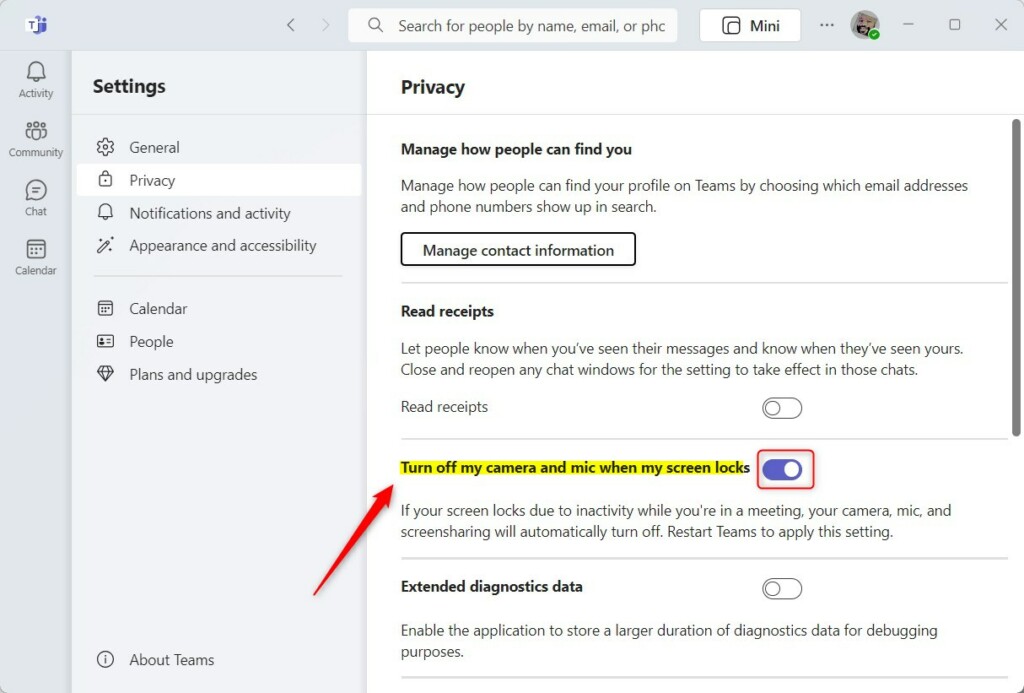
Microsoft Teams settings menu to turn off camera and microphone automatically
You can easily turn off your camera and mic in Teams by adjusting your settings within the app itself.
Global Default Settings vs. Per-Meeting Settings
Microsoft Teams doesn’t let you set a global default to always turn off your camera or mic.
| Feature | Meeting Options (Organizer) | Device Settings (User) |
|---|---|---|
| Audio Control | Mute all attendees | Mute own microphone |
| Video Control | Disable attendee cameras | Disable own camera |
| Scope | Affects all participants | Affects only your device |
Managing Attendee Permissions
If you are a meeting organizer, you can prevent attendees from turning on their mics. Navigate to Meeting Options before or during the call. Toggle Allow mic for attendees to Off. This is a powerful way to manage large groups.
Troubleshooting and Privacy Controls
If your camera or mic in Teams isn’t turning off, check your Windows privacy settings first.
For more details, visit the official Microsoft support documentation.
Summary
You now know how to turn off camera mic Teams using both automatic lock features and manual meeting controls. While a global ‘off’ switch does not exist, using the pre-join screen and meeting options ensures your privacy remains protected during every call.
Why does my camera turn on automatically in Teams?
Teams often remembers your last used state. If your camera was on during your previous meeting, it may default to ‘on’ when you join a new one. Always check the pre-join screen toggle before clicking ‘Join now’ to ensure your video is disabled.
Does Microsoft Teams have a global ‘off by default’ setting for video?
No, Microsoft Teams does not currently offer a global setting to keep the camera off by default for every meeting. You must manually toggle the camera off in the pre-join screen or meeting toolbar for each individual session you attend.
Was this guide helpful?

About the Author
Richard
Tech Writer, IT Professional
Richard, a writer for Geek Rewind, is a tech enthusiast who loves breaking down complex IT topics into simple, easy-to-understand ideas. With years of hands-on experience in system administration and enterprise IT operations, he’s developed a knack for offering practical tips and solutions. Richard aims to make technology more accessible and actionable. He's deeply committed to the Geek Rewind community, always ready to answer questions and engage in discussions.




[…] settings one can enable in the Microsoft Teams app. You can connect your Google calendar, turn the camera and mic on or off on the lock screen, turn read receipts on or off, auto start Teams, disable Teams chat, sync […]
[…] settings one can enable in the Microsoft Teams app. You can connect your Google calendar, turn the camera and mic on or off on the lock screen, turn read receipts on or off, auto start Teams, disable Teams chat, sync […]
[…] settings one can enable in the Microsoft Teams app. You can connect your Google calendar, turn the camera and mic on or off on the lock screen, turn read receipts on or off, auto start Teams, disable Teams chat, sync […]
[…] settings one can enable in the Microsoft Teams app. You can connect your Google calendar, turn the camera and mic on or off on the lock screen, turn read receipts on or off, auto start Teams, disable Teams chat, sync […]
[…] settings one can enable in the Microsoft Teams app. You can connect your Google calendar, turn the camera and mic on or off on the lock screen, turn read receipts on or off, auto start Teams, disable Teams chat, sync […]
[…] many settings one can enable in the Microsoft Teams app. You can connect your Google calendar, turn the camera and mic on or off on the lock screen, turn read receipts on or off, auto start Teams, disable Teams chat, sync contacts with […]
[…] settings one can enable in the Microsoft Teams app. You can connect your Google calendar, turn the camera and mic on or off on the lock screen, turn read receipts on or off, auto start Teams, disable Teams chat, sync […]
[…] settings one can enable in the Microsoft Teams app. You can connect your Google calendar, turn the camera and mic on or off on the lock screen, turn read receipts on or off, auto start Teams, disable Teams chat, sync […]
[…] many settings one can enable in the Microsoft Teams app. You can connect your Google calendar, turn the camera and mic on or off on the lock screen, turn read receipts on or off, auto start Teams, disable Teams chat, sync contacts with […]
[…] many settings one can enable in the Microsoft Teams app. You can connect your Google calendar, turn the camera and mic on or off on the lock screen, turn read receipts on or off, auto start Teams, disable Teams chat, sync contacts with […]
[…] many settings one can enable in the Microsoft Teams app. You can connect your Google calendar, turn the camera and mic on or off on the lock screen, turn read receipts on or off, auto start Teams, disable Teams chat, sync contacts with […]
[…] many settings one can enable in the Microsoft Teams app. You can connect your Google calendar, turn the camera and mic on or off on the lock screen, turn read receipts on or off, auto start Teams, disable Teams chat, sync contacts with […]
[…] many settings one can enable in the Microsoft Teams app. You can connect your Google calendar, turn the camera and mic on or off on the lock screen, turn read receipts on or off, auto start Teams, disable Teams chat, sync contacts with […]
[…] video calls, and working together. You can connect many services to it, such as Google calendar, turn the camera and mic on or off on the lock screen, turn read receipts on or off, auto start Teams, disable Teams chat, sync contacts with Teams, […]
[…] can connect your Google calendar, turn the camera and mic on or off on the lock screen, turn read receipts on or off, auto start Teams, disable Teams chat, and […]
[…] video calls, and working with your team. You can connect many services like Google calendar, turn the camera and mic on or off on the lock screen, turn read receipts on or off, auto start Teams, disable Teams chat, sync contacts with Teams, […]
[…] many settings one can enable in the Microsoft Teams app. You can connect your Google calendar, turn the camera and mic on or off on the lock screen, turn read receipts on or off, auto start Teams, disable Teams chat, sync contacts with […]