Enable High Fidelity Sound in Microsoft Teams

You enable high-fidelity sound in Microsoft Teams to dramatically improve your audio quality for both voice and music.
High-fidelity sound bypasses Teams’ default audio compression, preserving richer sound details that standard settings often miss.
This feature, combined with echo cancellation, ensures your voice sounds clearer and any music you share plays as intended, without muddiness or distracting echoes. For instance, this makes a significant difference when sharing audio in presentations or during music-focused calls.
Turn on High fidelity music mode and Enable echo cancellation in Microsoft Teams. Go to Settings, then click Devices and toggle both options to On. This improves audio quality for music and voice calls.
How to enable high-fidelity sound
Turning on high-fidelity sound in Teams is simple and makes your music and calls sound much clearer. You can find this setting by opening the Teams app, clicking the three dots next to your profile picture, and selecting ‘Settings’. Then, go to the ‘Devices’ tab to find the option.
- Open the Microsoft Teams app from your Start menu.
You can also open the app from the Taskbar or Taskbar overflow.

- Click the Settings and more (three dots) button near your profile picture.
- Select Settings from the menu.

- Click the Devices tab on the left side of the window.
- Find the High fidelity music mode switch and turn it to On.
- Check the box for Enable echo cancellation to turn that feature on as well.
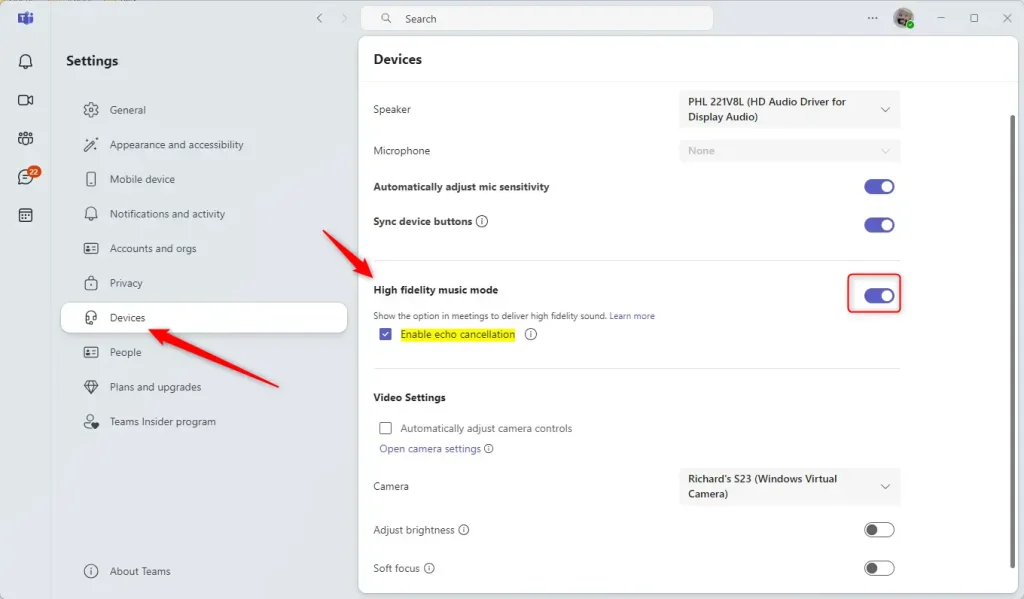
Note: These changes do not require admin privileges. You can modify these settings using your standard user account.
Summary
High-fidelity sound in Teams makes your music and calls sound much clearer by improving audio quality and reducing background noise. This feature, called High-Fidelity Music Mode, makes audio sound better during calls, while Echo Cancellation removes distracting noises. It’s easy to set up in the Devices tab, leading to better, clearer meetings.- High-Fidelity Music Mode: Makes music and audio sound much better during your calls.
- Echo Cancellation: Removes distracting background noises and echoes.
- Simple Setup: You can find these options quickly within the Devices tab in your Teams settings.
- Better Meetings: Clearer audio helps everyone stay focused and engaged during your virtual meetings.
What is high-fidelity audio mode in Teams?
Microsoft Teams. Enhance your music experience with the high-fidelity music mode in Teams. This setting helps you give listeners a better experience when you share sound in Teams. In this mode, Teams supports a 32kHz sampling rate at 128kbps when network bandwidth allows.
What does high-fidelity sound like?
For recorded audio to be considered hi-fi, the sound quality needs to be as close to the original performance as possible. This means no noise, distortion, or other flaws in the original recording.
Was this guide helpful?

About the Author
Richard
Tech Writer, IT Professional
Richard, a writer for Geek Rewind, is a tech enthusiast who loves breaking down complex IT topics into simple, easy-to-understand ideas. With years of hands-on experience in system administration and enterprise IT operations, he’s developed a knack for offering practical tips and solutions. Richard aims to make technology more accessible and actionable. He's deeply committed to the Geek Rewind community, always ready to answer questions and engage in discussions.




[…] or off, manage teams notifications during calls, set default speakers, set default microphone, enable high fidelity sound, change mic sensitivity, set default camera, enable auto-brightness, and […]