How to Manage Meeting Start Notifications in Microsoft Teams

Meeting start notifications in Microsoft Teams let you control when you get alerts before a meeting begins. Microsoft Teams is a popular app for work calls and chats.
You can easily switch these specific meeting alerts on or off directly within the Teams settings. This helps you reduce interruptions during your workday.
Turning them on ensures you don’t miss your next appointment. If you prefer fewer pings, simply turn them off to stay focused on your current tasks.
Manage meeting start notifications in Microsoft Teams by going to Settings, then Notifications and Activity, and toggling the Meeting start notifications option in the Meetings section. This allows you to control whether you receive alerts before your scheduled meetings begin.
Enable or disable meeting start notifications in Teams
You can easily turn meeting start notifications on or off directly within the Microsoft Teams app.
Here’s how to do it.
First, launch the app by clicking the Start menu and selecting it on the All Apps list.

You can also launch the app from the Taskbar or Taskbar overflow.

When you first launch the Teams app, the mini window will open. Click the expansion button on the menu bar to open the full Teams window.

In the full Teams window, click the Settings and more ( …) button next to your profile picture and select Settings from the menu.

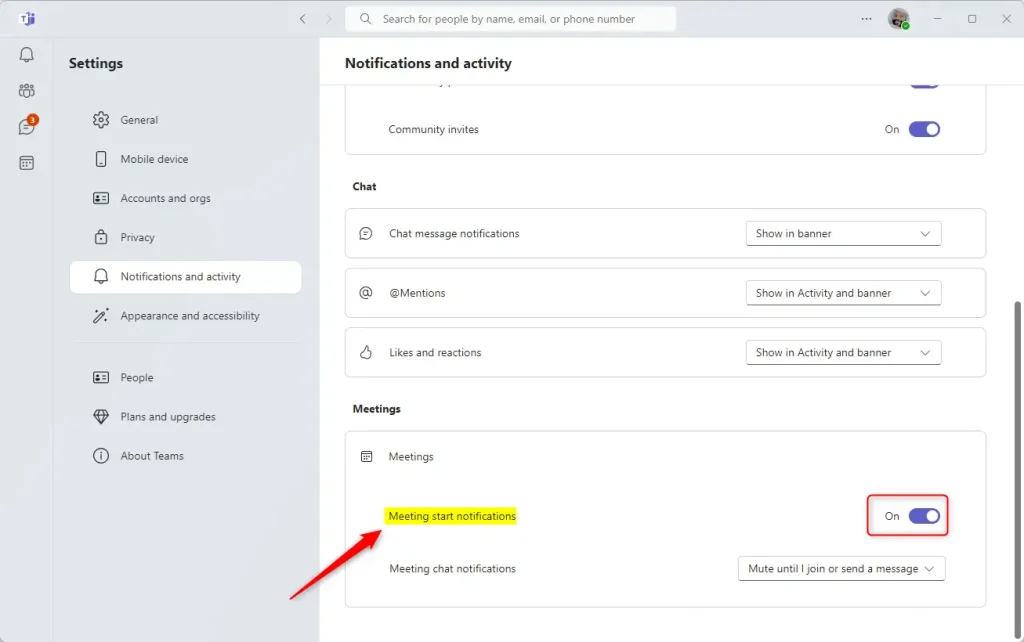
Next, select the Notifications and Activity tab on the left of the Settings page. Then, under “Meetings,” select the “Meeting start notifications” tile.
Then, toggle the switch button to the On or Off position to enable or disable this feature.
That should do it!
Conclusion:
- We’ve covered how to enable or disable the “Meeting start notifications” feature in Microsoft Teams, helping you manage your alerts for a more focused workday.
- By customizing your Teams notifications, you can ensure you only receive alerts that matter, reducing distractions and boosting productivity.
- The step-by-step guide illustrated how to access the “Meeting start notifications” setting in Teams and toggle it on or off based on individual preferences.
- If you encounter any errors or have additional information to contribute, feel free to use the comments section below.
Was this guide helpful?

About the Author
Richard
Tech Writer, IT Professional
Richard, a writer for Geek Rewind, is a tech enthusiast who loves breaking down complex IT topics into simple, easy-to-understand ideas. With years of hands-on experience in system administration and enterprise IT operations, he’s developed a knack for offering practical tips and solutions. Richard aims to make technology more accessible and actionable. He's deeply committed to the Geek Rewind community, always ready to answer questions and engage in discussions.




[…] @mentions notifications banners on or off, turn notifications for likes and reactions on or off, turn meeting start notifications on or off, and […]