How to Enable or Disable Lock Screen Background in Windows 11

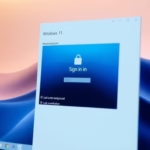
You can enable or disable the lock screen background image on the Windows 11 sign-in screen to customize its appearance.
The lock screen background is the image displayed before you enter your password or PIN. By default, Windows 11 shows this image on your sign-in screen, but you can change it to a solid color.
Disabling the lock screen image can offer a cleaner look or improve visibility of login details, especially on older hardware. This setting is directly linked to the “Get fun facts, tips, tricks, and more on your lock screen” toggle found within the Personalization > Lock screen menu.
Go to Settings > Personalization > Lock screen and toggle off “Show the lock screen background picture on the sign-in screen” to disable it. To enable it, simply toggle the switch back on.
Method 1Using Personalization Settings
You can turn off the lock screen background picture on the sign-in screen using Windows 11’s Personalization settings.
- Open the Settings app by pressing Windows key + I.
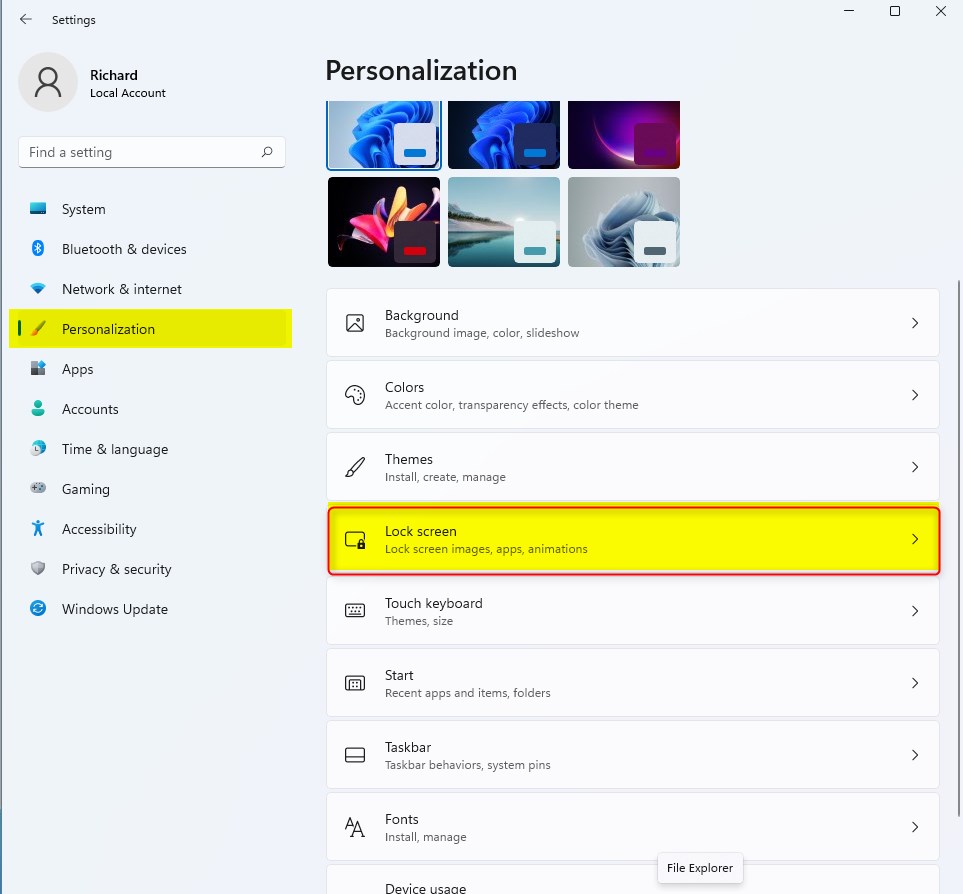
- Click on Personalization in the left menu.
- Select Lock screen.
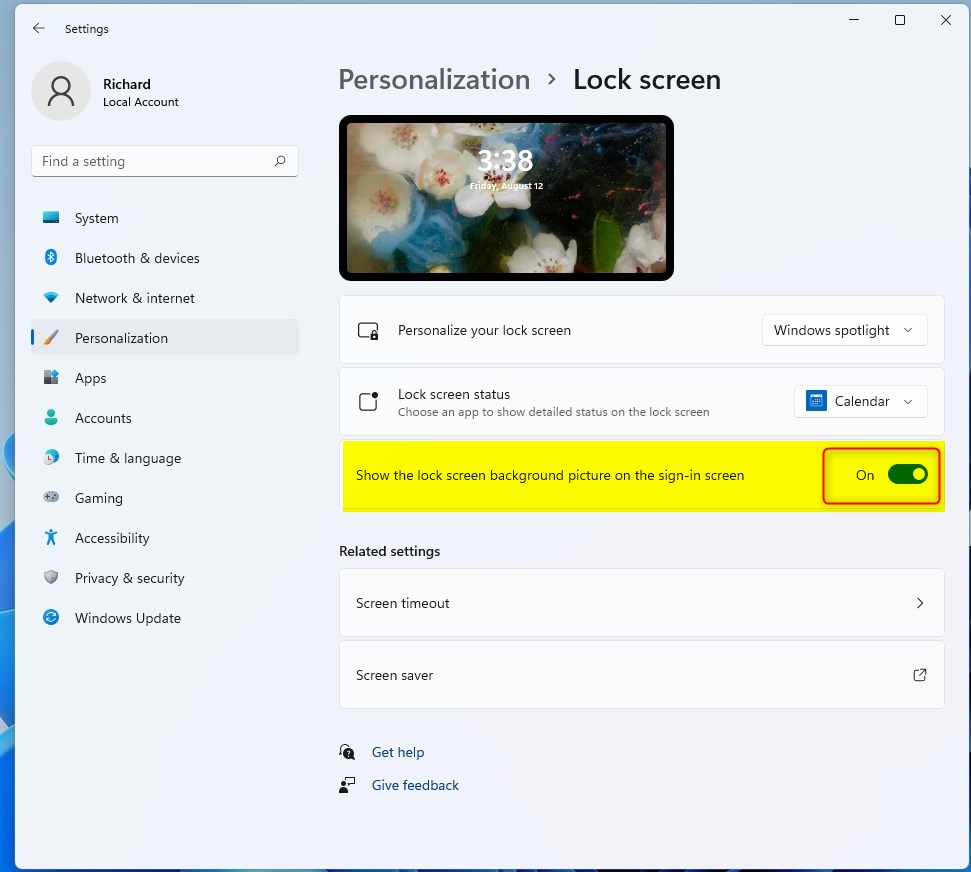
- Find the option: Show the lock screen background picture on the sign-in screen.
- Toggle the switch to Off.
Method 2Using the Registry Editor (Advanced)
Advanced users can disable the lock screen background using the Registry Editor, but be careful because changing the wrong thing can cause problems.
- Press Windows key + R, type regedit, and press Enter.
- Navigate to: 🗝️HKEY_LOCAL_MACHINE\SOFTWARE\Policies\Microsoft\Windows\System
- If the System key does not exist, right-click Windows, select New > Key, and name it System.
- Right-click in the right pane, select New > DWORD (32-bit) Value, and name it DisableLogonBackgroundImage.
- Double-click it and set the Value data to 1 to disable the image.
Method 3Using Group Policy Editor (Pro/Enterprise)
Windows 11 Pro and Enterprise users can disable the lock screen background using the Group Policy Editor.
- Press Windows key + R, type gpedit.msc, and press Enter.
- Go to Computer Configuration > Administrative Templates > Control Panel > Personalization.
- Find Turn off lock screen background.
- Double-click it and select Enabled to remove the background.
Pro Tip: Windows Spotlight vs. Picture Mode
Windows Spotlight automatically downloads new images from the internet. If you prefer a fixed image, select Picture in the Lock screen settings. If you want a plain screen, disabling the background is the best choice.
Summary
You can easily manage your Windows 11 lock screen background using simple settings or advanced tools like the Registry Editor and Group Policy Editor.
Does disabling the lock screen background improve system performance?
Turning off the background image can slightly reduce the resources used when you sign in. While the performance boost is minor on modern computers, it can help older systems feel more responsive by not needing to load high-resolution images before the desktop is fully ready.
Why is the ‘Personalize’ option greyed out on my lock screen settings?
If the personalization options are greyed out, it’s usually because your version of Windows isn’t activated, or a Group Policy setting is overriding your local configuration. Check your activation status in Settings or ask your system administrator if you’re on a managed work or school computer.
Was this guide helpful?

About the Author
Richard
Tech Writer, IT Professional
Richard, a writer for Geek Rewind, is a tech enthusiast who loves breaking down complex IT topics into simple, easy-to-understand ideas. With years of hands-on experience in system administration and enterprise IT operations, he’s developed a knack for offering practical tips and solutions. Richard aims to make technology more accessible and actionable. He's deeply committed to the Geek Rewind community, always ready to answer questions and engage in discussions.

[…] surfaces slightly transparent, including context menus, File Explorer, Quick Settings, Settings, sign-in screen, Start menu, and […]