How to Use and Manage Microsoft Teams Video Filters

Microsoft Teams video filters let you change how you look and what’s behind you during video calls.
These filters improve your live video feed. You can adjust lighting, soften your appearance, or add virtual backgrounds. This helps you look more professional and polished when you’re in meetings.
You can find and manage these filters right inside a Teams meeting. Click the “Effects and avatars” button, which is under the “More actions” menu (those three little dots). As of late 2023, Teams offers a range of built-in filters alongside the ability to upload custom background images.
Apply video filters in Teams by clicking “Effects and avatars” under the “More actions” menu during a meeting. You can adjust lighting, soften your look, or use virtual backgrounds. Ensure your hardware and app are updated for best performance.
Prerequisites for Video Filters
Microsoft Teams filters work best when your computer is up to date and has a good camera.
How to Apply Video Filters in a Meeting
You can easily add Microsoft Teams filters to your video before or during any meeting by going into your settings.
1. Open the Microsoft Teams app.
2. Click the Settings and more (…) button next to your profile picture.

3. Select Settings and navigate to Devices.
4. Under Camera, look for Video effects. Here you can adjust brightness, enable soft focus, or choose background blur.
5. Toggle these settings to see the changes in your preview window.
Troubleshooting Microsoft Teams Filters
If your Microsoft Teams filters aren’t showing up or working right, check a few common things like your computer’s compatibility, if you’re using the web version, or if your admin has restricted them.
- Hardware Compatibility: Your computer must meet the minimum system requirements for video effects.
- Web Version: Note that some advanced video filters are limited or unavailable in the Teams web version compared to the desktop app.
- Admin Restrictions: If you are in a corporate environment, your IT department may have disabled video filters via policy settings in the Microsoft 365 admin center.
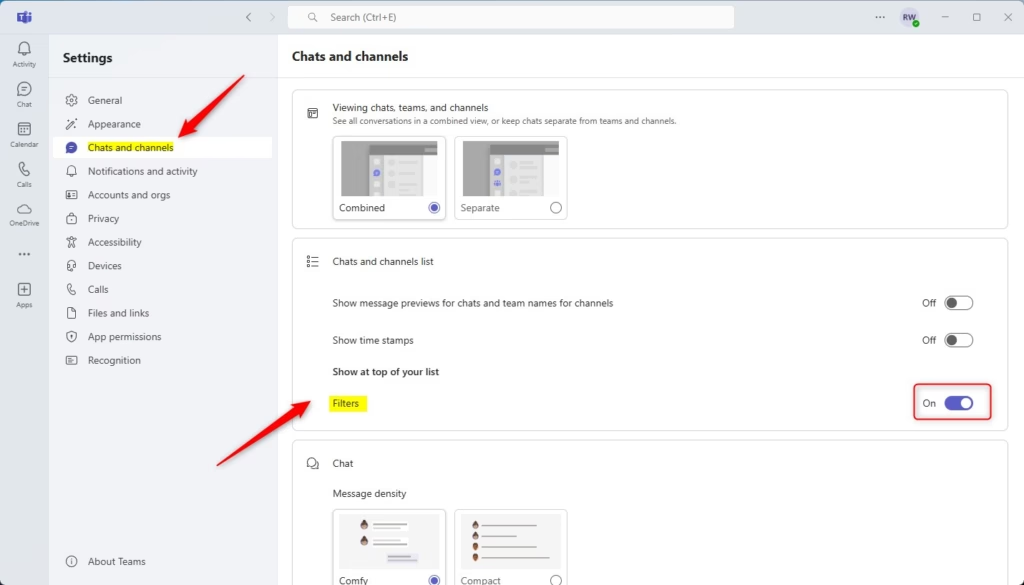
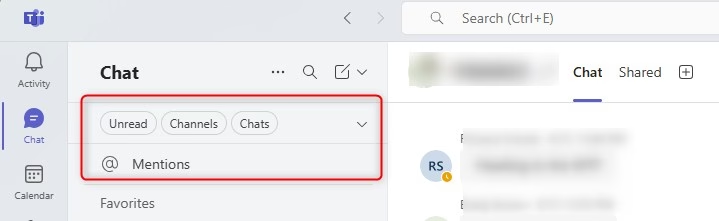
Managing Chat Filters
If you want to organize your messages, you can use chat filters. Go to Settings, select Chats and channels, and toggle the Filters option to show or hide them at the top of your list.
Summary
Managing Microsoft Teams filters helps you control your appearance during video calls and keep your chats organized.
For more information, visit the official Microsoft documentation.
Why are video filters not showing up in my Teams meeting?
Your video filters might not show up in Microsoft Teams meetings if your computer hardware is too old, your app needs an update, or your IT admin has turned them off.
Do video filters affect meeting performance?
Yes, using Microsoft Teams video filters and background effects can affect your meeting performance because they use more computer power.
Was this guide helpful?

About the Author
Richard
Tech Writer, IT Professional
Richard, a writer for Geek Rewind, is a tech enthusiast who loves breaking down complex IT topics into simple, easy-to-understand ideas. With years of hands-on experience in system administration and enterprise IT operations, he’s developed a knack for offering practical tips and solutions. Richard aims to make technology more accessible and actionable. He's deeply committed to the Geek Rewind community, always ready to answer questions and engage in discussions.

No comments yet — be the first to share your thoughts!