Skip to content

How to Schedule Out-of-Office Replies in Microsoft Teams

Richard
Written by
Richard
Jul 7, 2025 Updated Jun 19, 2026 2 min read
How to Schedule Out-of-Office Replies in Microsoft Teams

You can schedule out-of-office replies in Microsoft Teams to automatically inform colleagues when you’re unavailable.

Setting up these automatic replies in Teams ensures your contacts know you’re away and won’t expect an immediate response. This feature also changes your presence status to “Away” so others can quickly see your availability.

When you configure your out-of-office message, anyone who messages you during that period will receive your custom reply. This functionality seamlessly integrates with your Outlook calendar, automatically marking you as busy for the duration you specify.

⚡ Quick Answer

Set your out-of-office replies by clicking your profile picture, selecting “Set status message,” then “Schedule out of office.” Enter your message, dates, and save. This automatically syncs with your Outlook calendar.

How to schedule out of office in Teams

You can manage your status through the desktop app or mobile app. Both methods sync with your Microsoft 365 account.

Method 1Using the Settings Menu

You can schedule out of office replies in Microsoft Teams easily using the app’s settings menu.

Microsoft Teams in Start menu

2. Click the Settings and more (…) icon next to your profile picture.

Microsoft Teams settings button for scheduling out-of-office replies

3. Select Settings and go to the General tab.

4. Find the Out of Office section and click Schedule.
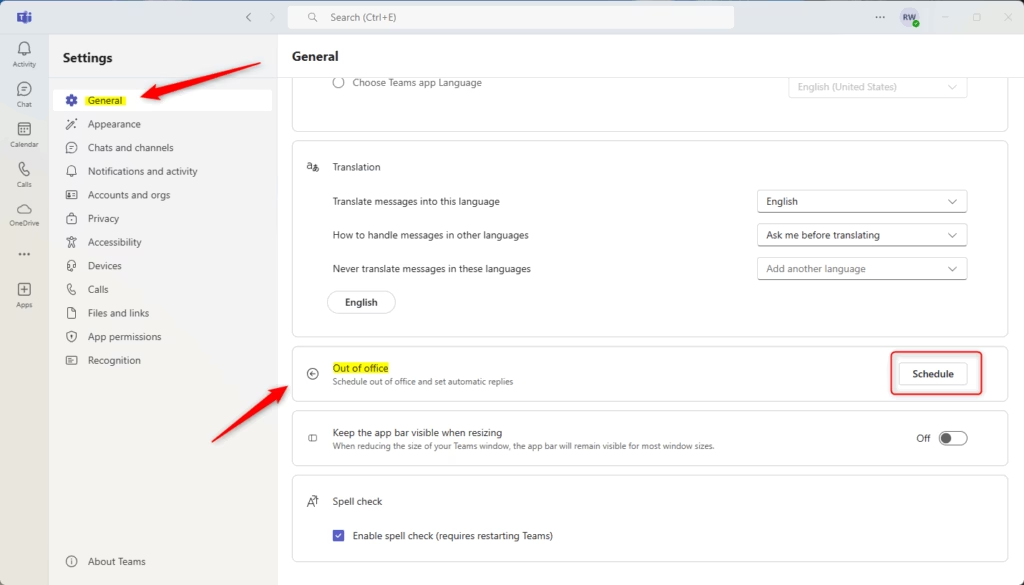
Out-of-office message setup in Microsoft Teams

5. Toggle the Turn on automatic replies switch to On.
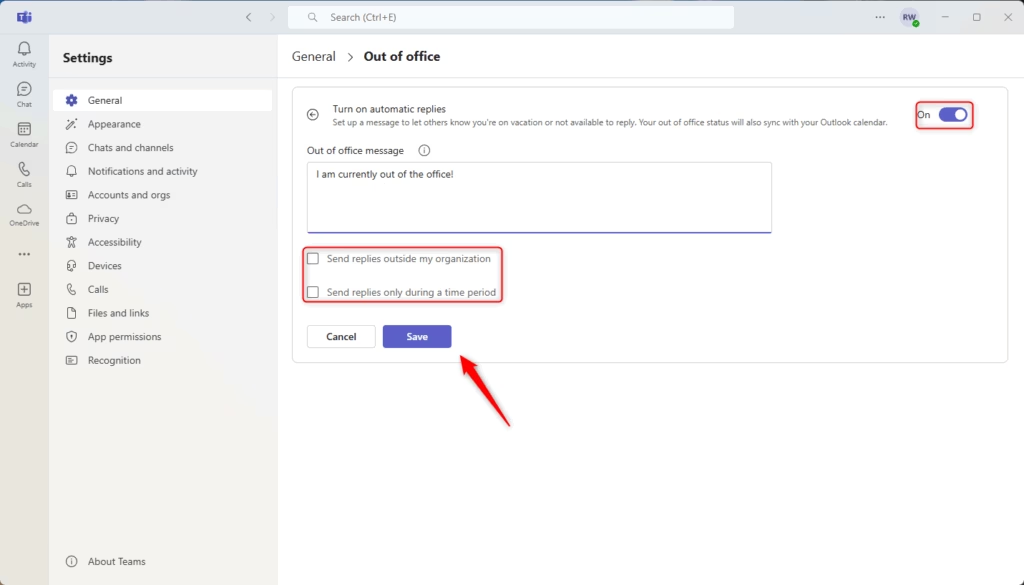
Out of office in Teams settings

6. Type your message, set your start and end times, and click Save.

Method 2Using your Profile Picture

  1. Click your Profile Picture in the top right corner of Teams.
  2. Select Set status message.
  3. Click Schedule out of office at the bottom of the window.
  4. Configure your dates and message, then click Save.

Status Message vs. Out of Office Status

Understanding the difference between a status message and an out of office reply in Teams is important for managing your availability.

Summary

Scheduling your out of office status in Teams is a simple way to let everyone know when you’re unavailable, and it syncs with Outlook.

Does setting OOO in Teams automatically update my Outlook calendar?

Yes. Because Teams is part of the Microsoft 365 ecosystem, your status is synced with your Outlook calendar. When you set an out-of-office period in Teams, it creates a corresponding event in your Outlook calendar to block your time and notify others of your absence.


Why is my Teams status not reflecting my OOO settings?

If your status does not update, try signing out of Teams and signing back in. Make sure your Microsoft 365 account is syncing correctly. In rare cases, your IT department might have restrictions in place on status updates, possibly through something called group policy settings.

How do I turn off OOO status before the scheduled end time?

You can turn it off manually at any time. Go back to your Settings, navigate to the Out of Office section, and toggle the switch to Off. Click Save to immediately revert your status to your previous availability state.

Why won't Teams let me schedule out of office?

If you can’t schedule out of office in Teams, first check if ‘Automatic Replies’ is turned on in Outlook, as this setting affects your Teams status.

Was this guide helpful?

Tags: #Productivity #Windows 11
Was this helpful?
Richard

About the Author

Richard

Tech Writer, IT Professional

Richard, a writer for Geek Rewind, is a tech enthusiast who loves breaking down complex IT topics into simple, easy-to-understand ideas. With years of hands-on experience in system administration and enterprise IT operations, he’s developed a knack for offering practical tips and solutions. Richard aims to make technology more accessible and actionable. He's deeply committed to the Geek Rewind community, always ready to answer questions and engage in discussions.

📚 Related Tutorials

How to Enable or Disable Auto-Start for Microsoft Teams
Windows How to Enable or Disable Auto-Start for Microsoft Teams
How to Connect Google Calendar to Microsoft Teams in Windows 11
Windows How to Connect Google Calendar to Microsoft Teams in Windows 11
How to Sync Google Contacts with Microsoft Teams on Windows 11
Windows How to Sync Google Contacts with Microsoft Teams on Windows 11
How to Disable Message Previews in Microsoft Teams on Windows 11
Windows How to Disable Message Previews in Microsoft Teams on Windows 11

No comments yet — be the first to share your thoughts!

Leave a Comment

Your email address will not be published. Required fields are marked *

Exit mobile version