How to Schedule Out-of-Office Replies in Microsoft Teams

This article explains how to schedule out-of-office auto replies in Microsoft Teams.
Setting an out-of-office status helps your team know when you are away. It prevents unnecessary pings and manages expectations. When you set this, your presence indicator changes to show you are unavailable. What happens when done? Your colleagues see a clear message when they try to message you, and your Outlook calendar syncs automatically.
How to schedule out of office in Teams
You can manage your status through the desktop app or mobile app. Both methods sync with your Microsoft 365 account.
Method 1: Using the Settings Menu
1. Launch the Microsoft Teams app from your Start menu.

2. Click the Settings and more (…) icon next to your profile picture.

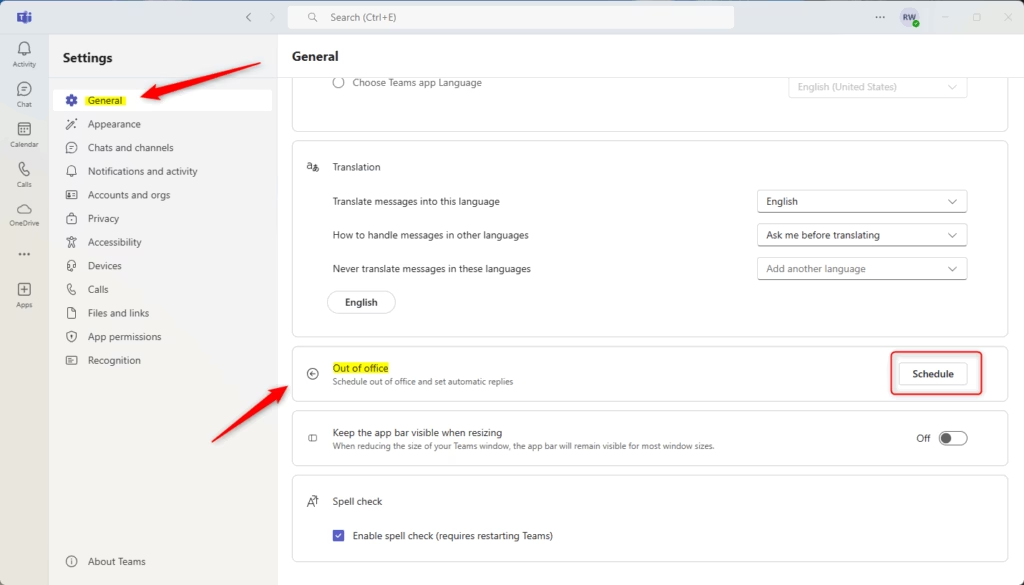
3. Select Settings and go to the General tab.
4. Find the Out of Office section and click Schedule.
5. Toggle the Turn on automatic replies switch to On.
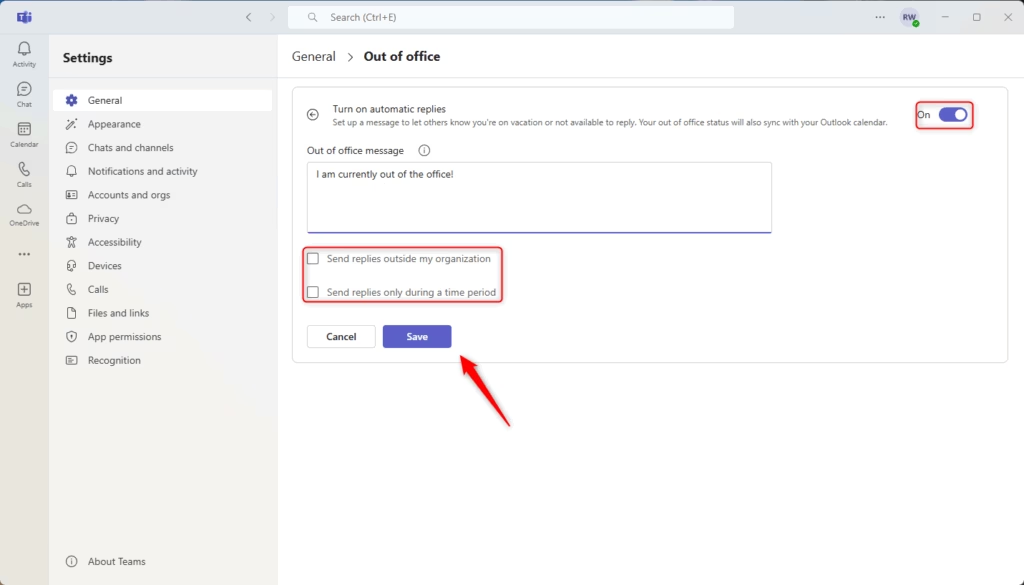
6. Type your message, set your start and end times, and click Save.
Method 2: Using your Profile Picture
1. Click your Profile Picture in the top right corner of Teams.
2. Select Set status message.
3. Click Schedule out of office at the bottom of the window.
4. Configure your dates and message, then click Save.
Status Message vs. Out of Office Status
It is important to know the difference. A Status Message is a short note that appears when someone hovers over your name. An Out of Office status is a formal setting that changes your presence indicator to a purple circle with an ‘X’ and triggers automatic email replies in Outlook.
Summary
Scheduling your out-of-office status in Microsoft Teams ensures your team stays informed. By syncing with your Outlook calendar, it keeps your availability accurate across all Microsoft 365 apps. Remember that you can manage these settings via the desktop app or your profile menu. For more details, visit the official Microsoft support documentation.
Does setting OOO in Teams automatically update my Outlook calendar?
Yes. Because Teams is part of the Microsoft 365 ecosystem, your status is synced with your Outlook calendar. When you set an out-of-office period in Teams, it creates a corresponding event in your Outlook calendar to block your time and notify others of your absence.
Why is my Teams status not reflecting my OOO settings?
If your status does not update, try signing out of Teams and signing back in. Ensure your Microsoft 365 account is properly synced. In rare cases, you may need to check if your organization has restricted status updates via group policy settings like HKEY_CURRENT_USER\Software\Microsoft\Office\Teams.
How do I turn off OOO status before the scheduled end time?
You can turn it off manually at any time. Go back to your Settings, navigate to the Out of Office section, and toggle the switch to Off. Click Save to immediately revert your status to your previous availability state.
Was this guide helpful?

About the Author
Richard
Tech Writer, IT Professional
Richard, a writer for Geek Rewind, is a tech enthusiast who loves breaking down complex IT topics into simple, easy-to-understand ideas. With years of hands-on experience in system administration and enterprise IT operations, he’s developed a knack for offering practical tips and solutions. Richard aims to make technology more accessible and actionable. He's deeply committed to the Geek Rewind community, always ready to answer questions and engage in discussions.




No comments yet — be the first to share your thoughts!