How to Enable Out of Office Replies in Outlook for Windows 11


You enable Out of Office replies in Outlook for Windows 11 to automatically send a pre-written message to your contacts when you are away from your computer.
An Out of Office auto-reply is a feature that sends a custom response to incoming emails, informing senders that you are unavailable.
This feature helps manage expectations and maintain professionalism, especially when you’re on vacation or in meetings. For instance, you can set Outlook’s auto-reply to reach only internal recipients or to all senders.
Activating the Out of Office setting ensures Outlook sends these automatic responses, so you can disconnect without worrying about missed emails. This feature helps manage your incoming mail when you are unavailable.
Click the Settings gear icon, go to Accounts, then select Automatic replies. Toggle the switch to On, set your times, and type your message.
Setting up Automatic Replies in Outlook for 🪟 Windows 11
Setting up automatic replies in Outlook for Windows 11 lets people know you’re out of the office. You can turn on Out of Office replies by opening Outlook, going to settings, and selecting ‘Automatic replies’. This feature helps manage expectations when you can’t respond to emails right away.
- Open the Outlook app on your Windows 11 computer.

Open the new Outlook app in Windows 11 - Click the Settings gear icon in the top right corner.

Add Gmail to Outlook app in Windows 11 - Navigate to the Accounts tab on the left sidebar.
- Select Automatic replies.
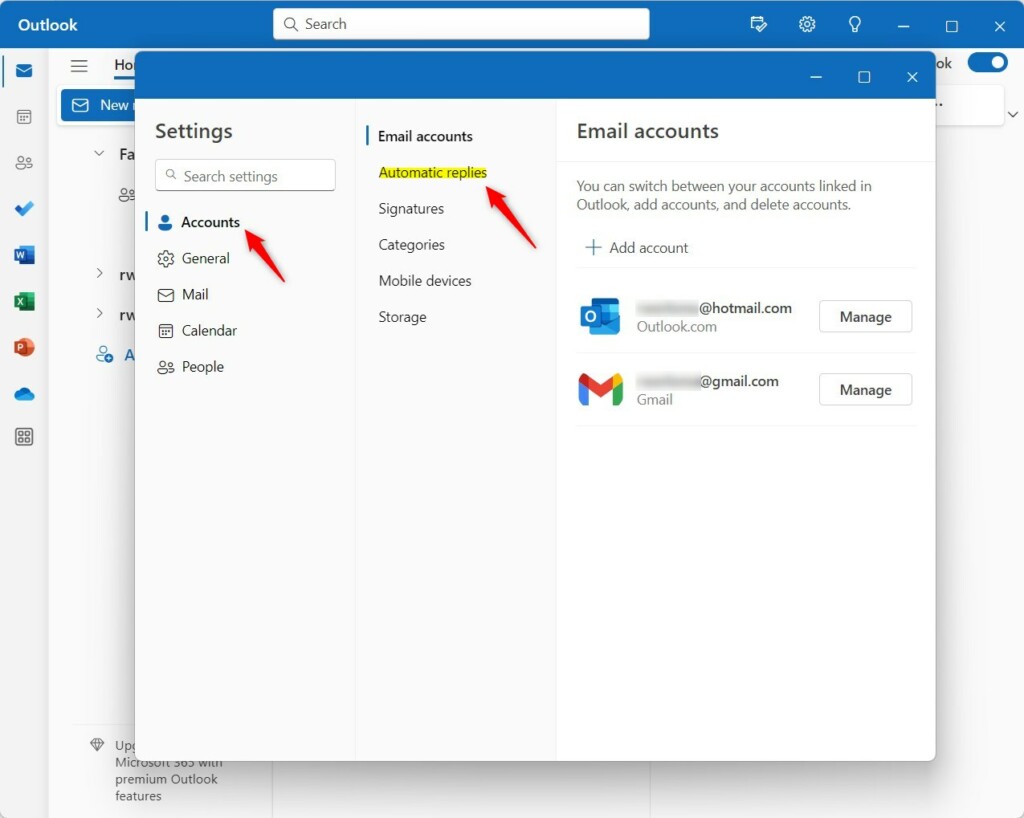
Setup automatic replies in Outlook - Toggle the switch to On.
- Configure your start and end times to schedule automatic replies.
- Type your message in the text box.
How to set up Out of Office in Outlook Web (OWA)
If you use Outlook webmail, follow these steps:
- Log in to your account at outlook.office.com.
- Click the Settings gear icon.
- Go to Mail > Automatic replies.
- Turn on the Turn on automatic replies switch.
- Enter your message and click Save.
Setting up Out of Office on Outlook Mobile
- Open the Outlook mobile app.
- Tap your profile icon in the top left.
- Tap the Settings gear icon at the bottom.
- Select your email account.
- Tap Automatic Replies and toggle it on.
Troubleshooting: Why are my replies not sending to external recipients?
If your Out of Office replies aren’t reaching people outside your company, check your Exchange account settings. Make sure you’ve selected the option to send replies outside your organization.
Summary
Setting up your Out of Office Outlook message helps you manage your time away from work. You can easily schedule these automatic replies using the desktop app, webmail, or mobile app.
How do I turn off Out of Office replies before my scheduled end date?
Simply return to the Automatic Replies menu in your Outlook settings. Toggle the switch to Off. This immediately stops the server from sending your automated message, even if the original end date has not yet passed. Always remember to click Save or Done to apply the changes.
Can I set up an Out of Office reply if I don’t have an Exchange account?
Yes, but the process differs. If you use a standard POP or IMAP account, you must create an Outlook Rule. Go to Rules > Manage Rules and Alerts, create a new rule to reply using a specific template, and select your saved message file.
Was this guide helpful?

About the Author
Richard
Tech Writer, IT Professional
Richard, a writer for Geek Rewind, is a tech enthusiast who loves breaking down complex IT topics into simple, easy-to-understand ideas. With years of hands-on experience in system administration and enterprise IT operations, he’s developed a knack for offering practical tips and solutions. Richard aims to make technology more accessible and actionable. He's deeply committed to the Geek Rewind community, always ready to answer questions and engage in discussions.



[…] features, including support for email signatures, external email accounts, setting out-of-office automatic replies, email sorting, subscription management, email forwarding, setting default From […]
[…] features, including support for email signatures, external email accounts, setting out-of-office automatic replies, email sorting, subscription management, email forwarding, and […]
[…] features, including support for email signatures, external email accounts, setting out-of-office automatic replies, email sorting, and subscription […]
[…] features, including support for email signatures, external email accounts, setting out-of-office automatic replies, and email […]
[…] The app has many features, including support for email signatures, external email accounts, and setting out-of-office automatic replies. […]
[…] app has many features, including support for email signatures, external email accounts, setting out-of-office automatic replies, email sorting, subscription management, email forwarding, Blind Carbon Copy (Bcc), and […]
[…] accounts. The app comes with many useful tools like email signatures, external email accounts, out-of-office automatic replies, email sorting, subscription management, email forwarding, setting default From address, backing up […]
[…] app includes many tools, such as support for email signatures, external email accounts, setting out-of-office automatic replies, email sorting, subscription management, email forwarding, setting default From address, backing up […]