How to Enable or Disable Taskbar App Badges in Windows 11

You enable or disable taskbar app badges in Windows 11 directly within the Settings app.
Taskbar app badges are those small notification indicators that appear on your app icons, like the number of unread emails or new messages. They’re designed to give you a quick visual alert without needing to open each program.
In Windows 11, these badges typically display a number representing pending notifications. For instance, a badge on your Mail app might show “3” if you have three new unread messages.
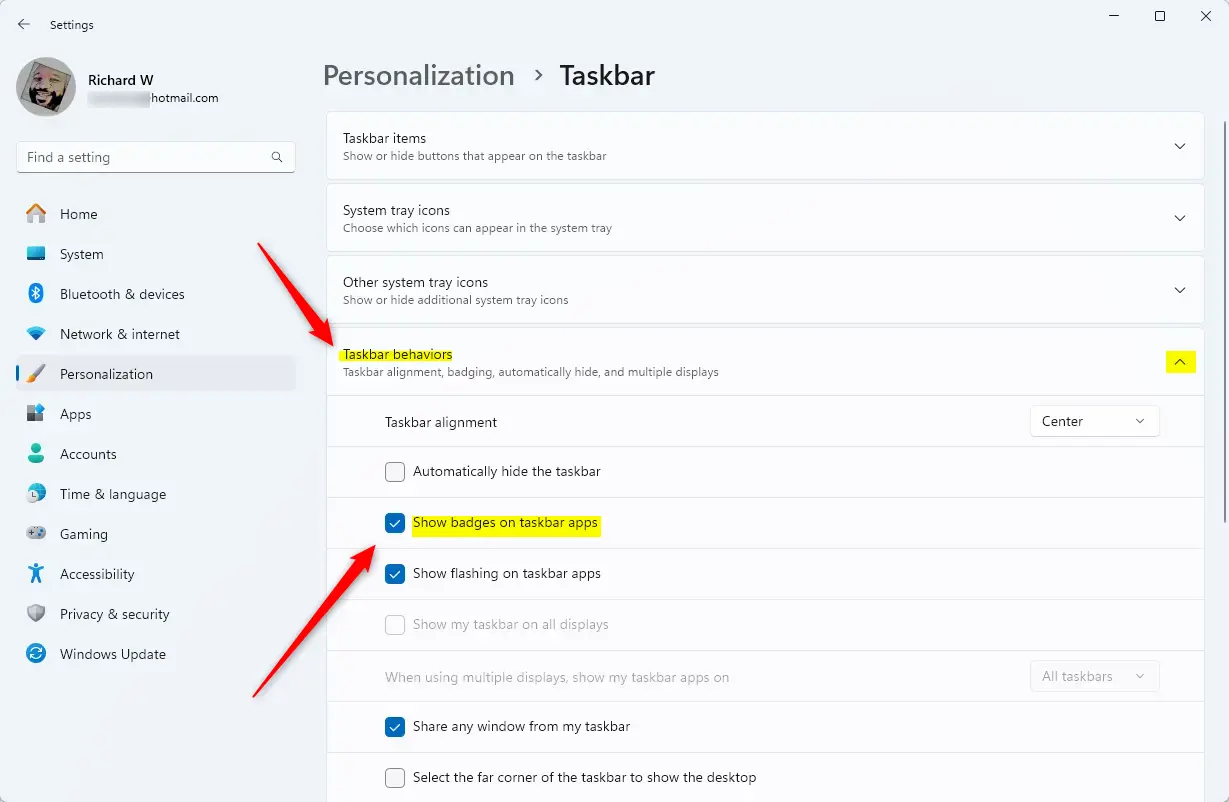
You manage these badges by going to Settings > Personalization > Taskbar > Taskbar behaviors.
Go to Settings > Personalization > Taskbar > Taskbar behaviors. Check the “Show badges on taskbar apps” box to enable them, or uncheck it to disable. Your changes apply immediately.
Why use badges?
Badges help you see if you have missed anything important at a glance. They act as a quick alert system for your desktop. Using badges helps you quickly see which apps need your attention.
What happens when you change this?
Turning on taskbar app badges in Windows 11 shows you a count of unread messages or updates right on the app icon.
How to manage your app badges
Managing taskbar app badges in Windows 11 is simple and can be done right from your Taskbar settings.
- Right-click any empty space on your taskbar and select Taskbar settings.
- Alternatively, press Windows key + I to open the Settings app.
- Click Personalization on the left sidebar.
- Select Taskbar from the list on the right.
- Click on the Taskbar behaviors section to expand it.
- Find the option labeled Show badges on taskbar apps.
- Check the box to turn badges on, or uncheck the box to turn them off.

Once finished, close the window. Your changes take effect immediately.
Troubleshooting Missing Badges
If your taskbar app badges in Windows 11 aren’t showing up, the first thing to check is if Focus Assist or Do Not Disturb is turned on.
Summary
Windows 11 taskbar app badges are small numbers on your app icons that tell you about new notifications, helping you stay informed without constant alerts.
Why are taskbar badges not appearing for specific apps?
Badges may be missing because the app does not support them, or your system is in Do Not Disturb mode. Check your notification settings for that specific app to ensure banners and badges are enabled. If the issue persists, try pinning and unpinning the app from your taskbar.
Can I customize the color of taskbar badges in 🪟 Windows 11?
Currently, Windows 11 does not offer a native setting to change the color of taskbar badges. The color is determined by your system accent color and theme settings. You cannot manually set a custom color for individual app badges through the standard Windows Settings menu.
Was this guide helpful?

About the Author
Richard
Tech Writer, IT Professional
Richard, a writer for Geek Rewind, is a tech enthusiast who loves breaking down complex IT topics into simple, easy-to-understand ideas. With years of hands-on experience in system administration and enterprise IT operations, he’s developed a knack for offering practical tips and solutions. Richard aims to make technology more accessible and actionable. He's deeply committed to the Geek Rewind community, always ready to answer questions and engage in discussions.


No comments yet — be the first to share your thoughts!