How to Enable or Disable Flashing Taskbar Apps in Windows 11

You can enable or disable the flashing taskbar app feature in Windows 11 to control how alerts visually notify you.
This flashing effect is a built-in Windows notification system designed to make application icons blink on the taskbar when they require your immediate attention, such as for new messages or pending updates.
For example, a blinking icon for your email client might indicate a new message has arrived, ensuring you don’t miss it while working on other tasks.
Disabling this feature means apps will still send notifications, but their icons will no longer flash on your taskbar, helping to reduce visual distractions.
Change Settings via Windows Settings
You can change this using the built-in Settings app. Note: This action requires an administrator account on your computer.
1. Open the Settings app by pressing Windows key + I.

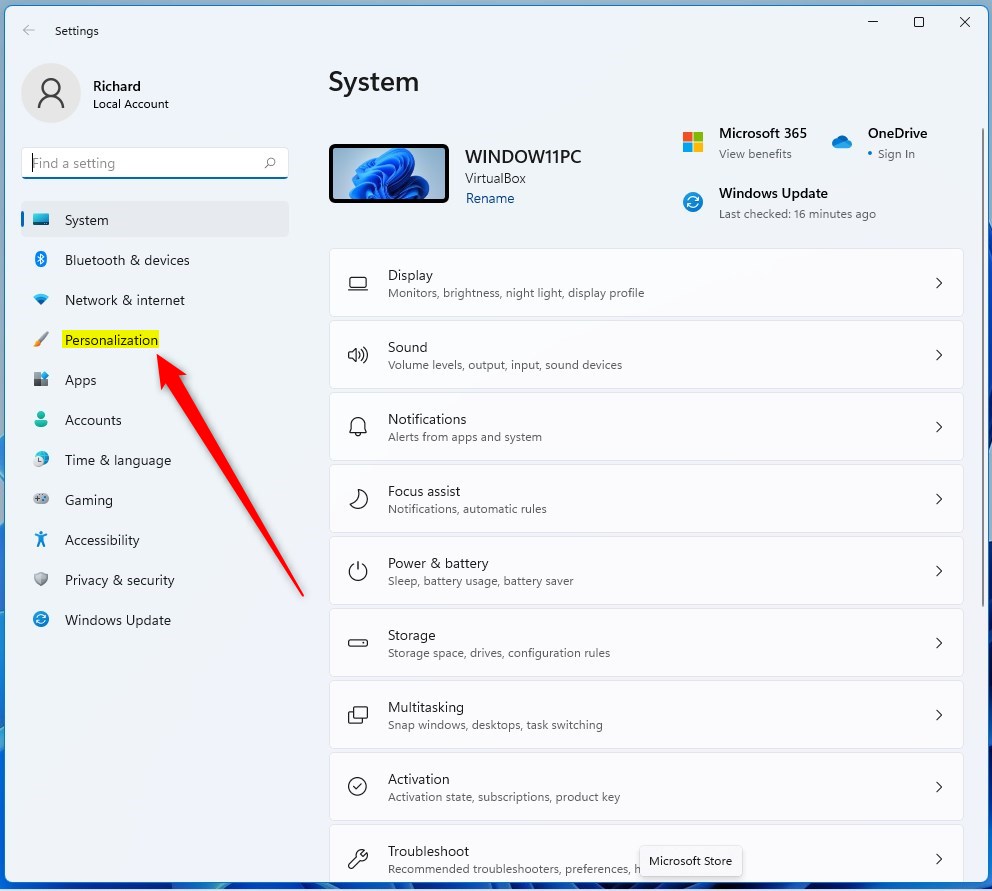
2. Click Personalization in the left menu.
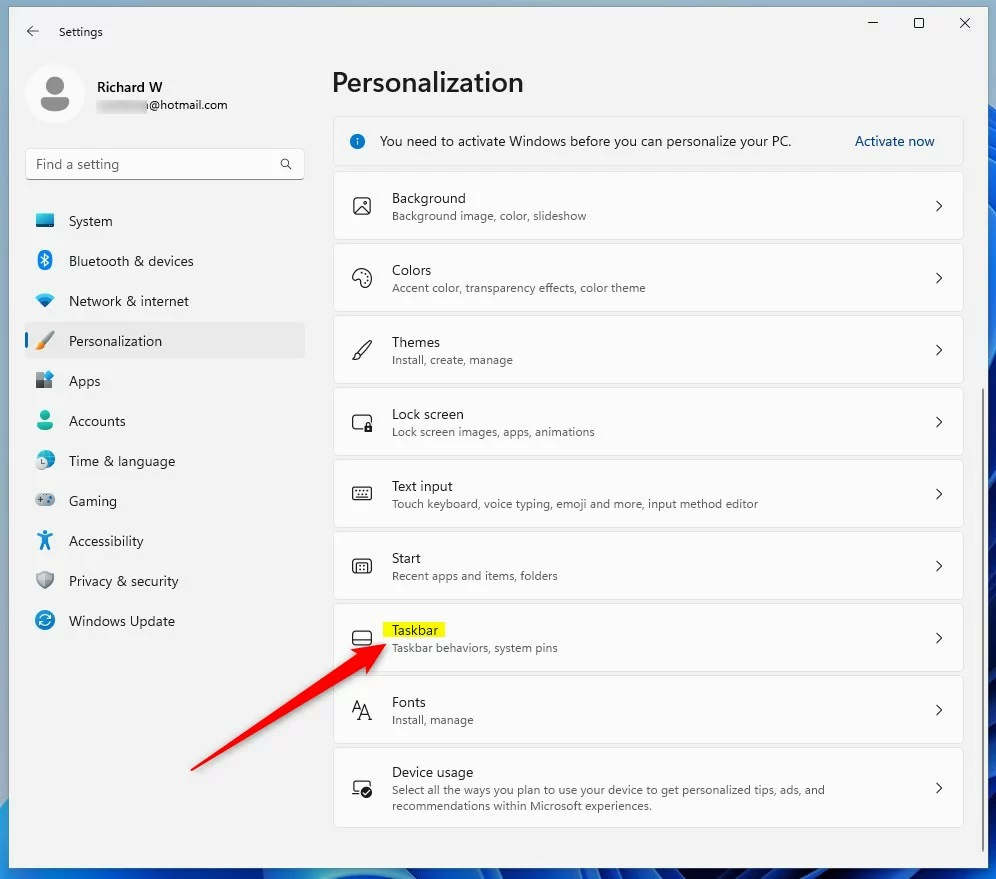
3. Select Taskbar on the right.
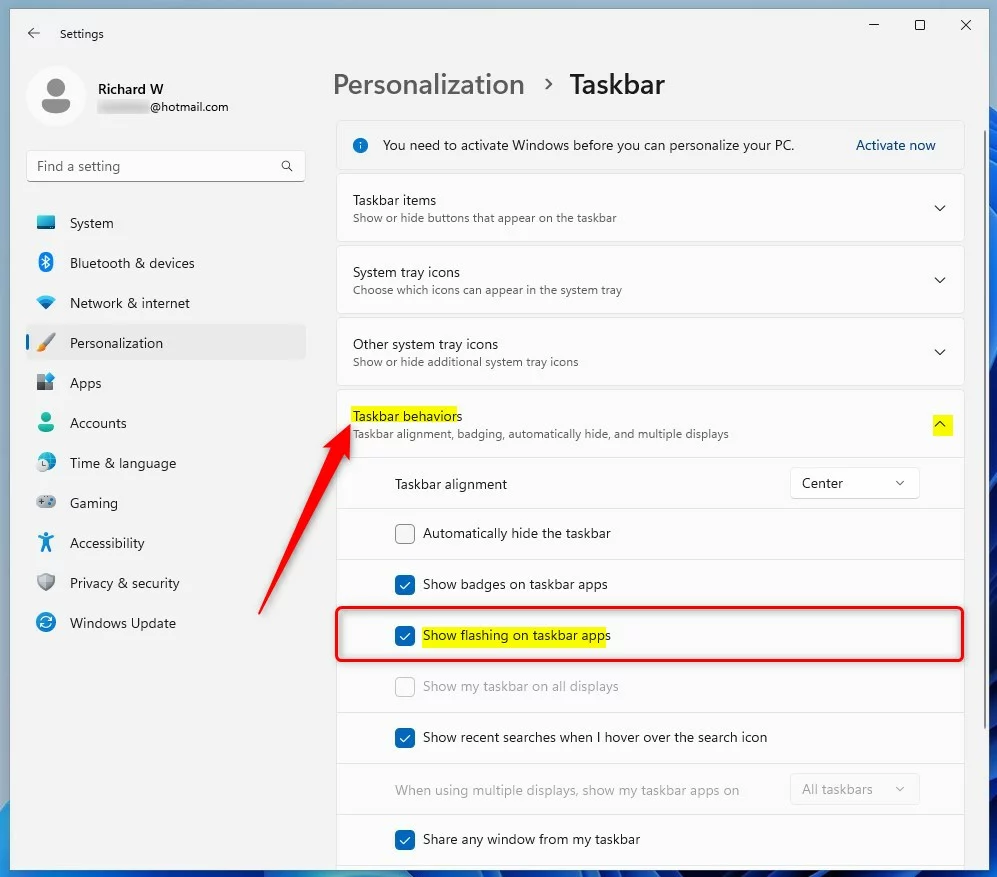
4. Click Taskbar behaviors to expand it.
5. Find Show flashing on taskbar apps. Check or uncheck the box to enable or disable it.
Advanced: Registry Editor Method
Warning: Editing the registry can cause system issues if done incorrectly. Always back up your registry before proceeding. This requires administrator privileges.
To control the flash count, use the ForegroundFlashCount setting:
1. Press Windows key + R, type regedit, and hit Enter.
2. Navigate to: HKEY_CURRENT_USER\Control Panel\Desktop
3. Find ForegroundFlashCount in the right pane. Double-click it to change the value. A value of 0 stops the flashing entirely.
Troubleshooting Persistent Flashing
If apps keep flashing, check your Focus Assist settings. Sometimes, notification badges or background apps force the taskbar to alert you. Ensure your system is updated by visiting the official Microsoft support documentation for taskbar customization.
Summary
Flashing taskbar apps are a helpful way to stay updated, but they can be distracting. You can easily toggle this behavior in Settings > Personalization > Taskbar or by modifying the ForegroundFlashCount in the Registry Editor. Disabling this feature keeps your taskbar calm while still allowing notifications to arrive silently.
Why do my taskbar icons flash red in 🪟 Windows 11?
Taskbar icons flash red when an application requires your immediate attention. This is a default Windows 11 UI feature designed to notify you of incoming messages, errors, or status changes. It ensures you do not miss critical alerts while working in other windows or applications on your desktop.
Can I change the color of the flashing taskbar icon?
Windows 11 does not provide a native setting to change the specific color of the flashing taskbar icon. The color is tied to the system theme and accent colors. To customize this further, you would need to use third-party UI customization tools, though these can sometimes cause system instability.
Was this guide helpful?

About the Author
Richard
Tech Writer, IT Professional
Richard, a writer for Geek Rewind, is a tech enthusiast who loves breaking down complex IT topics into simple, easy-to-understand ideas. With years of hands-on experience in system administration and enterprise IT operations, he’s developed a knack for offering practical tips and solutions. Richard aims to make technology more accessible and actionable. He's deeply committed to the Geek Rewind community, always ready to answer questions and engage in discussions.


[…] recently showed you how to enable or disable Show flashing on taskbar apps in Windows 11 to get your attention when specific actions are […]