How to Switch Between Open Windows in Windows 11

Managing your open windows is key to staying productive in Windows 11. Whether you are juggling research, writing, or design, knowing how to switch between tasks quickly saves time.
Why do this? It keeps your workspace organized and prevents clutter. What happens when done? You will navigate your computer like a pro, keeping your focus on the task at hand.
Switch Between Open Windows in Task View
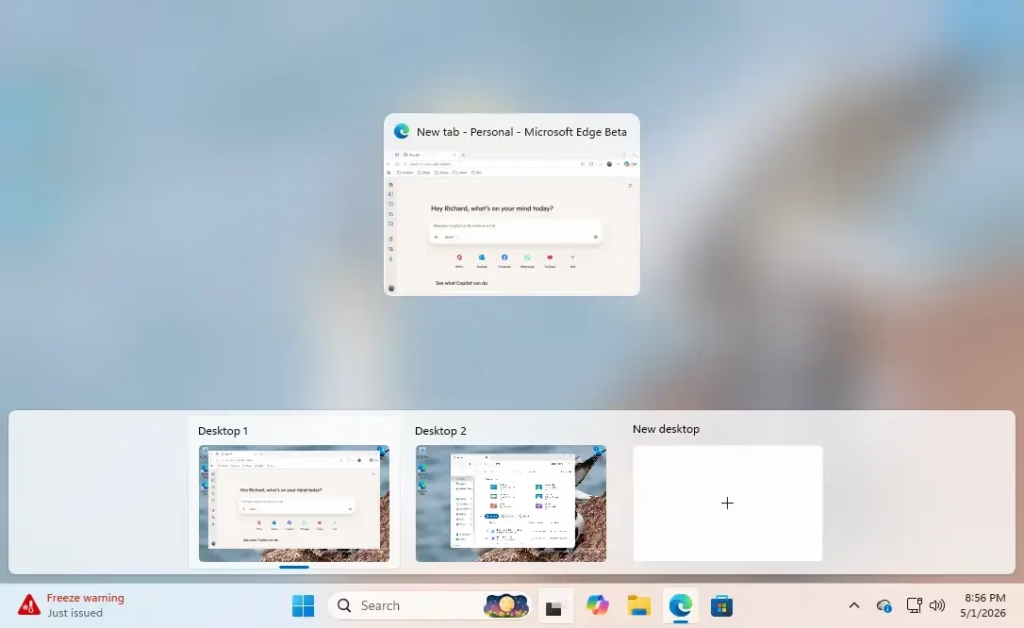
Task View is a visual way to see everything you have open. Press Win+Tab to open it. If you use multiple virtual desktops, you can select the specific desktop containing your window. Click the window to jump to it.
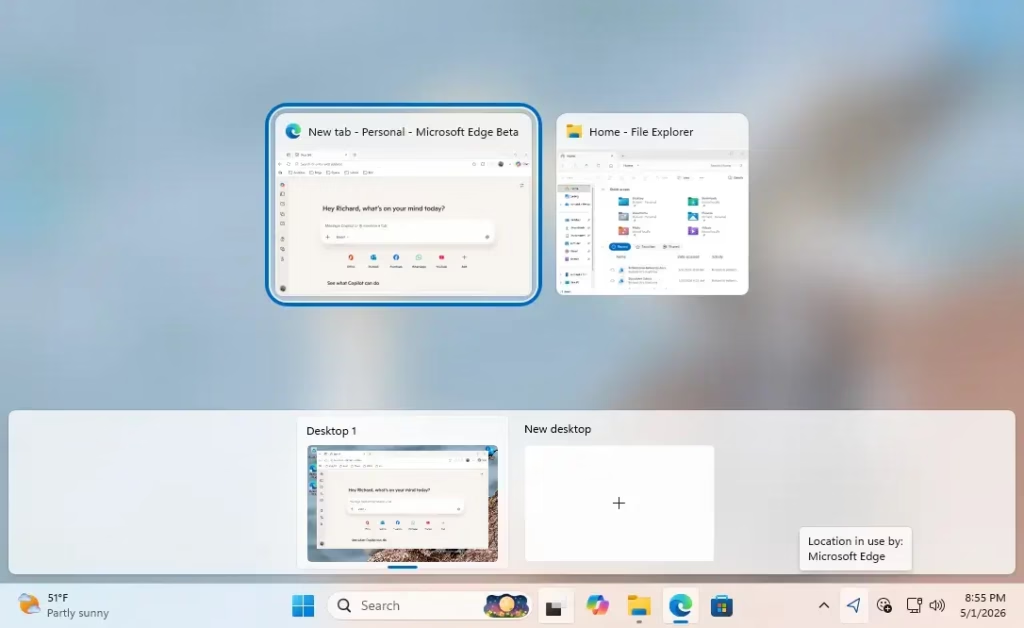
Mastering Alt+Tab
The Alt+Tab shortcut is the fastest way to switch. Hold Alt and tap Tab to cycle through your open windows. Release Alt to select the highlighted window.
Snap Layouts and Groups
Snap Layouts help you organize windows into specific grid positions. Hover your mouse over the maximize button of any window to see layout options. Once snapped, these windows form a Snap Group. You can find your group in the taskbar later to restore all windows at once.
Managing Virtual Desktops
Virtual Desktops allow you to separate your work from your personal life. Open Task View and click New desktop. You can move windows between them by dragging the thumbnail in Task View to the desired desktop.
Frequently Asked Questions
How do I disable Alt+Tab showing browser tabs?
Go to Settings > System > Multitasking. Under the Alt+Tab section, you can change the setting from ‘Open windows and all tabs in Edge’ to ‘Open windows only’ to hide individual browser tabs from your switcher view.
Can I change the number of desktops in Windows 11?
Windows 11 does not have a hard limit on the number of virtual desktops you can create. You can add as many as your system memory allows by clicking the ‘New desktop’ button in the Task View interface.
What is the difference between Task View and Alt+Tab?
Alt+Tab is designed for quick, immediate switching between recent windows. Task View provides a broader overview of all open windows and virtual desktops, making it better for managing complex workflows and organizing your workspace.
Summary
Switching windows in Windows 11 is easy once you know the shortcuts. Use Alt+Tab for speed, Task View for organization, and Snap Layouts to keep your screen tidy. By mastering these tools, you improve your workflow efficiency and keep your digital workspace clean.
Was this guide helpful?


Leave a Reply Cancel reply