How to Enable or Disable Let Apps Take Screenshots and Record Screen in Windows 11

You can enable or disable the ‘Screen capture’ permission for apps in Windows 11 to control which applications can take screenshots or record your screen.
This privacy setting lets you control which apps can see your screen content, which is good for your digital security.
It’s important to manage this setting, especially if you use many apps or worry about privacy. Windows 11 lets you control this for each app individually.
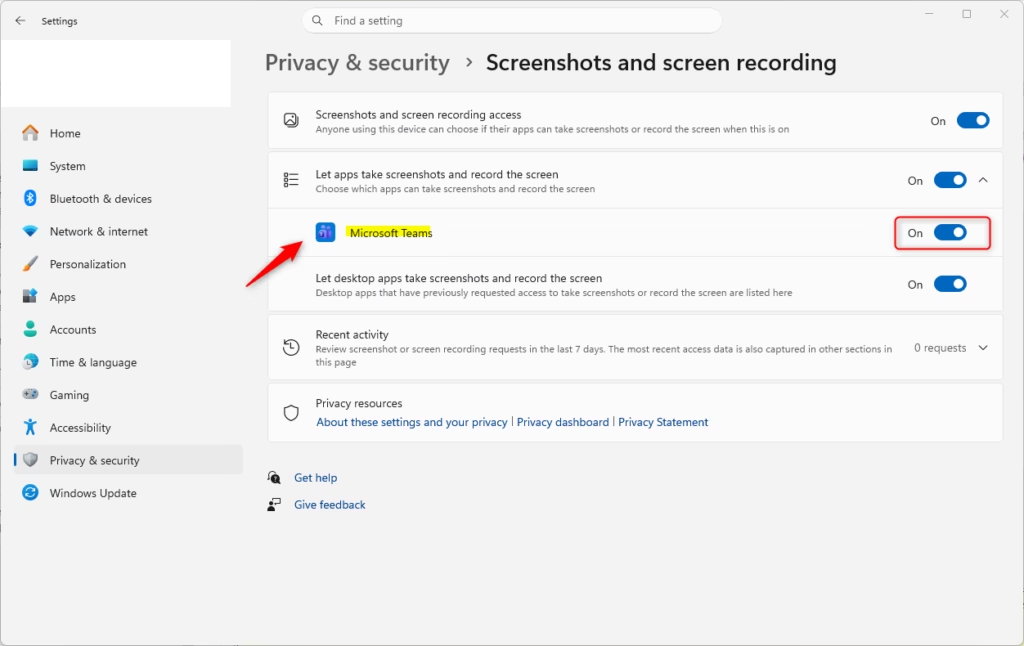
Go to Settings > Privacy & security > Screenshots and screen recording. Toggle the main switch to enable or disable the feature for all apps. You can also control permissions for individual desktop apps or specific applications from this same menu.
What Happens When You Change These Settings?
When you disable these permissions, apps won’t be able to capture your screen anymore. This means tools like the Snipping Tool or other recording software might be blocked. You’ll gain more privacy, but remember you might need to turn access back on for apps you trust.
Comparison of Methods
| Method | Best For | Difficulty |
|---|---|---|
| Settings App | Individual Users | Easy |
| Registry | Advanced Users | Hard |
| Group Policy | IT Administrators | Medium |
Turn On or Off Let Apps Take Screenshots and Record Screen for All Users in Settings
Requires Administrator Privileges
1 Open Settings (⊞ Win+I).
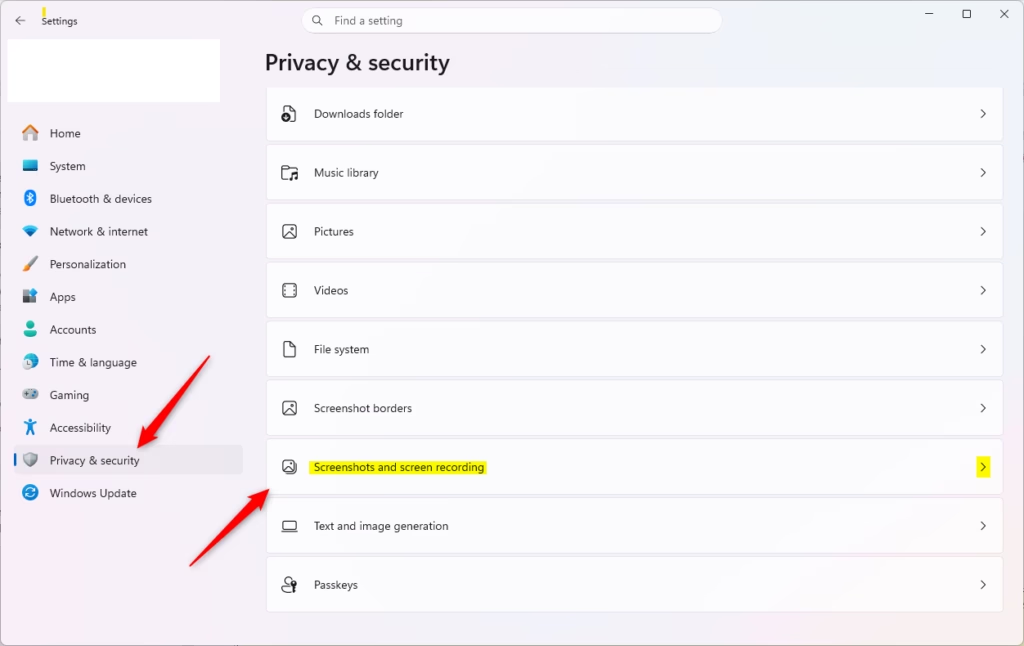
2 Click Privacy & security on the left, then click Screenshots and screen recording on the right.
Open Screenshots and screen recording Settings
3 Turn On or Off the access toggle.
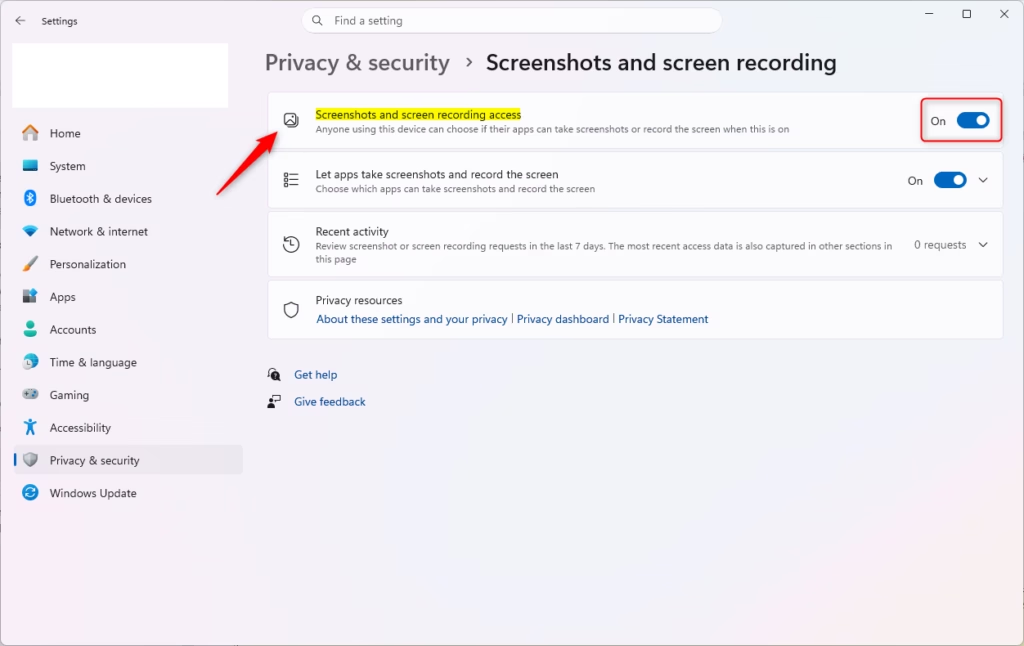
Turn On or Off Let Apps Take Screenshots and Record Screen for All Users using Command
Requires Administrator Privileges
1 Open Windows Terminal (Admin).
2 To enable, run this command: SystemSettingsAdminFlows.exe SetCamSystemGlobal graphicsCaptureProgrammatic 1
3 To disable, run this command: SystemSettingsAdminFlows.exe SetCamSystemGlobal graphicsCaptureProgrammatic 0
Turn On or Off Let Apps Take Screenshots and Record Screen for Current User in Settings
1 Open Settings (⊞ Win+I).
2 Navigate to Privacy & security > Screenshots and screen recording.
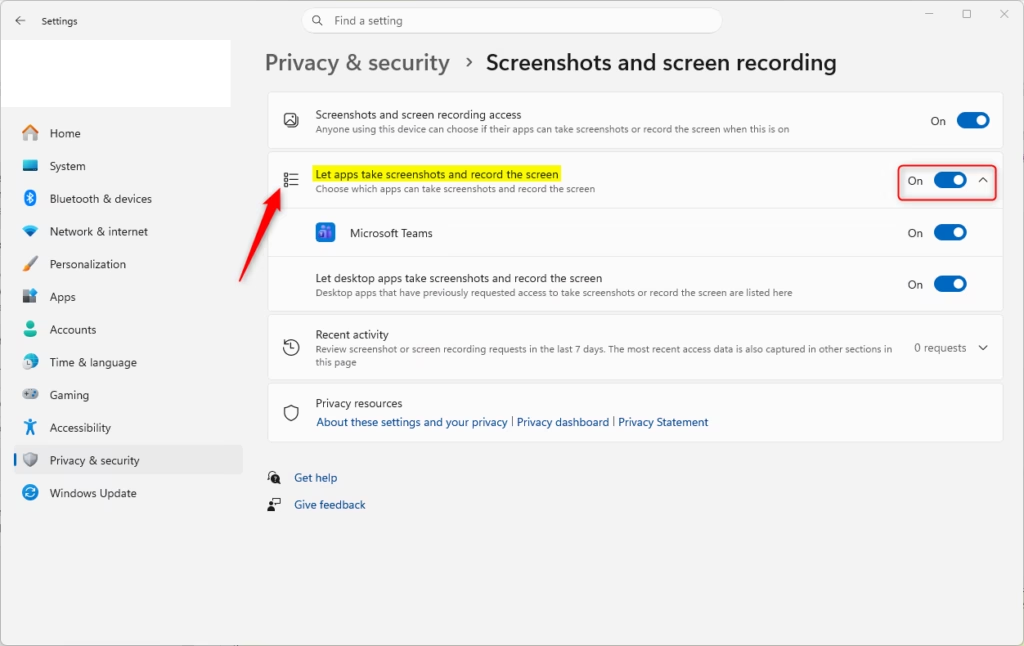
3 Toggle the setting for Let apps take screenshots and record the screen.
Turn On or Off Let Desktop Apps Take Screenshots and Record Screen for Current User in Settings
1 Open Settings (⊞ Win+I).
2 Navigate to Privacy & security > Screenshots and screen recording.
3 Toggle Let desktop apps take screenshots and record the screen.
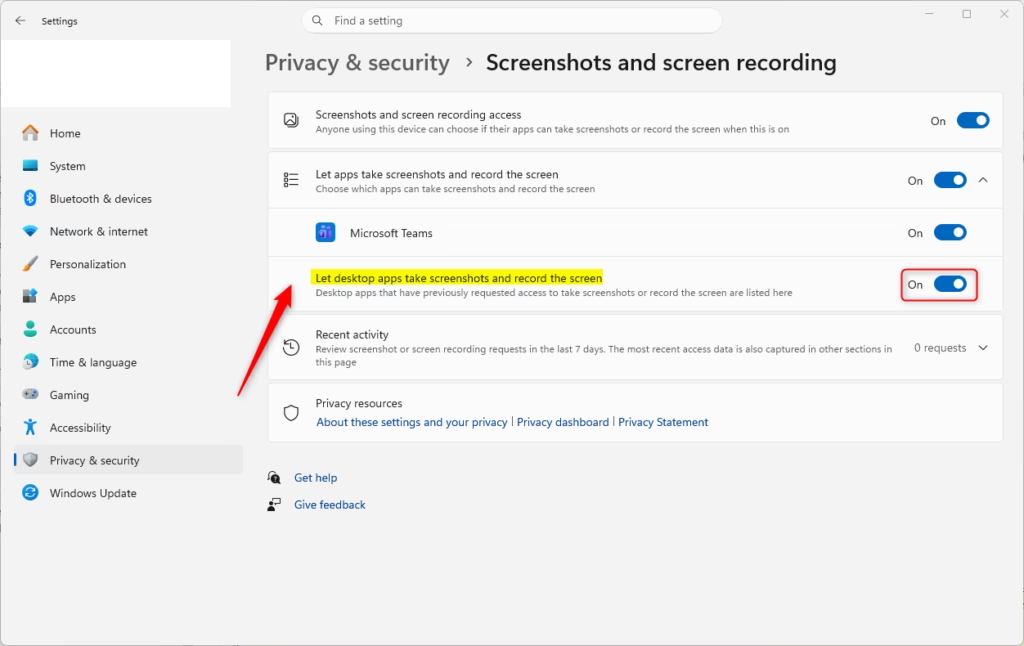
Turn On or Off Specific Apps
1 Open Settings (⊞ Win+I).
2 Navigate to Privacy & security > Screenshots and screen recording.
3 Toggle individual apps under the list to control their specific access.
Enable or Disable via Local Group Policy Editor
Requires Administrator Privileges
1 Open gpedit.msc.
2 Go to Computer Configuration > Administrative Templates > Windows Components > App Privacy.
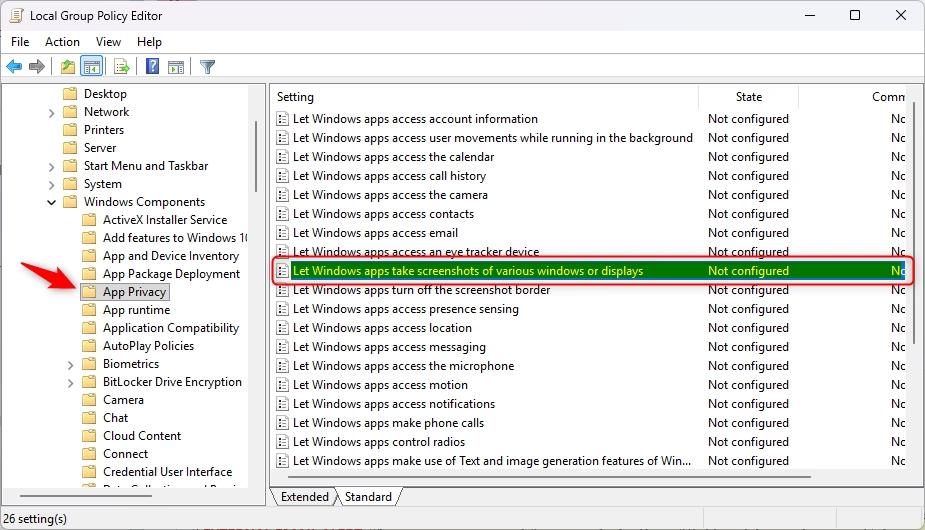
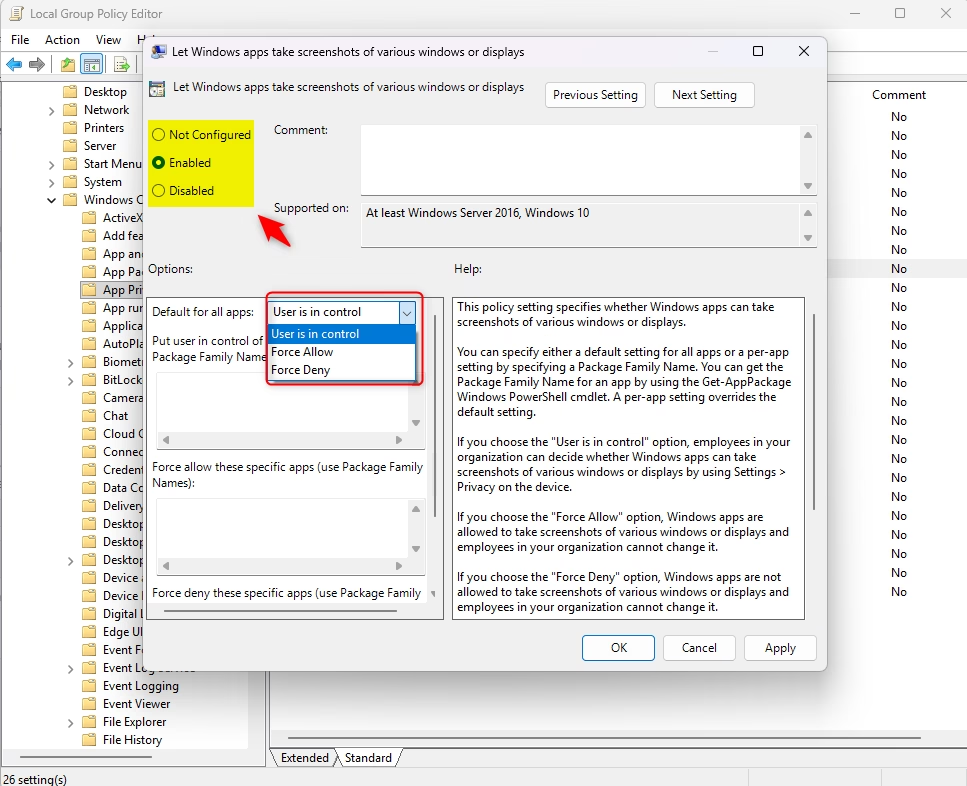
3 Edit Let Windows apps take screenshots of various windows or displays and select to allow or deny.
Enable or Disable via Registry
Requires Administrator Privileges
Navigate to HKEY_LOCAL_MACHINE\SOFTWARE\Policies\Microsoft\Windows\AppPrivacy. Set the LetAppsAccessGraphicsCaptureProgrammatic DWORD to 1 to enable or 2 to disable.
Summary
Managing screen capture permissions in Windows 11 helps protect your privacy. You can use the Settings app for quick changes or Group Policy for system-wide control. Always ensure you have administrator rights before modifying system-level settings or the registry.
Reference: App permissions – Microsoft Support
Does disabling this setting prevent all screenshots?
No. Disabling this setting only blocks apps that rely on the Windows Graphics Capture API. You can still take manual screenshots using the Print Screen key or the Snipping Tool, as these are built-in system functions that operate outside of these specific app-level privacy permissions.
Why is the ‘Let apps take screenshots’ option greyed out?
If this option is greyed out, it is likely because an administrator has applied a Group Policy or a Registry restriction to your computer. This is common in work or school environments where IT policies override individual user settings to maintain security and compliance across the network.
Was this guide helpful?

About the Author
Richard
Tech Writer, IT Professional
Richard, a writer for Geek Rewind, is a tech enthusiast who loves breaking down complex IT topics into simple, easy-to-understand ideas. With years of hands-on experience in system administration and enterprise IT operations, he’s developed a knack for offering practical tips and solutions. Richard aims to make technology more accessible and actionable. He's deeply committed to the Geek Rewind community, always ready to answer questions and engage in discussions.




No comments yet — be the first to share your thoughts!