How to Enable End Task in Windows 11 Taskbar

You enable the “End Task” option directly on your Windows 11 taskbar to quickly close frozen applications without opening Task Manager.
This built-in Windows 11 shortcut lets you shut down unresponsive programs with a single right-click, saving you valuable time. For example, if Microsoft Word crashes, you can force it closed by right-clicking its icon on the taskbar and selecting “End task.”
This feature is particularly useful for everyday users who want to maintain a smooth workflow and avoid disruptive app crashes.
Go to Settings > System > For developers and toggle “End task” to On. Right-click an app icon on the taskbar to see and select the “End task” option for frozen applications.
What happens when done?
Once enabled, right-clicking any application icon on your taskbar will show an “End task” option in the menu. Selecting it will force that program to close immediately. This is a safe way to close an unresponsive process without needing to restart your computer.
How to enable or disable End Task
You can turn the End Task option on or off in Windows 11 to quickly close apps that aren’t responding.
- Open the Settings app. You can do this by clicking the Start menu or by pressing the Windows key + I on your keyboard to launch the Windows Settings app.
- Click on System in the left-hand menu.
- Find and select the For developers tile on the right side of the screen.
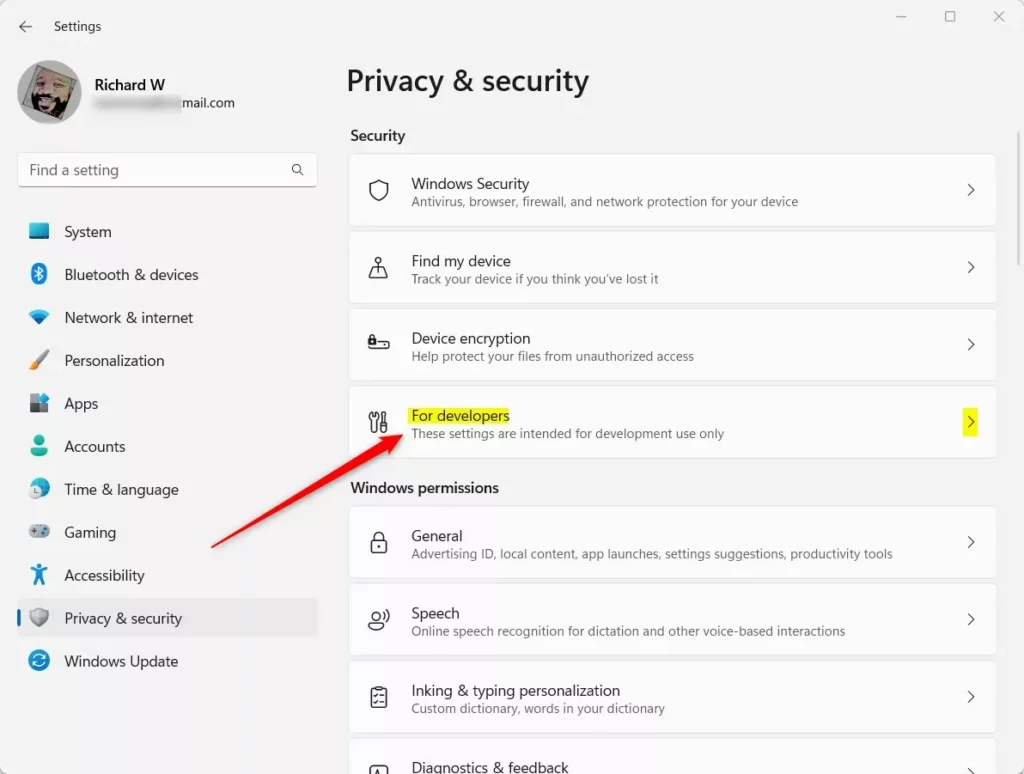
- Look for the End Task option. Toggle the switch to On to enable it .
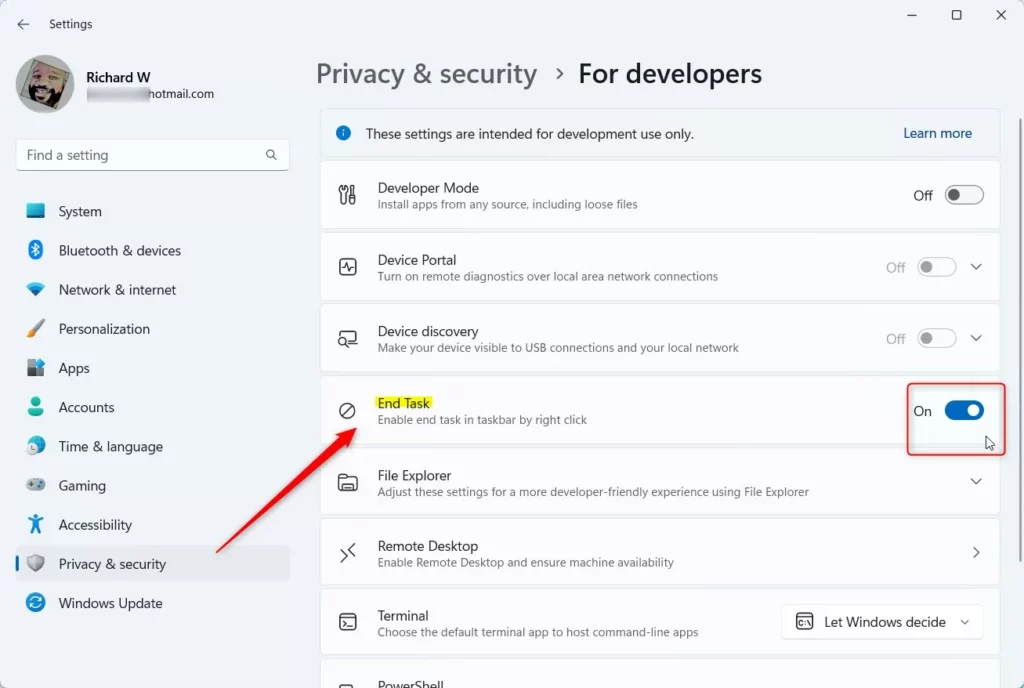
Close the Settings app once you have made your choice. You’ll see the change right away.
Troubleshooting and Limitations
If you do not see the option, ensure your Windows 11 build is up to date. You can check for updates in Settings > Windows Update. Keep in mind, this feature is only for Windows 11; it’s not in Windows 10.
Summary
Turning on the End Task option in Windows 11 lets you close frozen apps right from the taskbar, making it simpler to keep your computer running smoothly.
Does enabling End Task affect system performance?
No, turning on the End Task feature in Windows 11 won’t slow down your computer at all.
What happens if I accidentally click End Task on a system process?
If you click End Task on a standard app, it will close immediately. If you attempt to close a critical system process, Windows usually prevents this to protect your data. However, always save your work in other open programs before forcing a closure to avoid data loss.
Why is the End Task option missing from my taskbar?
The option is missing if you have not toggled it on in the For developers menu. Additionally, ensure your Windows 11 version is updated to the latest build. If the menu still does not appear after enabling it, try restarting the Windows Explorer process via Task Manager.
Was this guide helpful?

About the Author
Richard
Tech Writer, IT Professional
Richard, a writer for Geek Rewind, is a tech enthusiast who loves breaking down complex IT topics into simple, easy-to-understand ideas. With years of hands-on experience in system administration and enterprise IT operations, he’s developed a knack for offering practical tips and solutions. Richard aims to make technology more accessible and actionable. He's deeply committed to the Geek Rewind community, always ready to answer questions and engage in discussions.


No comments yet — be the first to share your thoughts!