How To Fix Windows 11 File Explorer Crashing Or Freezing

It is very frustrating when you try to open a folder and your computer stops responding. You might see a white screen, a spinning circle, or your taskbar might blink and restart. This is a common issue in Windows 11, but it is easy to fix.
Why does this happen? File Explorer is the main tool you use to manage your files. When it crashes, it usually means there is a conflict with a background app, a broken system file, or an extra menu item added by another program that is failing to load.
What happens when you are done? After following these steps, you will have cleared out the digital clutter causing the freezes. Your folders will open quickly, and your computer will feel smooth and reliable again.
Step 1: Restart Windows Explorer via Task Manager
The fastest way to fix a freeze is to restart the Explorer process. This clears the temporary memory without needing to restart your whole computer.
- Press Ctrl + Shift + Esc on your keyboard to open Task Manager.
- Click on the Processes tab.
- Scroll down until you find Windows Explorer.
- Right-click it and select Restart.
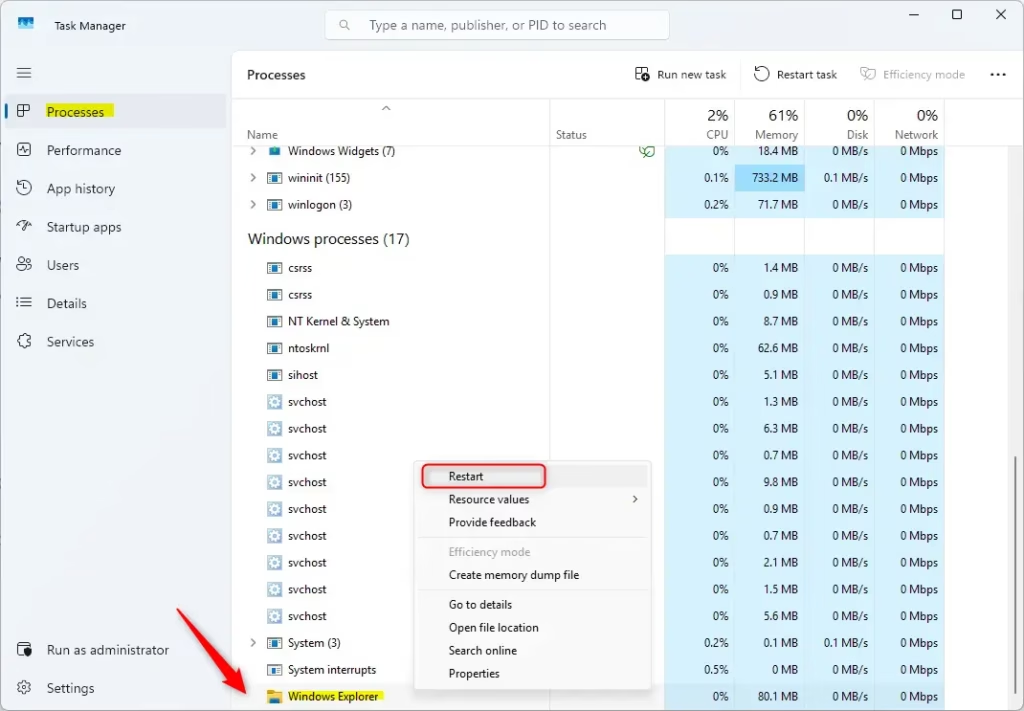
Your taskbar and open folders will disappear for a moment and then come back. This is normal.
Step 2: Clear File Explorer History
Windows 11 keeps a list of your recently opened files to help you work faster. If this list gets corrupted, it can cause the window to lock up.
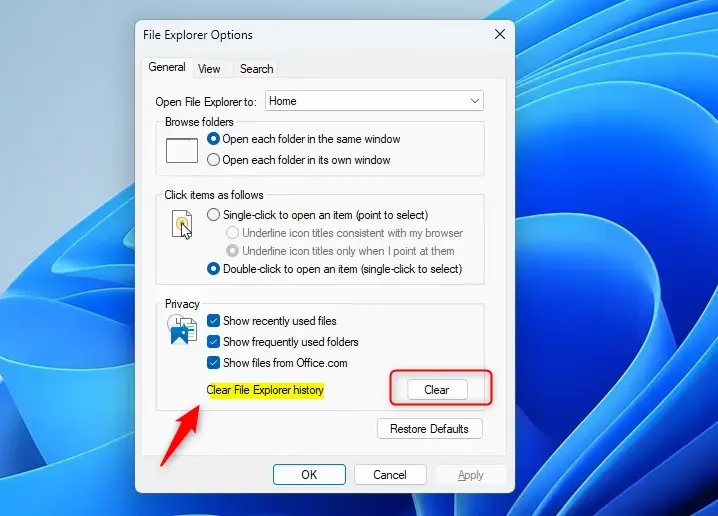
- Press the Windows Key, type File Explorer Options, and press Enter.
- Under the General tab, look for the Privacy section.
- Click the Clear button next to “Clear File Explorer history.”
- Click Apply and then OK.
Step 3: Run System File Checker (SFC)
Sometimes the files that make Windows run are damaged. Windows has a tool to find and fix these broken pieces automatically. Note: This step requires admin privileges.
- Click the Start button and type CMD.
- Right-click Command Prompt and select Run as administrator.
- In the black window, type:
sfc /scannowand press Enter. - Wait for the process to reach 100%. It will fix any errors it finds.
Step 4: Disable Context Menu Extensions
When you right-click a file, a menu appears. Sometimes apps like cloud storage or antivirus software add extra items to this menu. If one of these is broken, it can crash your window. Try uninstalling recently added software to see if the crashing stops.
Step 5: Configure Advanced Startup Settings
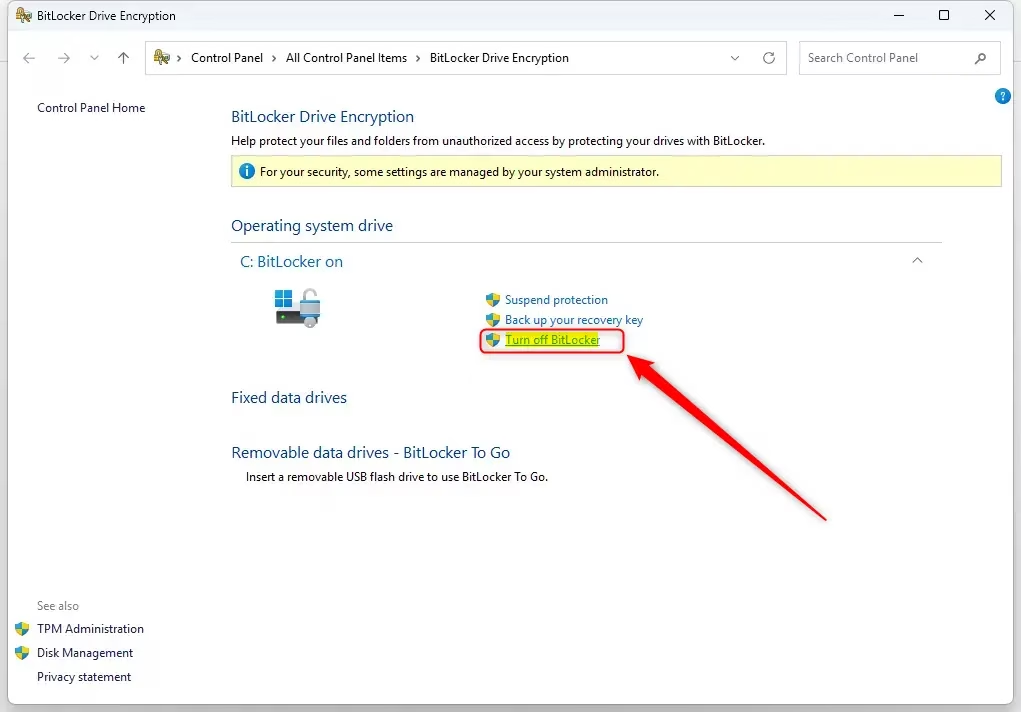
If you need to manage security settings like BitLocker or TPM to resolve access issues, you can do so through the Windows interface.
- Click Start and type Manage BitLocker.
- Select the option to Turn off BitLocker if you think it is blocking your files.
- To manage security hardware, press Windows + R, type
tpm.msc, and press Enter. - In the window that opens, you can check the status of your security hardware to ensure it is working correctly.
Step 6: Update Your Graphics Drivers
File Explorer uses your graphics card to display windows. If your driver is outdated, the window might freeze. Go to the website for your graphics hardware (like NVIDIA, AMD, or Intel) and download the latest driver.
Step 7: Check for Windows Updates
Microsoft often releases fixes for these exact problems. Keep your system current:
- Press Windows + I to open Settings.
- Select Windows Update from the left menu.
- Click Check for updates.
Bonus Tips
- Shell Extensions: These are small background programs that add icons to your folders. You can use a free tool called ShellExView to disable them one by one to find the one causing the crash.
- Check Disk Health: If your hard drive is having trouble, File Explorer will often freeze. Open Command Prompt as an administrator and run
chkdsk C: /f /rto check your drive for physical errors.
Summary
Fixing a crashing File Explorer in Windows 11 is about removing what causes the conflict. Start by restarting the process in Task Manager and clearing your history. If that does not work, use the System File Checker to repair damaged files and check your drive health. Keep your system updated and remove unnecessary third-party extensions to keep things running smoothly. For more help, visit Microsoft Community Hub or see Super User. Your next step should be to run the sfc /scannow command to fix common system errors.
Why does my File Explorer keep freezing in Windows 11?
File Explorer typically freezes in Windows 11 due to conflicts with background applications, corrupted system files, or incompatible third-party shell extensions. These issues often occur when an external program adds a faulty menu item or when temporary cache data becomes corrupted, causing the interface to stop responding during folder navigation.
How to fix a crashing File Explorer?
To fix a crashing File Explorer, start by restarting the Windows Explorer process via Task Manager. Press Ctrl + Shift + Esc, locate Windows Explorer in the Processes tab, right-click it, and select Restart. If the issue persists, clear your File Explorer history or run the System File Checker tool to repair files.
How to repair File Explorer in Windows 11?
You can repair File Explorer by running the System File Checker (SFC) command. Open Command Prompt as an administrator, type 'sfc /scannow', and press Enter. This utility scans for and replaces corrupted system files. Additionally, clearing your File Explorer cache and updating your graphics drivers can resolve persistent stability and performance issues.
Why does File Explorer keep going unresponsive?
File Explorer becomes unresponsive when it struggles to load directory contents, often due to overloaded quick access history, corrupted thumbnail caches, or conflicting shell extensions from installed software. When the process hangs while attempting to render these elements, the interface stops responding, causing the taskbar to blink or the window to freeze.
Was this guide helpful?





Leave a Reply Cancel reply