How to Fix Windows 11 Startup Issues with Repair Tool

Windows 11 Startup Repair fixes problems that prevent your PC from booting up correctly.
This built-in tool automatically diagnoses and resolves common startup errors, like boot loops or the dreaded Blue Screen of Death (BSOD), so you can get back to using your computer.
It works by scanning critical system files and the Windows registry for corruption or misconfigurations that block the startup process.
For instance, if a recent update or faulty driver causes Windows 11 to fail loading, Startup Repair often identifies and corrects these issues without you needing to reinstall the operating system.
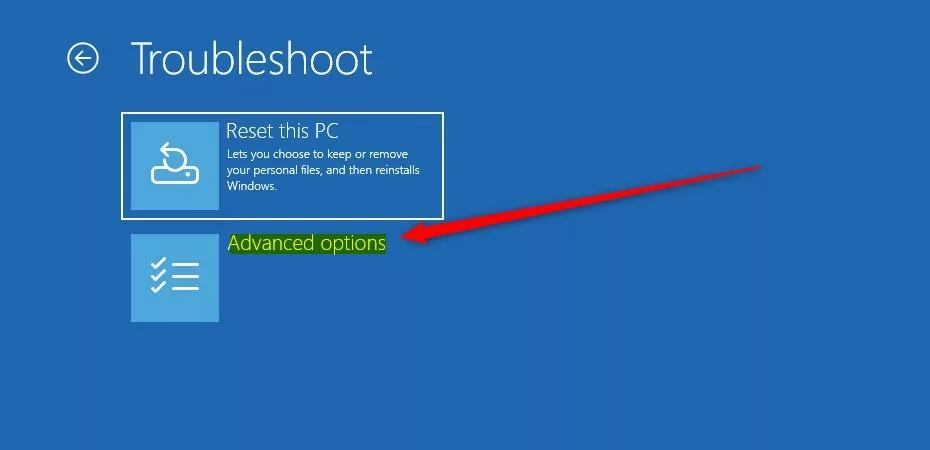
Boot into Advanced Startup (WinRE) by turning your PC off and on three times during startup. Then, select Troubleshoot, Advanced options, and finally Startup Repair to fix Windows 11 boot issues.
How to Access WinRE (Windows Recovery Environment)
If Windows will not boot, you must enter the Advanced Startup (WinRE) menu. You can do this by turning your PC on and off three times during the boot process to trigger Automatic Repair, or by using Windows Installation Media.
- Boot to Advanced Startup.
- On the WinRE window, select Troubleshoot.
windows 11 advanced startup boot troubleshoot - Click on Advanced options.
windows 11 advanced startup boot advanced options - Select Startup Repair.
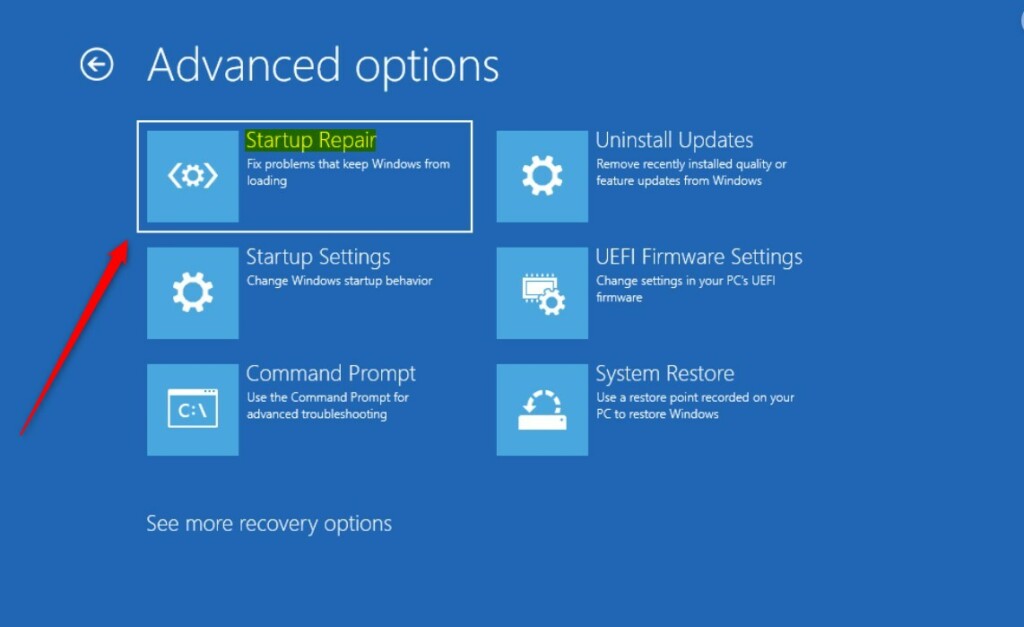
Windows 11 Advanced Startup menu options for fixing system boot issues
Advanced Troubleshooting via Command Prompt
If Startup Repair fails, you may need to use the Command Prompt within WinRE to fix corrupted boot files. Note: This step requires admin privileges.
Open Command Prompt from the Advanced options menu and type the following commands, pressing Enter after each:
bootrec /fixmbr
bootrec /fixboot
bootrec /rebuildbcd
sfc /scannow
chkdsk /r C:
These commands repair the Master Boot Record and scan your drive for errors.
Checking the Repair Log
If the issue persists, you can check the repair log file for more details. Note: This step requires admin privileges. You can open the log file with Notepad by running this command:
notepad C:\Windows\System32\Logfiles\Srt\SrtTrail.txt
This file, located at 📁C:\Windows\System32\Logfiles\Srt\SrtTrail.txt, contains the information you need to understand why your computer would not boot. You can find more information about this process by visiting Startup Repair log file from the boot screen using the Command Prompt.
Summary
- The Startup Repair tool is a built-in feature for Windows 11.
- It helps diagnose and fix errors that stop your computer from starting.
- You can access it through the Advanced Startup (WinRE) menu.
- If the automatic repair fails, you can view the log file at 📁C:\Windows\System32\Logfiles\Srt\SrtTrail.txt for more details.
Reference: Microsoft.com
How do I run Startup Repair if 🪟 Windows 11 won’t boot?
If your PC fails to boot, Windows should automatically load the recovery environment. If it does not, you can force it by turning your computer off and on three times consecutively during startup. Once in the blue menu, navigate to Troubleshoot, then Advanced options, and select Startup Repair.
Does Startup Repair delete my files?
No, Startup Repair does not delete your personal files. It only focuses on system files, configuration settings, and boot files that are necessary for Windows to start. However, it is always a best practice to back up your important data before performing any advanced system repairs.
What is the difference between Startup Repair and Reset this PC?
Startup Repair is a non-destructive tool that attempts to fix specific boot-related errors without altering your data or installed apps. Reset this PC is a more drastic measure that reinstalls Windows, which may remove your installed applications and settings depending on the options you choose during the process.
How long does 🪟 Windows 11 Startup Repair take?
The duration of Startup Repair varies based on the severity of the errors and the speed of your hard drive. Typically, it takes between 15 to 45 minutes. If the tool runs for more than an hour without progress, it may have encountered a deeper hardware or file system issue.
Was this guide helpful?

About the Author
Richard
Tech Writer, IT Professional
Richard, a writer for Geek Rewind, is a tech enthusiast who loves breaking down complex IT topics into simple, easy-to-understand ideas. With years of hands-on experience in system administration and enterprise IT operations, he’s developed a knack for offering practical tips and solutions. Richard aims to make technology more accessible and actionable. He's deeply committed to the Geek Rewind community, always ready to answer questions and engage in discussions.



[…] on the foundation of Startup Repair, quick machine recovery uses a secure and connected Windows Recovery Environment to scan Windows […]
[…] on the foundation of Startup Repair, quick machine recovery uses a secure and connected Windows Recovery Environment to scan […]
[…] feature builds on the Startup Repair tool and uses a safe environment called the Windows Recovery Environment (WinRE) to scan for solutions […]