How to Switch Between Classic and Simplified Ribbons in Outlook

This guide applies to the New Outlook for Windows and Classic Outlook for Windows. Note that the interface options may vary slightly between the two versions.
Click the downward arrow on the far right of the Outlook ribbon. Select “Classic ribbon” or “Simplified ribbon” from the display options under the Layout section.
Why switch your Outlook ribbon?
Switching your Outlook ribbon layout can help you work faster by matching the tools you see to how you use Outlook.
What happens when you are done?
Once you select your preferred layout, Outlook will remember your choice. Your interface will immediately update to show the buttons and tools based on the style you picked. Your productivity will improve as the tools you use most often become easier to find.
How to switch Outlook ribbons
You can easily switch between the Classic and Simplified ribbons in Outlook by clicking the arrow on the right side of the ribbon.
- Open the new Outlook app on your computer.
Open the new Outlook app in Windows 11 - Look for the downward arrow button on the far right side of the ribbon. Click it to open the display options.
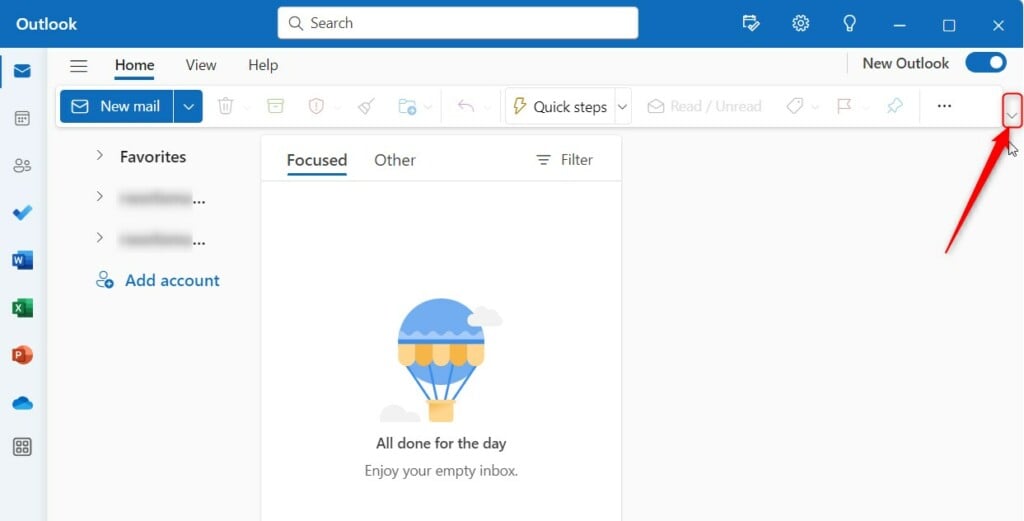
Switch to classic ribbon in the Outlook app - Under the “Layout” section, choose either Classic ribbon or Simplified ribbon.
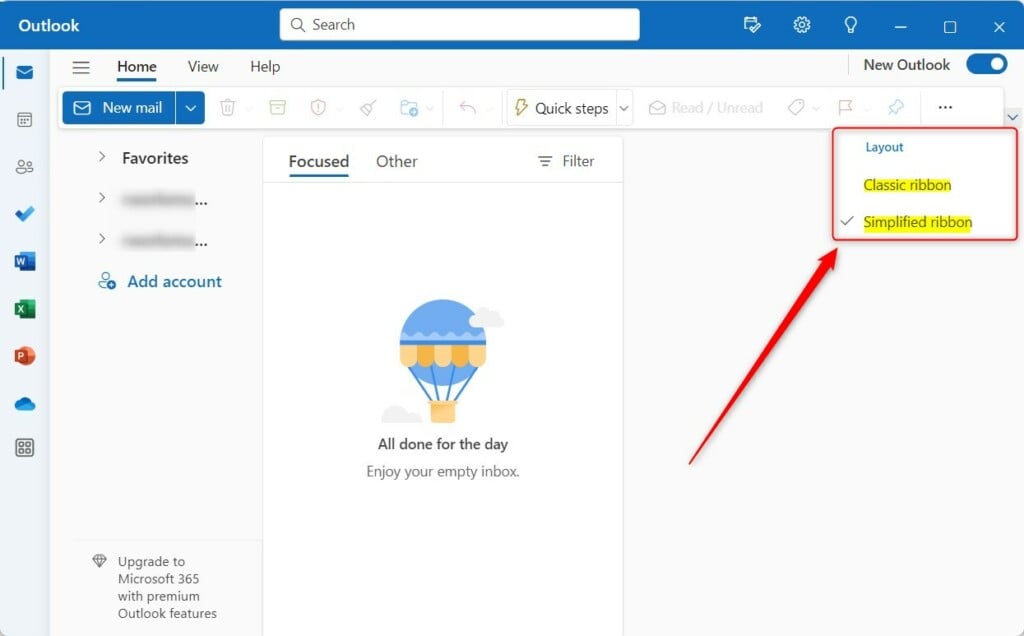
Switch to classic ribbon in the Outlook app
Customizing the Ribbon and Quick Access Toolbar
You can customize the Outlook ribbon and Quick Access Toolbar to make your most-used tools easier to find.
Troubleshooting missing buttons
If your Outlook ribbon buttons are missing or disappearing, check if ‘Auto-hide ribbon’ is on or if you’re in the correct view like Mail or Calendar.
Summary
The new Outlook app lets you switch between a clean Simplified Ribbon and a feature-rich Classic Ribbon to suit your needs.
Can I add custom groups to the Simplified Ribbon?
You generally can’t add custom groups directly to Outlook’s Simplified Ribbon because it’s meant to be minimal, but you can customize the Quick Access Toolbar.
Is the ribbon layout different in New Outlook?
Yes, the New Outlook for Windows features a more modern, streamlined interface. While it retains the core functionality of the Classic Ribbon, it is optimized for web-based performance. You will find that some advanced legacy settings are moved or simplified to make the application feel faster and more responsive.
Was this guide helpful?

About the Author
Richard
Tech Writer, IT Professional
Richard, a writer for Geek Rewind, is a tech enthusiast who loves breaking down complex IT topics into simple, easy-to-understand ideas. With years of hands-on experience in system administration and enterprise IT operations, he’s developed a knack for offering practical tips and solutions. Richard aims to make technology more accessible and actionable. He's deeply committed to the Geek Rewind community, always ready to answer questions and engage in discussions.



[…] Select an email and click the Pin button on the ribbon. […]