How to Access Hidden Quick Actions in Windows 11

You can access hidden Quick Actions in Windows 11 by customizing the Quick Settings panel, which lets you quickly toggle common settings like Wi-Fi or Bluetooth without opening the full Settings app.
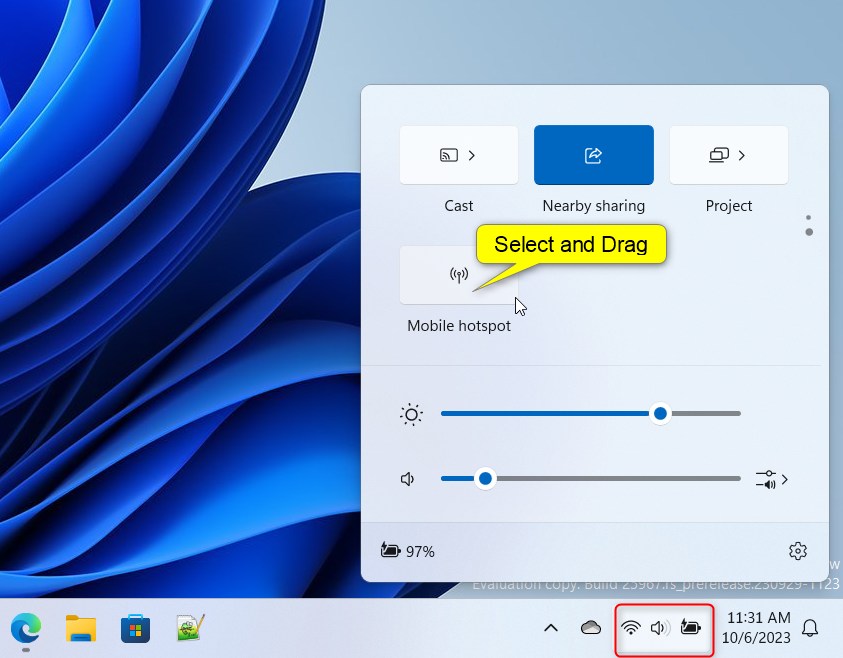
This streamlined panel appears when you click the network, volume, or battery icons next to the clock on your taskbar. Windows 11 allows you to add, remove, and rearrange these action buttons for even faster access.
For example, you can add the “Night light” toggle or the “Focus sessions” button to enhance your productivity. This guide will show you exactly how to customize your Quick Settings, putting the essential controls at your fingertips.
Open the Quick Settings panel by pressing Windows Key + A. Click the pencil icon to enter edit mode, then click “Add” to select and add desired tiles. Click “Done” to save your changes.
Why use 🪟 Windows 11 Quick Actions?
Windows 11 Quick Actions save you time by putting common settings like Wi-Fi, Bluetooth, and Night light right at your fingertips.
How to Open the Quick Settings Flyout
The fastest way to open the Windows 11 Action Center is with a keyboard shortcut. Press Windows Key + A on your keyboard. You can also click the network, volume, or battery icons in your taskbar system tray.
How to Add or Remove Quick Settings Tiles
You can easily add or remove Windows 11 Quick Settings tiles to make the panel work best for you.
- Open the Quick Settings flyout using Windows Key + A.
- Click the Edit quick settings (pencil icon) at the bottom of the panel.
- To add a button, click the Add button and select the tile you want from the list.
- To remove a button, click the Unpin icon on the tile you no longer need.
- Click Done to save your changes.
Troubleshooting: Why are my Quick Action buttons greyed out?
If your Windows 11 Quick Action buttons are greyed out, it often means the feature isn’t available or is blocked by settings.
Accessibility and Focus Assist
You can add Accessibility settings to your panel for quick access to tools like Narrator or Magnifier. You can also add Focus Assist (now called Focus sessions) to silence notifications while you work. These are key for Windows 11 customization, helping you be more productive each day.
Summary
Customizing the Windows 11 Quick Settings flyout lets you keep important tools like Wi-Fi and Bluetooth easily accessible from the taskbar.
How do I add missing icons to 🪟 Windows 11 Quick Settings?
To open the Quick Settings flyout, press Windows Key + A. Click the pencil icon at the bottom to enter edit mode. Then, click the Add button to see a list of available tiles. Select the icon you want to add, and click Done to save your new layout.
Can I customize the Quick Actions panel for different user profiles?
Yes, customizing Quick Settings is tied to the specific user account. When you rearrange or add buttons, these changes only apply to your current profile. Other users on the same computer can set up their own unique Quick Actions panel without affecting your layout or settings.
Was this guide helpful?

About the Author
Richard
Tech Writer, IT Professional
Richard, a writer for Geek Rewind, is a tech enthusiast who loves breaking down complex IT topics into simple, easy-to-understand ideas. With years of hands-on experience in system administration and enterprise IT operations, he’s developed a knack for offering practical tips and solutions. Richard aims to make technology more accessible and actionable. He's deeply committed to the Geek Rewind community, always ready to answer questions and engage in discussions.



[…] can now be toggled on and off via Quick Settings in the system tray, and it’s also available when PCs are plugged in (this includes desktop […]
[…] can turn Energy saver on or off laptops and desktops anytime. This feature can be toggled via Quick Settings in the system tray, even for PCs plugged in to conserve […]
[…] can turn Energy saver on or off laptops and desktops anytime. This feature can be toggled via Quick Settings in the system tray, even for PCs plugged in to conserve […]