How to Pin or Unpin Emails in Outlook on Windows 11

You pin or unpin emails in Outlook on Windows 11 to keep vital messages organized and easily accessible.
Pinning an email places it in a dedicated “Pinned” section at the top of your inbox, ensuring you never lose track of important correspondence. This feature is especially useful for managing high volumes of emails, like the 50+ messages you might receive daily.
Once you’ve pinned an email, such as a key project update or a critical client request, it remains visible until you decide to unpin it. This helps you manage your workflow by always having your priorities front and center.
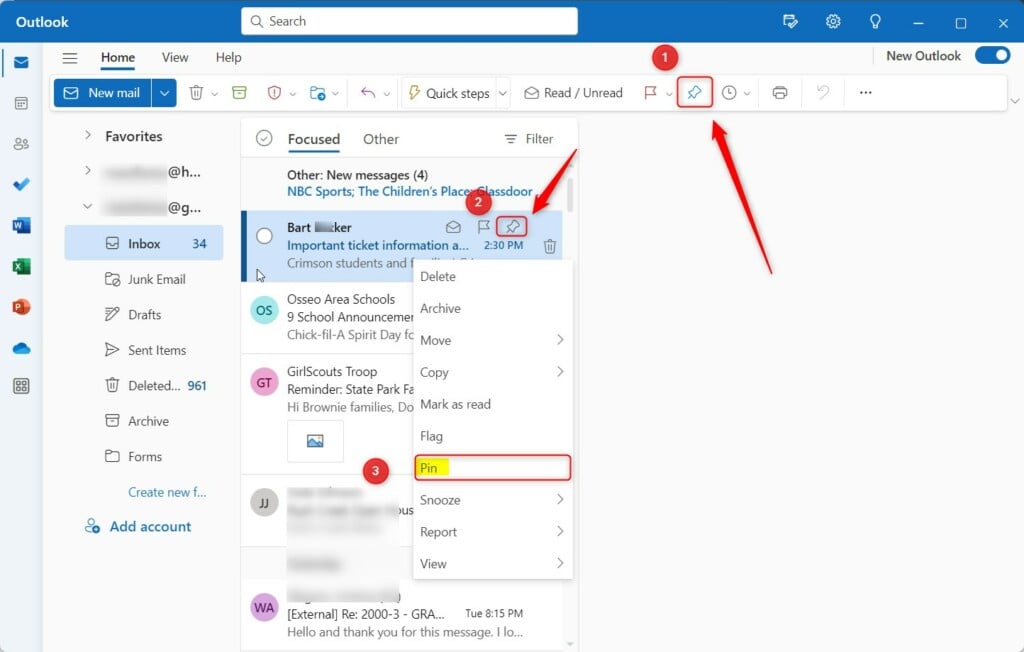
To pin an email in Outlook, select the message and click the Pin button on the ribbon, or hover over it and click the pin icon. You can also right-click the email and select Pin. Unpinning follows the same process by clicking the pin icon again.
Platform Version Discrepancies
Whether you can pin emails in Outlook on Windows 11 depends on which version you’re using, as not all of them support this feature.
Disclaimer: The ‘Pin’ feature is currently available in the New Outlook for Windows, Outlook on the Web (OWA), and specific versions of Outlook for Microsoft 365. If you are using Outlook Classic, this feature might not be available because it depends on different ways the server handles syncing information.
How to pin an email
To pin an email in Outlook on your Windows 11 PC, you can simply open the app and use one of three easy methods: click the Pin button on the ribbon, use the Pin icon that pops up when you hover over an email, or right-click the email and choose Pin.
- Select an email and click the Pin button on the ribbon.
- Hover over an email and click the Pin icon that appears in the quick action pop-up.
- Right-click any email and select the Pin command from the menu.
Automating your pins
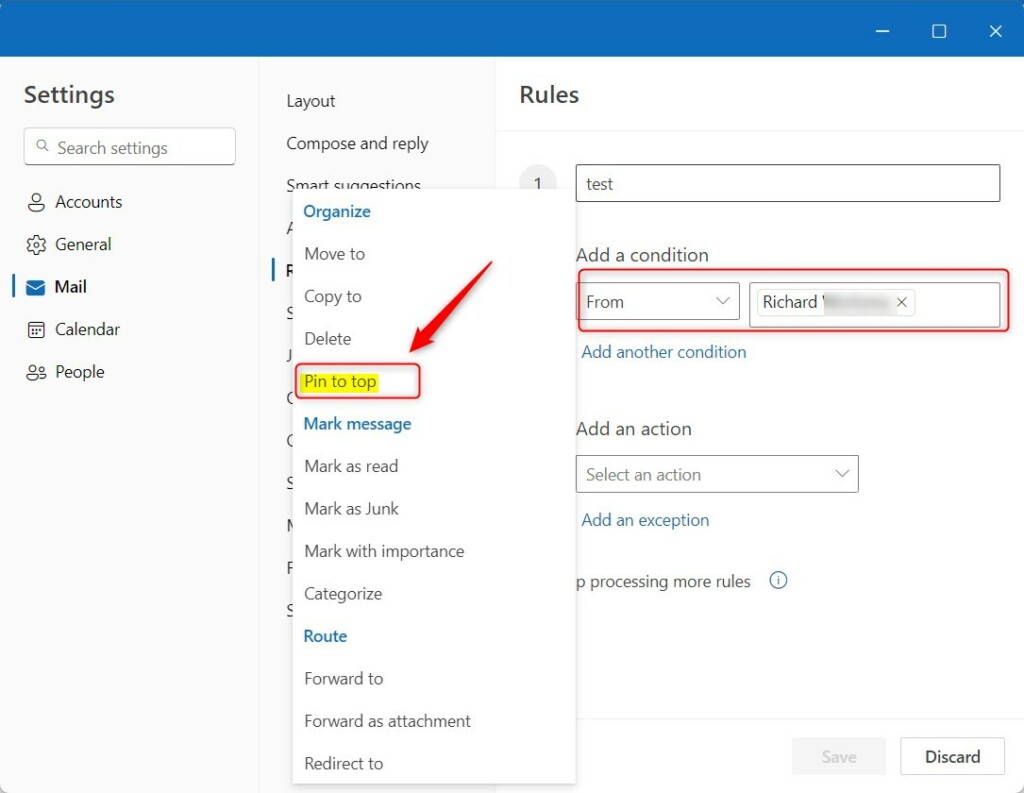
You can set up rules in Outlook to automatically pin emails for you, helping to keep your inbox organized without manual effort.
- Click the Settings button at the top right of the app.
- Go to Mail, then select Rules.
- Create a new rule based on an email address.
- For the action, choose Pin to top.
- Save your changes.
Flagging vs. Pinning
It is important to distinguish between these two tools. Flagging adds a visual marker to an email and adds it to your ‘To-Do’ list. Pinning keeps the email physically at the top of your inbox folder. Use pinning for immediate visibility and flagging for task management.
Troubleshooting and Syncing
If your pinned emails aren’t showing up on all your devices, check that you’re signed into the same Microsoft 365 account everywhere, as this is usually required for syncing.
Keyboard Shortcuts
| Action | Shortcut |
|---|---|
| Pin/Unpin | Ctrl+Shift+P |
See Also
Summary
Pinning emails in Outlook is a smart way to keep important messages at the top of your inbox, helping you stay organized and focused on what matters most.
Does pinning an email move it to a different folder?
No, pinning an email does not move it to a different folder. It simply anchors the message to the very top of your current folder view. The email remains in its original location, such as your Inbox, until you choose to move or delete it manually.
Is there a limit to how many emails I can pin?
While there is no hard-coded limit defined by Microsoft, pinning too many emails can clutter your inbox and defeat the purpose of the feature. It is recommended to keep only your most urgent or active items pinned to maintain an efficient email productivity workflow.
Was this guide helpful?

About the Author
Richard
Tech Writer, IT Professional
Richard, a writer for Geek Rewind, is a tech enthusiast who loves breaking down complex IT topics into simple, easy-to-understand ideas. With years of hands-on experience in system administration and enterprise IT operations, he’s developed a knack for offering practical tips and solutions. Richard aims to make technology more accessible and actionable. He's deeply committed to the Geek Rewind community, always ready to answer questions and engage in discussions.



No comments yet — be the first to share your thoughts!