How to Unsubscribe from Emails in Outlook: Web, Desktop, and Mobile

Keeping your inbox organized is a big help for staying productive. This guide covers how to unsubscribe from Outlook emails across all platforms, including Windows, Mac, Web, and Mobile.
In Outlook, go to Settings, then Mail, and select Subscriptions to find and unsubscribe from unwanted senders. On mobile, look for unsubscribe links at the top of marketing emails or use the Block option. For suspicious emails, always use the Block Sender feature instead of clicking unsubscribe links.
Why should you do this?
Over time, your inbox gets cluttered with newsletters you no longer read. Cleaning these out helps you focus on important messages and improves your digital organization.
What happens when you are done?
When you unsubscribe, you won’t get marketing emails from that sender anymore. This tidies up your inbox and saves you time every day.
Security Warning: Phishing Risks
When you unsubscribe from Outlook emails, be very careful about clicking links in messages that seem suspicious or come from people you don’t know, as these can be phishing scams designed to steal your information or install harmful software.
How to Unsubscribe in Outlook for Windows
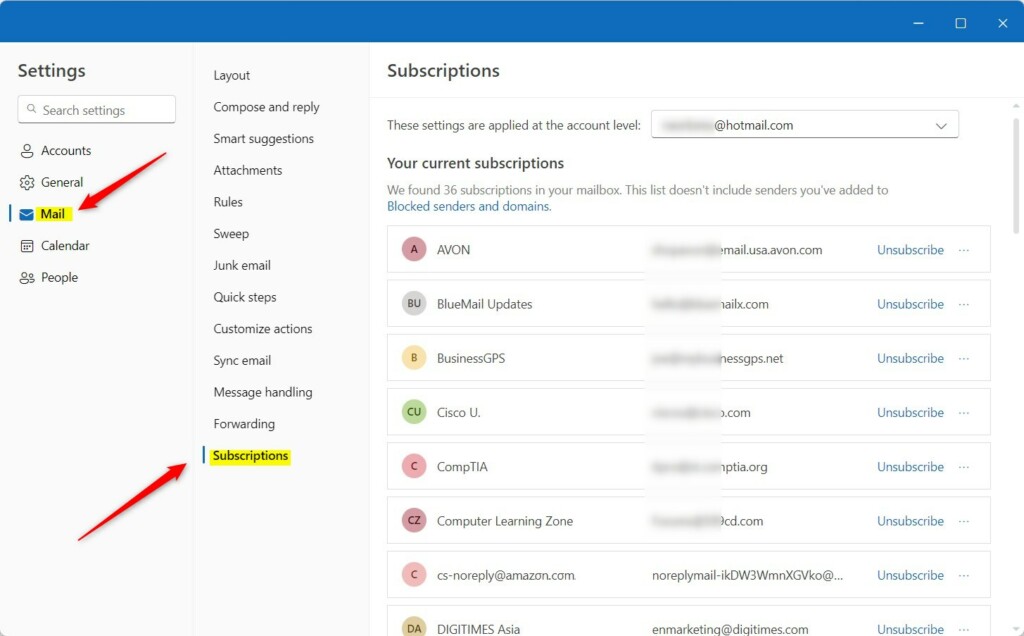
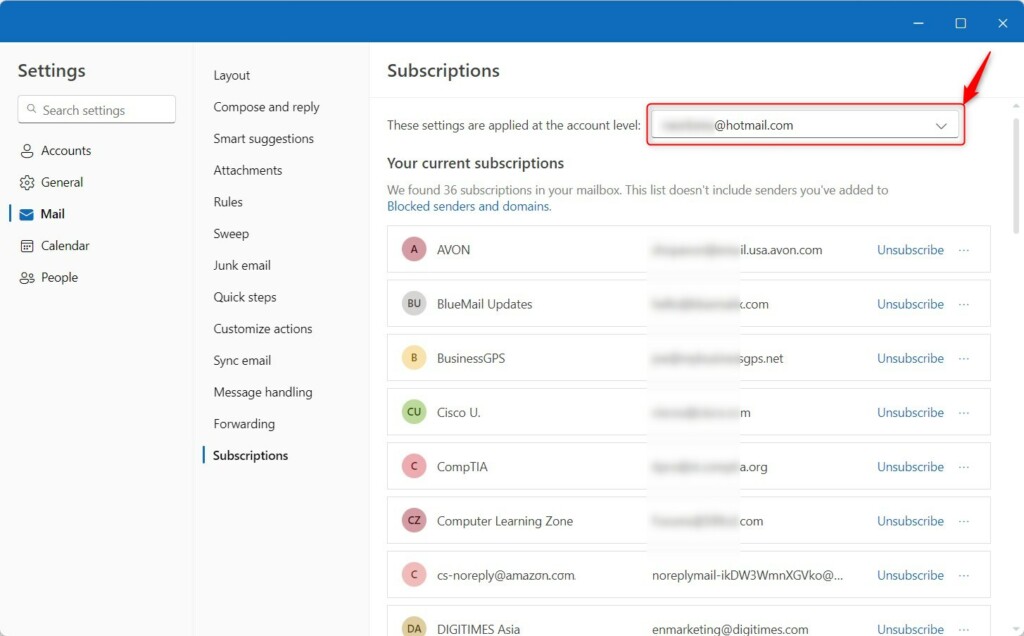
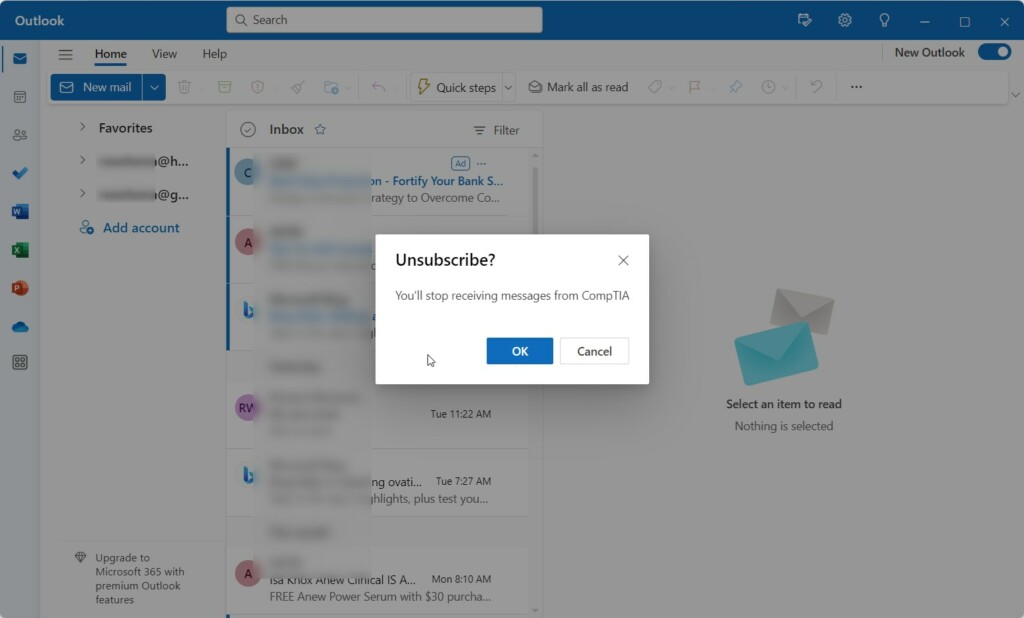
Open the Outlook app on your computer. Then, click the Settings gear icon up in the top right corner. From there, select Mail, followed by Subscriptions. Finally, find the sender you want to unsubscribe from and click the Unsubscribe button.

Managing Subscriptions on Outlook Web
Log in to Outlook.com. Click the Settings gear icon. Navigate to Mail > Subscriptions. You’ll see a list of all your current newsletters. Click the Unsubscribe button next to any unwanted sender.
Using the Outlook Mobile App
Open the Outlook app on your phone. Tap your profile icon or the menu button. Look for the Settings gear. While mobile apps vary, many now feature a direct unsubscribe link at the top of marketing emails. If one isn’t available, use the Block option in the message menu.
How to Block Senders (Secondary Solution)
If you can’t find an unsubscribe link, you can block the sender. Open the email, click the three dots (More Actions), and then select Block. This moves the sender to your blocked list, making sure their future emails go directly to your Junk folder.
Summary
To effectively unsubscribe from Outlook emails and keep your inbox tidy, use the built-in Subscriptions center for legitimate newsletters and the Block feature for unwanted spam, always remembering to avoid clicking suspicious links to protect your security.
Why does clicking unsubscribe sometimes increase spam?
Clicking unsubscribe on emails from malicious actors confirms your email address is active. This validates your account to spammers, potentially leading to more junk mail. Only use the unsubscribe link for reputable companies you recognize. For suspicious emails, always use the block feature instead of clicking links.
What is the difference between blocking and unsubscribing in Outlook?
Unsubscribing tells a legitimate sender to remove you from their marketing list. Blocking, however, tells Outlook to automatically send future messages from that specific address directly to your Junk folder. Blocking is safer for unknown or suspicious senders, while unsubscribing is best for newsletters you once signed up for.
Was this guide helpful?

About the Author
Richard
Tech Writer, IT Professional
Richard, a writer for Geek Rewind, is a tech enthusiast who loves breaking down complex IT topics into simple, easy-to-understand ideas. With years of hands-on experience in system administration and enterprise IT operations, he’s developed a knack for offering practical tips and solutions. Richard aims to make technology more accessible and actionable. He's deeply committed to the Geek Rewind community, always ready to answer questions and engage in discussions.


[…] app has many features, including support for subscription management, email forwarding, setting default From address, backing up your mailbox, changing the reading […]
[…] app has many features, including support for subscription management, email forwarding, setting default From address, backing up your mailbox, changing the reading […]
[…] app has many features, including support for subscription management, email forwarding, setting default From address, backing up your mailbox, changing the reading […]
[…] app has many features, including support for subscription management, email forwarding, setting default From address, backing up your […]
[…] app has many features, including support for subscription management, email forwarding, setting default From address, backing up your mailbox, changing the reading […]
[…] app has many features, including support for subscription management, email forwarding, setting default From address, backing up your mailbox, changing the reading […]
[…] app has many features, including support for subscription management, email forwarding, setting default From address, backing up your […]
[…] app has many features, including support for subscription management, email forwarding, setting default From address, backing up your mailbox, changing the reading […]
[…] app has many features, including support for subscription management, email forwarding, setting default From address, backing up your mailbox, changing the reading […]
[…] app has many features, including support for subscription management, email forwarding, setting default From address, backing up your mailbox, changing the reading […]
[…] app has many features, including support for subscription management, email forwarding, setting default From address, backing up your mailbox, changing the reading […]
[…] app has many features, including support for subscription management, email forwarding, setting default From address, backing up your mailbox, changing the reading […]
[…] app has many features, including support for subscription management, email forwarding, setting default From address, backing up your […]
[…] email accounts, setting out-of-office automatic replies, email sorting, subscription management, email forwarding, setting default From address, backing up your […]
[…] app has many features, including support for subscription management, email forwarding, setting default From address, backing up your mailbox, changing the reading […]
[…] email accounts, setting out-of-office automatic replies, email sorting, subscription management, email forwarding, switching layout ribbons, and […]
[…] signatures, external email accounts, setting out-of-office automatic replies, email sorting, subscription management, email forwarding, Blind Carbon Copy (Bcc), and […]
[…] The app has many features, including support for email signatures, external email accounts, setting out-of-office automatic replies, email sorting, and subscription management. […]
[…] app has many features, including support for subscription management, email forwarding, setting default From address, backing up your […]
[…] like email signatures, external email accounts, out-of-office automatic replies, email sorting, subscription management, and email […]
[…] email signatures, external email accounts, setting out-of-office automatic replies, email sorting, subscription management, email forwarding, setting default From address, backing up your mailbox, changing the reading […]
[…] app includes many helpful features, such as subscription management, email forwarding, setting default From address, backing up your mailbox, changing the reading […]