How to Enable Bcc in Outlook for Windows 11

You enable the Bcc (Blind Carbon Copy) field in Outlook for Windows 11 by accessing it directly within the compose window.
Bcc is crucial for discreet email communication, allowing you to send messages to multiple people while keeping their email addresses hidden from each other. This protects your contacts’ privacy and prevents your recipient list from being shared.
For instance, when you send an email to ten recipients using the Bcc option, each person only sees the addresses in the ‘To’ or ‘Cc’ fields, not the other nine Bcc recipients. This ensures anonymity for everyone on your mailing list.
In New Outlook, click the “New mail” button, then click “Bcc” next to the To field in the composition window. To always show Bcc, go to Settings, then Mail, then Compose and reply, and check “Always show Bcc” for your account.
New Outlook vs. Classic Outlook
Knowing whether you’re using New Outlook or Classic Outlook is key to how you enable Bcc in Outlook for Windows 11, as the steps are different for each.
How to show the Bcc field in New Outlook
Open the Outlook app from your Start menu. Click the ‘New mail’ button.
In the message window, look to the right of the To field. Click the ‘Bcc’ button.
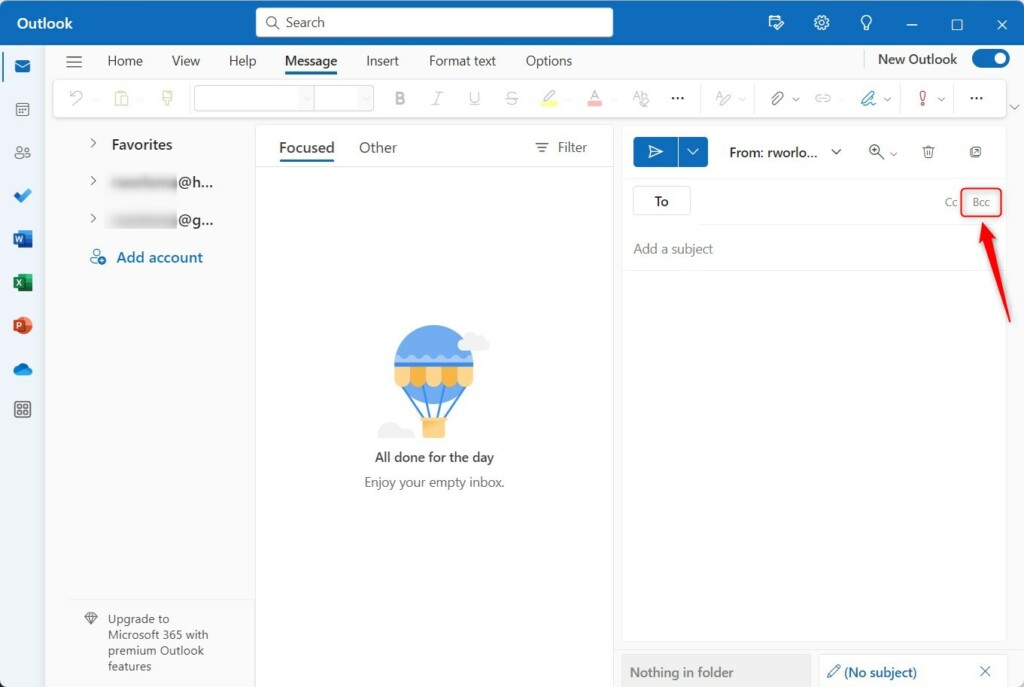
This makes the field appear for your current message.
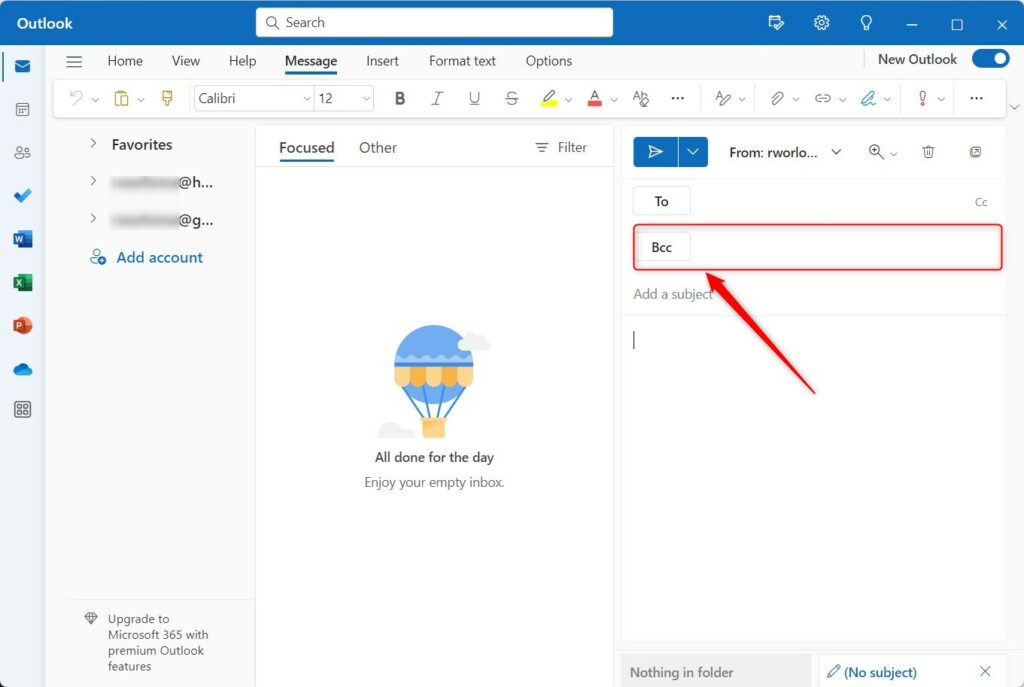
How to always show the Bcc field
To make Bcc persistent, click the ‘Settings’ (gear icon) at the top right.

Click Mail, then Compose and reply.
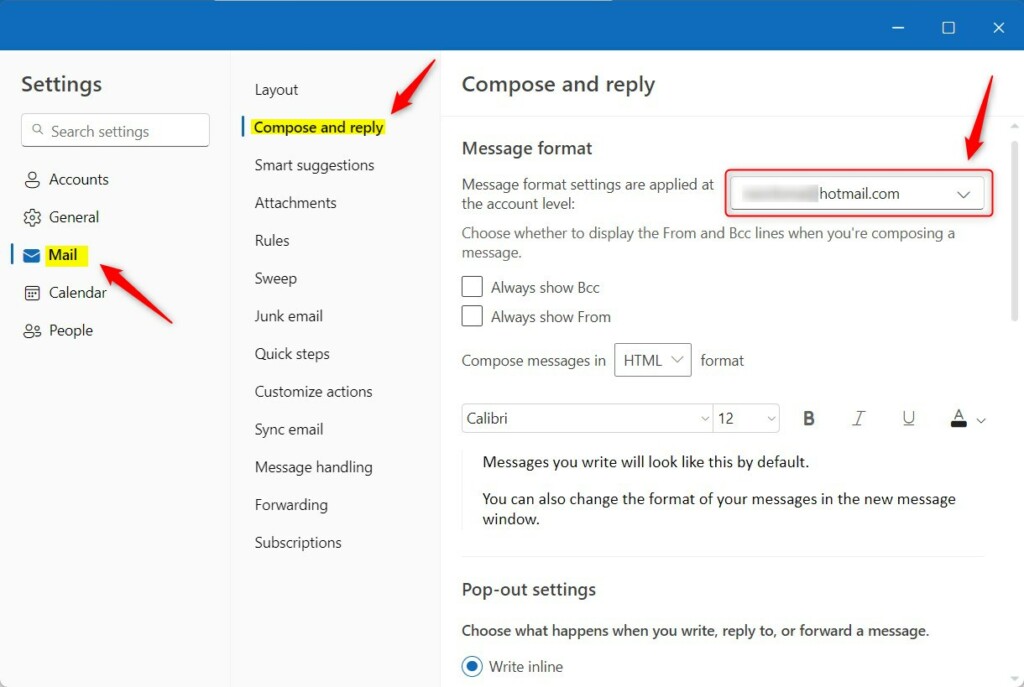
Select your account and check Always show Bcc.
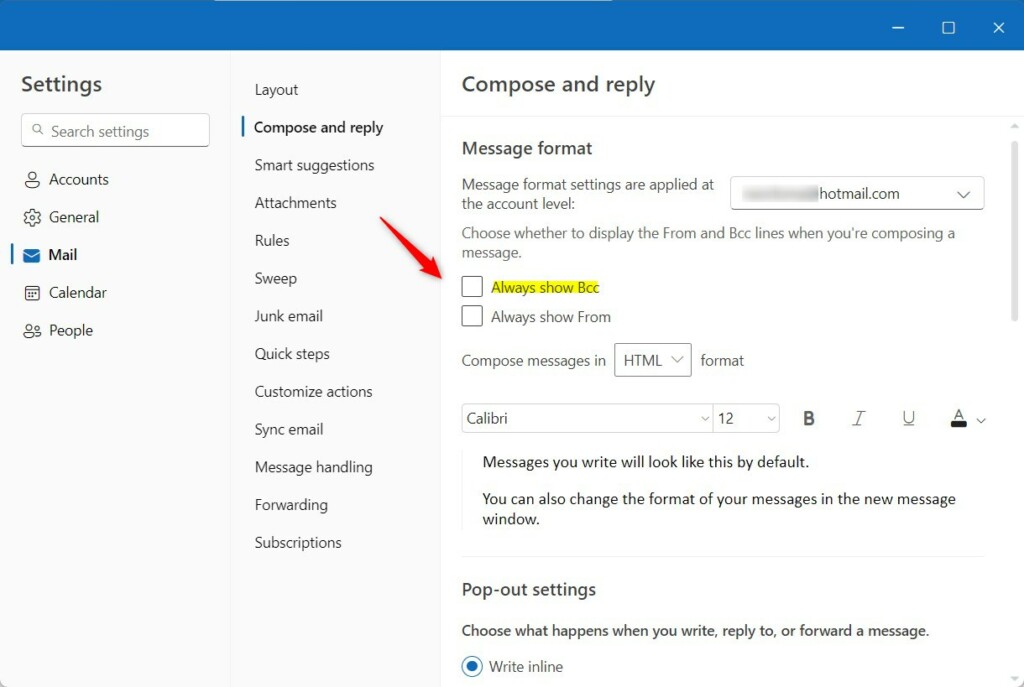
Save your changes. Note: This setting is per-account.
Bcc Best Practices and Privacy Risks
Using the Bcc feature when you send emails helps protect recipient privacy, but it’s important to understand best practices and potential privacy risks.
Troubleshooting Missing Bcc Options
If you can’t find the Bcc option when trying to enable Bcc in Outlook for Windows 11, there are a few common troubleshooting steps you can take.
Summary
The Bcc feature is a valuable tool for keeping your email communications private, and you can easily enable Bcc in Outlook for Windows 11 in just a few steps.
Can I set Bcc to be on by default for all emails?
Yes, you can set Bcc to be on by default for all your emails in Outlook for Windows 11 by changing a simple setting.
Can I set Bcc to be on by default for all emails?
Yes, you can enable this in the settings. Navigate to Settings, select Mail, then Compose and reply. Check the box labeled ‘Always show Bcc’ for your specific email account. Once saved, the Bcc field will appear automatically every time you compose a new message or reply to an existing one.




No comments yet — be the first to share your thoughts!