How to Enable Daily Agenda Emails in Outlook for Windows 11

The new Outlook for Windows offers a clean and modern look for your email. It works with accounts like Outlook.com, Hotmail, and Gmail.
Open Outlook, click the gear icon for Settings, select Calendar, and toggle the Agenda email switch to On. This feature sends a daily summary of your meetings and tasks to your inbox.
Why use daily agenda emails?
A daily agenda email from Outlook acts like your personal assistant, landing in your inbox each morning with a summary of your meetings and tasks, helping you plan your day better.
What happens when you enable this?
When you turn on daily agenda emails in Outlook, the app automatically scans your calendar and sends a summary to your inbox each morning, including your Microsoft To Do tasks.
Prerequisites and Compatibility
Setting up daily agenda emails in Outlook is done through online settings, as the feature syncs with Microsoft’s servers, and it’s best managed via the Outlook Calendar Settings on the web.
How to enable or disable daily agenda emails
You can easily turn daily agenda emails on or off in Outlook for Windows 11 by opening the app and going to Settings. Find the Calendar section for your account, and you’ll see the option to toggle agenda emails.
- Open the Outlook app on your Windows 11 PC.
- Click the Settings (gear) icon at the top right of the window.
- If you have more than one email account, select the specific account you want to change from the menu.
- Click on Calendar in the left-hand sidebar.
- Find the Agenda email section.
- Toggle the switch to the On position to enable it .
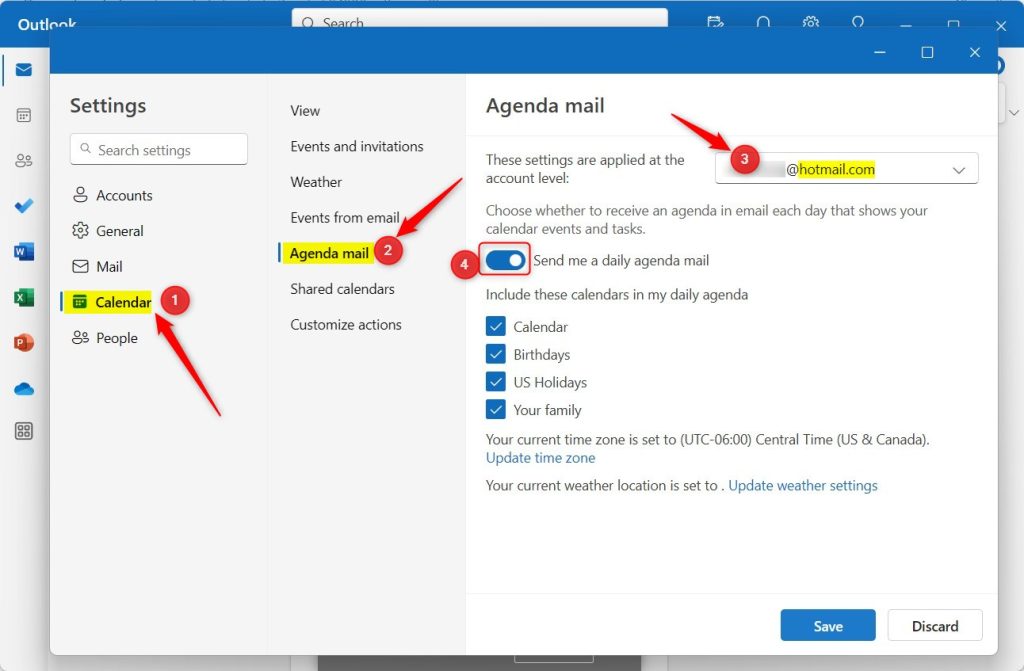
To turn it off, toggle the same switch back to the Off position. You can also pick which specific calendars you want included in your daily summary.
Distinguishing Agenda Emails from My Day
The Daily Agenda Email is an automated summary sent to your inbox, while Outlook’s My Day feature is a real-time schedule shown in a sidebar, and both help you stay organized differently.
Troubleshooting Common Issues
If you can’t find the daily agenda email option in Outlook, check your account type, as some older setups might not support it, and ensure your notification settings allow emails from Microsoft.
Summary
Getting a daily agenda email in Outlook is a simple way to stay organized; just turn on the Agenda email switch in Settings, and your schedule will arrive in your inbox each morning.
Why don’t I see the Agenda Mail option in my Outlook settings?
The Agenda Mail option in Outlook settings is mainly for Microsoft 365, Outlook.com, and Hotmail accounts; if you use a third-party email via IMAP, it might not be supported, so check the web interface.
Can I customize the time my daily agenda email arrives?
Currently, the daily agenda email from Microsoft arrives in the early morning based on your local time zone, and you cannot manually pick a specific delivery time, but it’s set to help you prepare for your day.
Was this guide helpful?

About the Author
Richard
Tech Writer, IT Professional
Richard, a writer for Geek Rewind, is a tech enthusiast who loves breaking down complex IT topics into simple, easy-to-understand ideas. With years of hands-on experience in system administration and enterprise IT operations, he’s developed a knack for offering practical tips and solutions. Richard aims to make technology more accessible and actionable. He's deeply committed to the Geek Rewind community, always ready to answer questions and engage in discussions.




No comments yet — be the first to share your thoughts!