How to Check for and Install Optional Updates in Windows 11

This guide explains how to manage Optional Updates in Windows 11. These updates are different from standard security patches. They often contain specific hardware drivers or firmware improvements.
Why Install Optional Updates?
Windows Update automatically installs critical security patches. However, some hardware drivers and optional quality updates are not pushed automatically. You might need these if your hardware is acting up or if you need the latest performance improvements.
What Happens When You Install Updates?
When you install these updates, Windows modifies system files or hardware communication software. Your computer may need to restart to apply these changes. Always save your work before starting.
How to Find and Install Optional Updates in 🪟 Windows 11
Step 1: Open the Settings App
Click on the Start menu. Then select the Settings app.

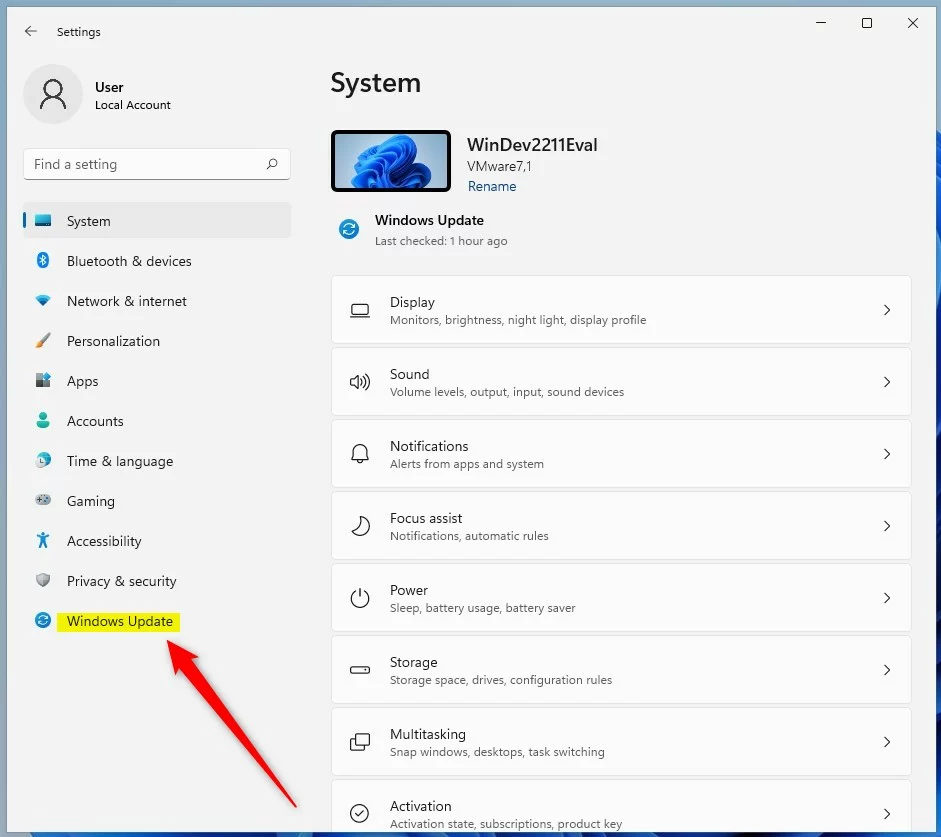
Step 2: Go to Windows Update
In the Settings app, click the Windows Update button on the left side.
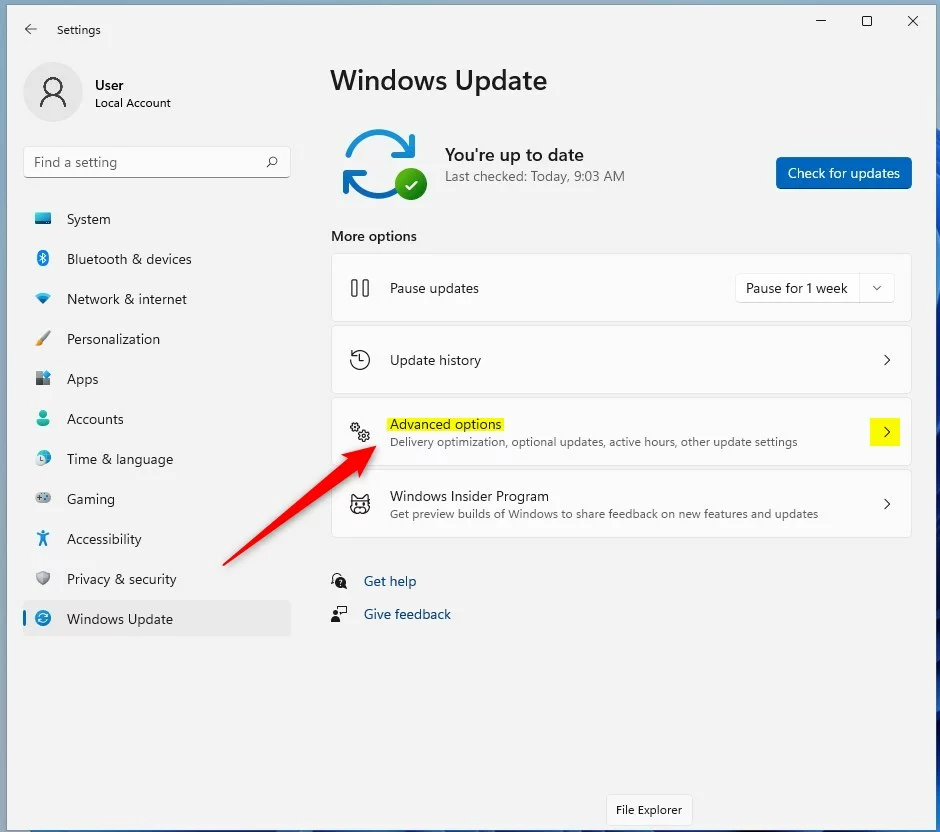
Step 3: Open Advanced Options
On the right, select the Advanced options tile to expand it.
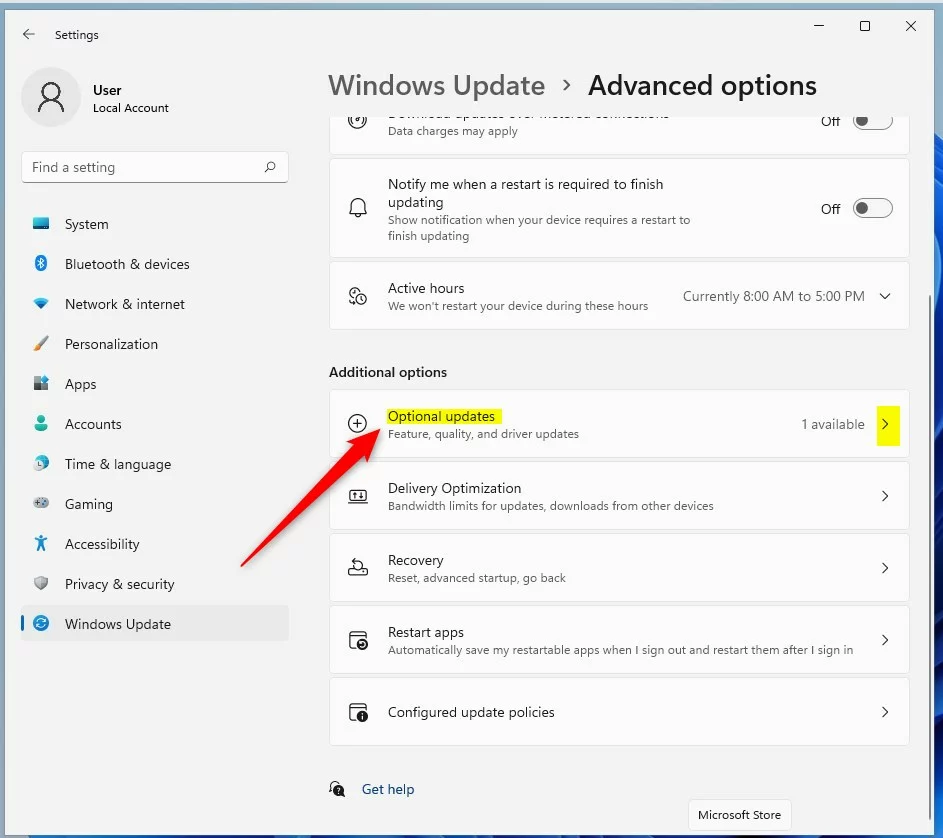
Step 4: Find Optional Updates
Under Additional options, select the Optional updates tile to expand it.
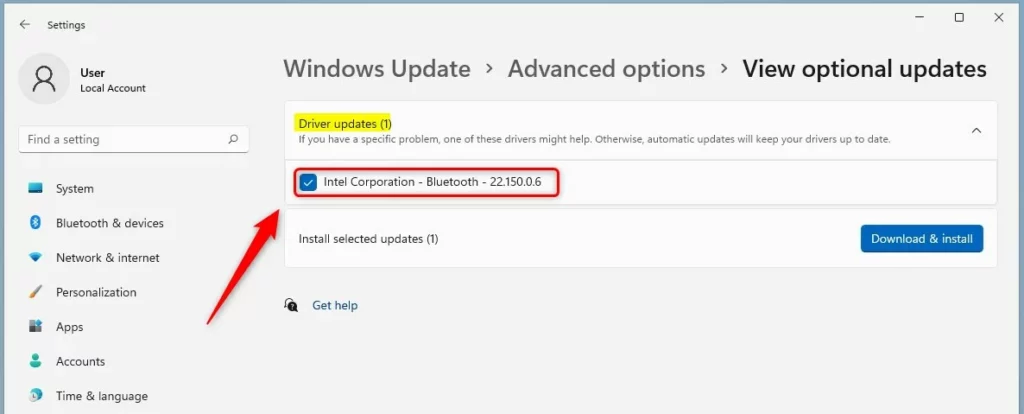
Step 5: Choose Your Updates
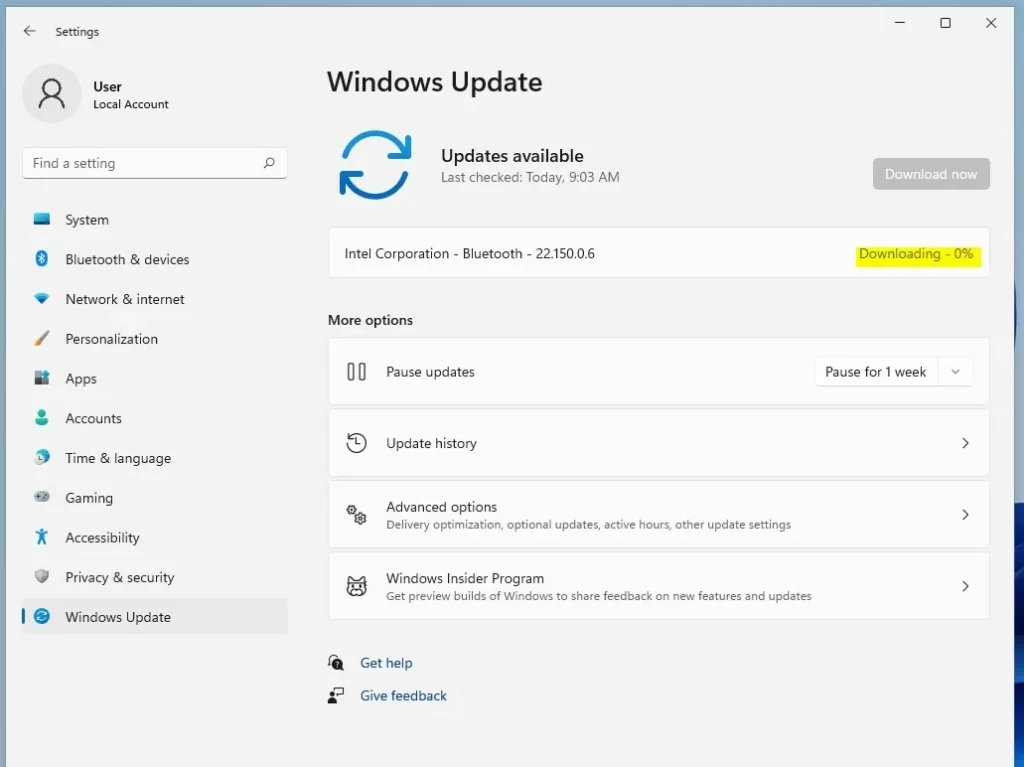
Expand the category tiles for Driver updates or Other updates. Check the box next to the driver or update you want to install. Once you select a box, the Download & Install button will light up.
Step 6: Download and Install
Click the Download & Install button. Your device will go back to the Windows Update pane and begin downloading your selected updates.
Troubleshooting Driver Issues
If a device stops working, check the Device Manager. Press ⊞ Win+X and select Device Manager. If you see a yellow exclamation mark, your driver is missing or broken. You can try to update it via the Optional Updates menu or by visiting the manufacturer’s website. If an update causes a crash, use the Driver Rollback feature in Device Manager to return to the previous version.
Manual Troubleshooting
If you cannot find a driver, visit the Microsoft Update Catalog to search for specific hardware IDs. This is an advanced step for users who need to manually install files to 📁C:\Windows\System32 or other system folders.
Summary
Optional Updates in Windows 11 allow you to install non-critical drivers and firmware. Use them to fix hardware issues or improve performance. Always back up your data before updating firmware. If an update causes problems, use the Device Manager to roll back your drivers. For persistent issues, use the Microsoft Update Catalog for manual fixes.
Should I install optional driver updates if my PC is working fine?
Generally, if your hardware is working perfectly, you do not need to install optional driver updates. These are best reserved for troubleshooting specific hardware issues or when you need a feature provided by a newer driver version. If it isn’t broken, you do not always need to fix it.
What happens if an optional update causes a system crash?
If an update causes a crash, you should use the Driver Rollback feature in Device Manager. Right-click the device, select Properties, go to the Driver tab, and click Roll Back Driver. If the system will not boot, use System Restore to revert your computer to a previous working state.
How do I hide an optional update I don’t want to install?
Windows 11 does not have a simple “hide” button in the settings menu. If an update keeps appearing that you do not want, you can use the official Microsoft “Show or hide updates” troubleshooter tool. This prevents the specific update from being offered by Windows Update again.
Was this guide helpful?

About the Author
Richard
Tech Writer, IT Professional
Richard, a writer for Geek Rewind, is a tech enthusiast who loves breaking down complex IT topics into simple, easy-to-understand ideas. With years of hands-on experience in system administration and enterprise IT operations, he’s developed a knack for offering practical tips and solutions. Richard aims to make technology more accessible and actionable. He's deeply committed to the Geek Rewind community, always ready to answer questions and engage in discussions.


[…] Windows Optional updates will include video device drivers released with Windows Update. Here’s how to search for and install Optional updates. […]
[…] Learn more about Optional Updates […]
[…] Audio drivers are sometimes hidden in your settings. If you are having trouble with your sound, check for optional updates. Here is how to search for and install them Optional updates. […]