How to Manually Download and Install Windows 11 Updates

You manually download and install Windows 11 updates by retrieving the update package directly from Microsoft and running it on your PC.
This process bypasses the standard Windows Update service, allowing you to install specific patches or fix issues when automatic updates fail.
You’ll need to know the Knowledge Base (KB) number for the update you want, such as KB5037771 released in May 2024, to find it on the Microsoft Update Catalog.
This ensures you get critical security fixes and new features installed promptly, even if Windows Update is acting up.
Manually download updates from the Microsoft Update Catalog by searching for the KB number. Run the downloaded `.msu` file and follow the on-screen prompts to install. Restart your PC when the installation is complete.
What happens when done?
Once the installation finishes, your computer will be fully patched to the latest version. Your system files will update, and security vulnerabilities will close. You’ll likely need to restart your PC to finish and apply the changes.
Prerequisites for Manual Updates
Before you begin, make sure you have a stable internet connection. You should also have at least 20GB of free disk space to accommodate the update files. It’s always a good idea to back up your important files before installing manual updates, just in case you lose any data.
How to check your current 🪟 Windows 11 build version
To see if you need an update, check your current version. Press the Windows key + R, then type `winver` and press Enter. A window will appear showing your current OS build. Compare this to the latest version listed on the official Microsoft website.
Using the Microsoft Update Catalog
You can download Windows 11 updates manually from the Microsoft Update Catalog, a huge online library of all Windows updates, if automatic updates aren’t working for you.
- Visit the Microsoft Update Catalog.
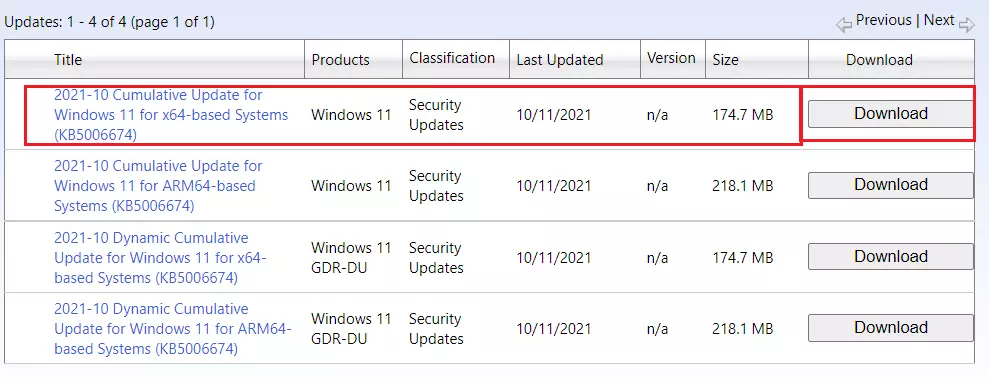
- Type your KB number into the search box and click Search.
- Ensure the update matches your version of Windows 11.
- Click the Download button next to the correct file.
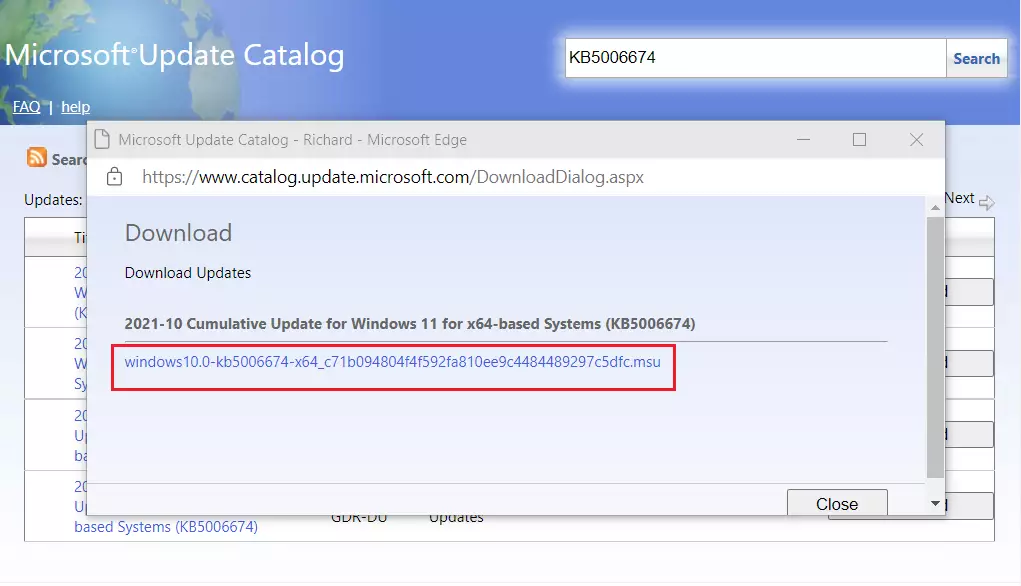
- A pop-up window will appear. Click the link inside to start the download.
- Open your Downloads folder and double-click the file. Note: This step requires admin privileges.
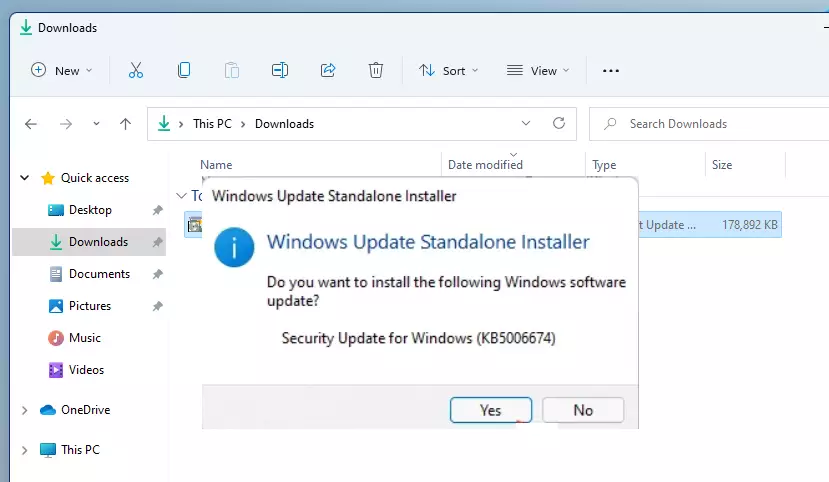
- The Windows Update Standalone Installer will start and prepare your system.
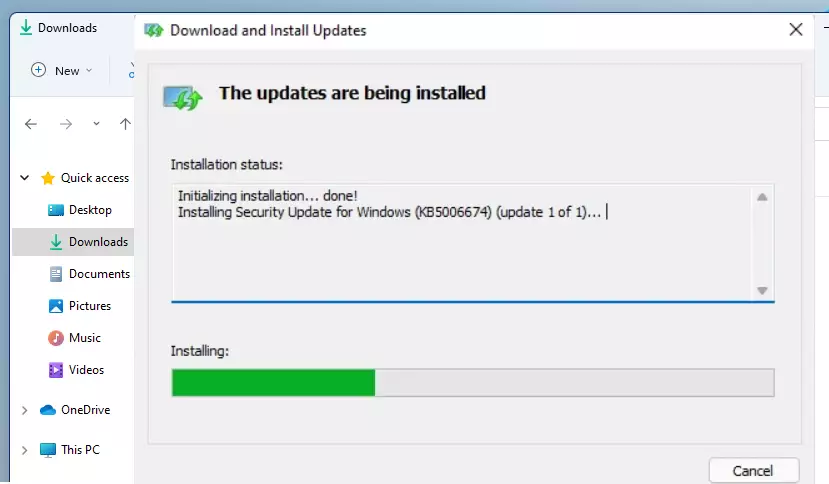
- Follow the on-screen prompts and restart your computer when finished.
Using the 🪟 Windows 11 Installation Assistant
If you are trying to upgrade to a newer version of Windows 11, use the Windows 11 Installation Assistant. This tool automates the process of downloading and installing the latest feature update. You’ll need administrator privileges for this step.
Troubleshooting Update Failures
If your Windows 11 updates aren’t installing correctly, the first thing to try is the built-in Windows Update troubleshooter. You can find it in your Settings under System, then Troubleshoot, and finally Other troubleshooters. Running this tool can often fix common update problems automatically.
Summary
Manually downloading Windows 11 updates is a great way to keep your computer secure when automatic updates fail, and this guide shows you how.
How do I fix 🪟 Windows 11 updates that won’t download?
First, run the built-in Windows Update troubleshooter in your settings menu. If that fails, manually download the specific KB update from the Microsoft Update Catalog. Ensure your internet is stable and you have enough disk space. If issues persist, restart the Windows Update service via the Services management console.
What is the difference between an ISO download and a Windows Update?
A Windows Update is a small, targeted file that fixes specific bugs or security holes. An ISO file is a complete image of the Windows operating system. You use an ISO to perform a clean install or a major upgrade, whereas updates are for maintaining your current system version.
Is it safe to manually download updates from the Microsoft Catalog?
Yes, it is perfectly safe. The Microsoft Update Catalog is an official Microsoft website. Downloading files directly from this source ensures you are getting authentic, verified updates. Always verify the KB number matches your system requirements before starting the download to ensure compatibility with your current Windows 11 build.
Was this guide helpful?

About the Author
Richard
Tech Writer, IT Professional
Richard, a writer for Geek Rewind, is a tech enthusiast who loves breaking down complex IT topics into simple, easy-to-understand ideas. With years of hands-on experience in system administration and enterprise IT operations, he’s developed a knack for offering practical tips and solutions. Richard aims to make technology more accessible and actionable. He's deeply committed to the Geek Rewind community, always ready to answer questions and engage in discussions.




In Windows 10, I was notified of updates being available and then I could choose whether I wanted to install them. I now have a new laptop with Windows 11 and the updates are installed automatically. Is it still possible to manually install them when they are available?