How to Download Official Windows 11 ISO file from Microsoft

This guide shows you how to download an official Windows 11 or Windows Server ISO file directly from Microsoft. You can use these files for a clean install (a fresh installation that erases everything) or an in-place upgrade (which keeps your files and settings) for Windows 11. The Flight Hub (a resource for checking available builds) is also a great resource to see which builds are currently available.
Why download an ISO? Downloading an official ISO file lets you do a clean install of Windows or repair your system if it’s acting up.
What happens when done? You will have a saved disk image file on your computer that you can use to create bootable installation media.
See also: Windows Server 2025 | Microsoft Evaluation Center
Visit the Microsoft software download page and select either the “Media Creation Tool” or the “Windows 11 Disk Image (ISO)” download. Follow the on-screen prompts to choose your edition and language, then select the ISO file option to begin the download.
Option 1Using the Media Creation Tool
You can download the official Windows 11 ISO file directly from Microsoft using the Media Creation Tool, which is a simple program that guides you through the whole process.
- Go to the Microsoft website and click the Download Now button for the “Create Windows 11 Installation Media” tool. Download
- Save the
mediacreationtool.exefile to your desktop and run it. Note: This requires admin privileges. - If you see a user account prompt, click Yes.
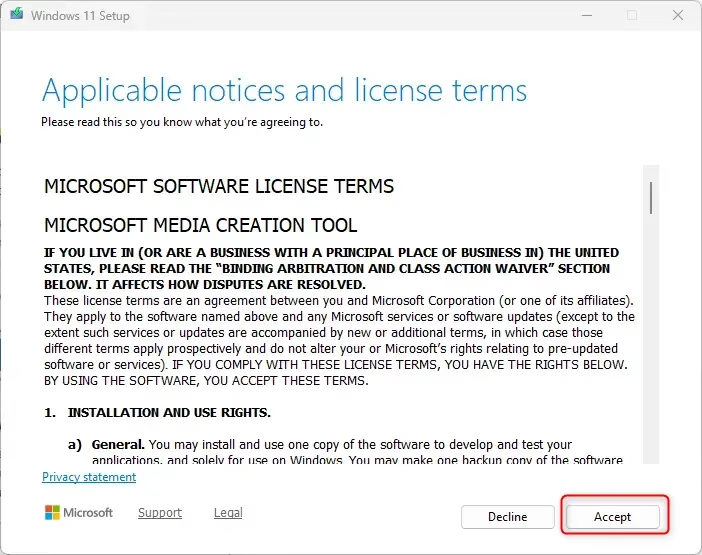
- Click Accept to agree to the license terms.
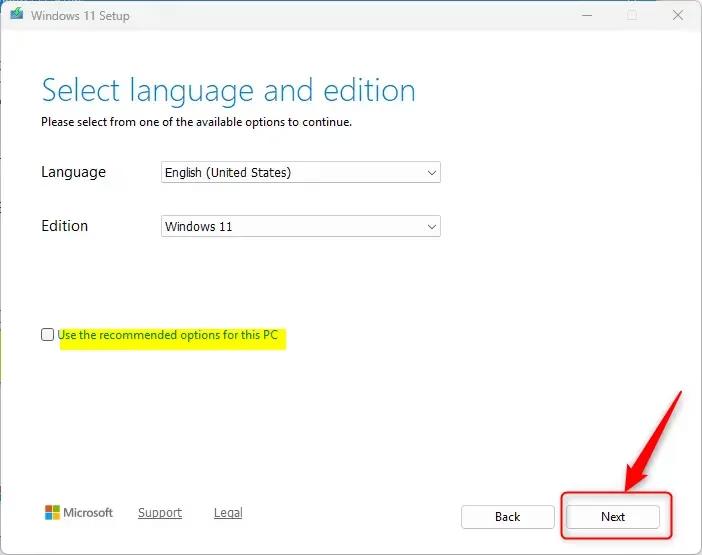
- Uncheck the box that says Use the recommended options for this PC.
- Pick your preferred Language and Edition, then click Next.
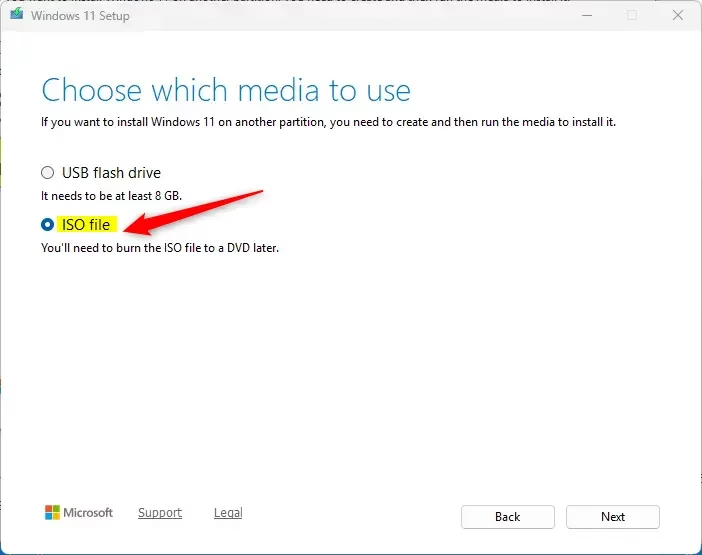
- Select ISO file and click Next.
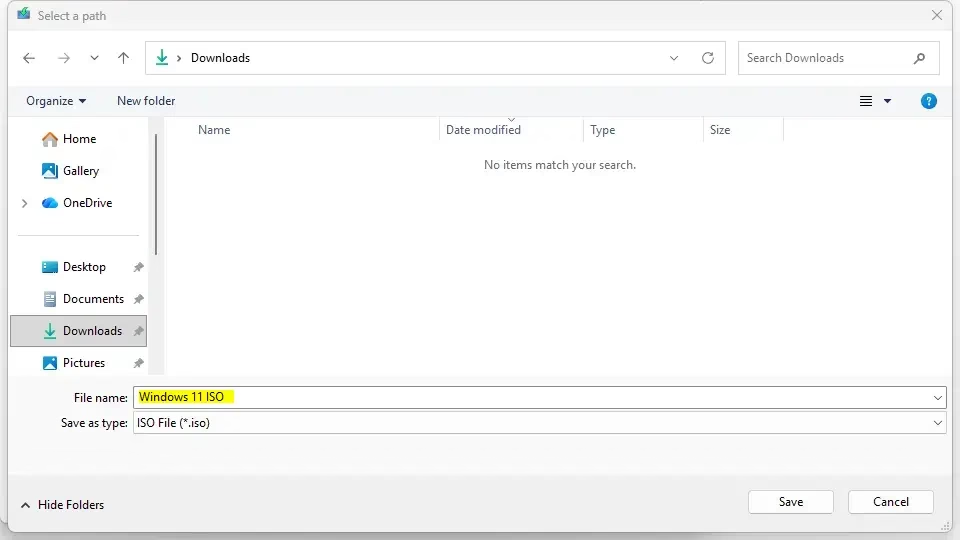
- Choose where to save the file on your computer and click Save.
- The download will begin.
- Once finished, click the link to the folder to see your new file and click Finish.
Option 2Direct ISO Download
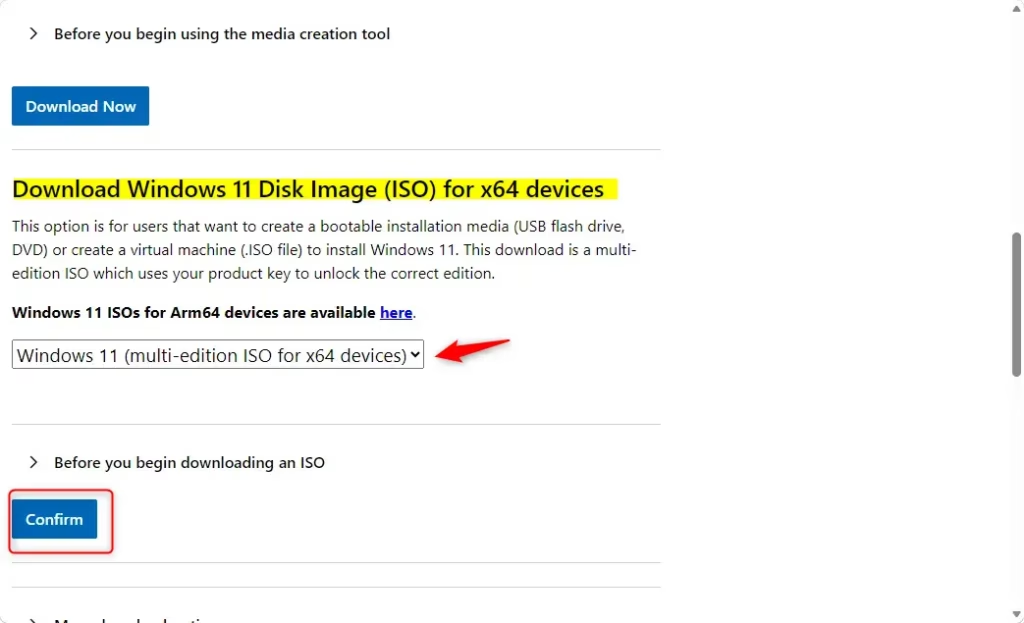
Downloading the Windows 11 ISO file directly from Microsoft’s website is a quick way to get the disk image without needing extra tools.
- Select the version from the drop-down menu and click Download Now.
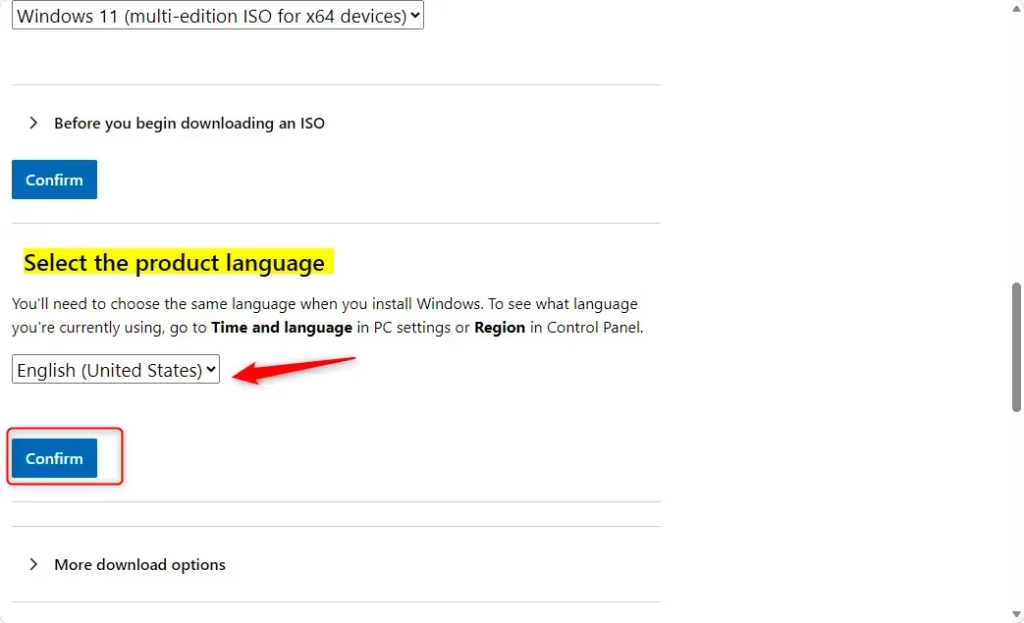
- Choose your language and click Confirm.
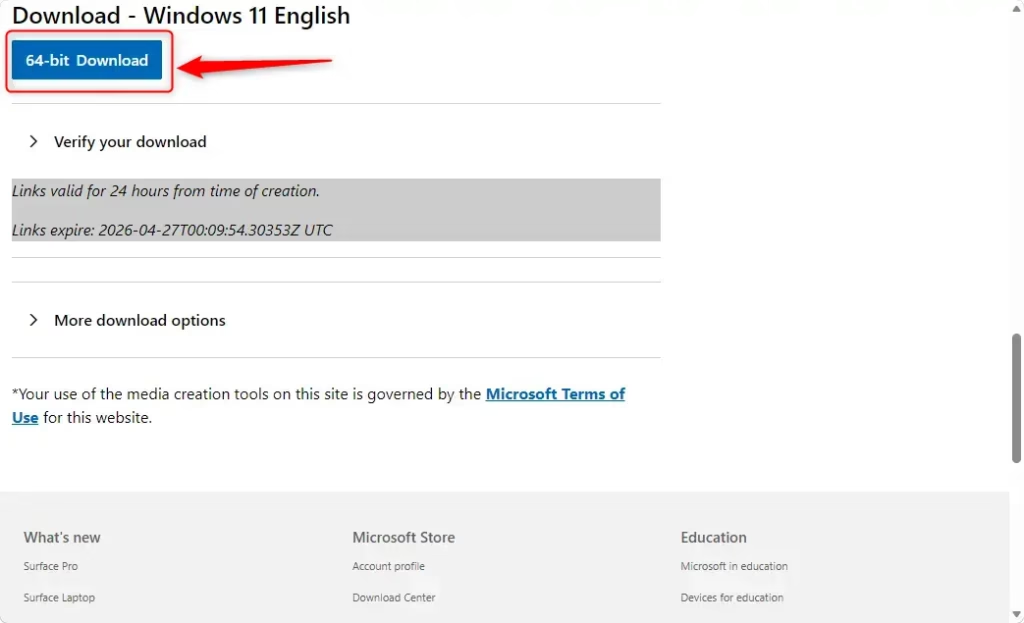
- Click the Download button.
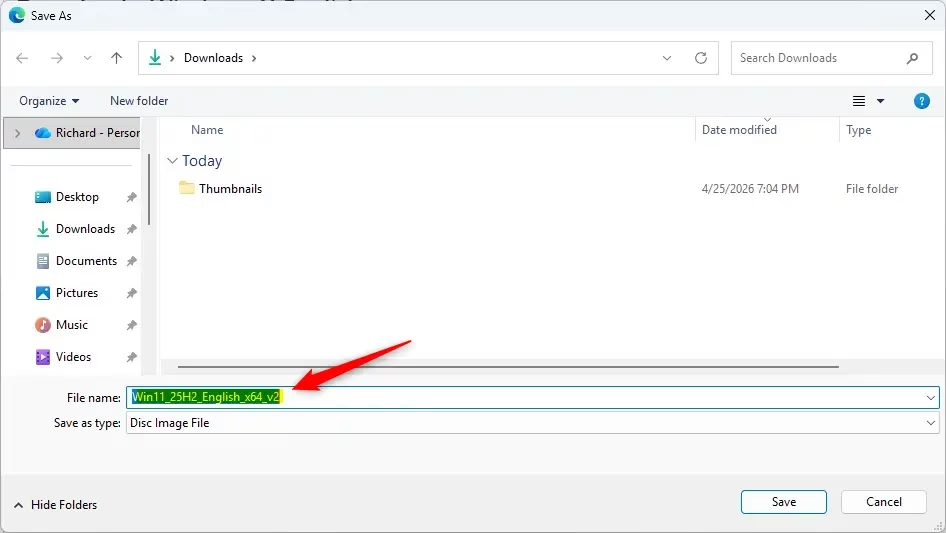
- Select where to save the file and click Save.
Option 3🪟 Windows 11 Insider Preview
You can download a Windows 11 Insider Preview ISO to get early access to new features and test upcoming changes before they’re released to everyone.
- Visit the Download site.
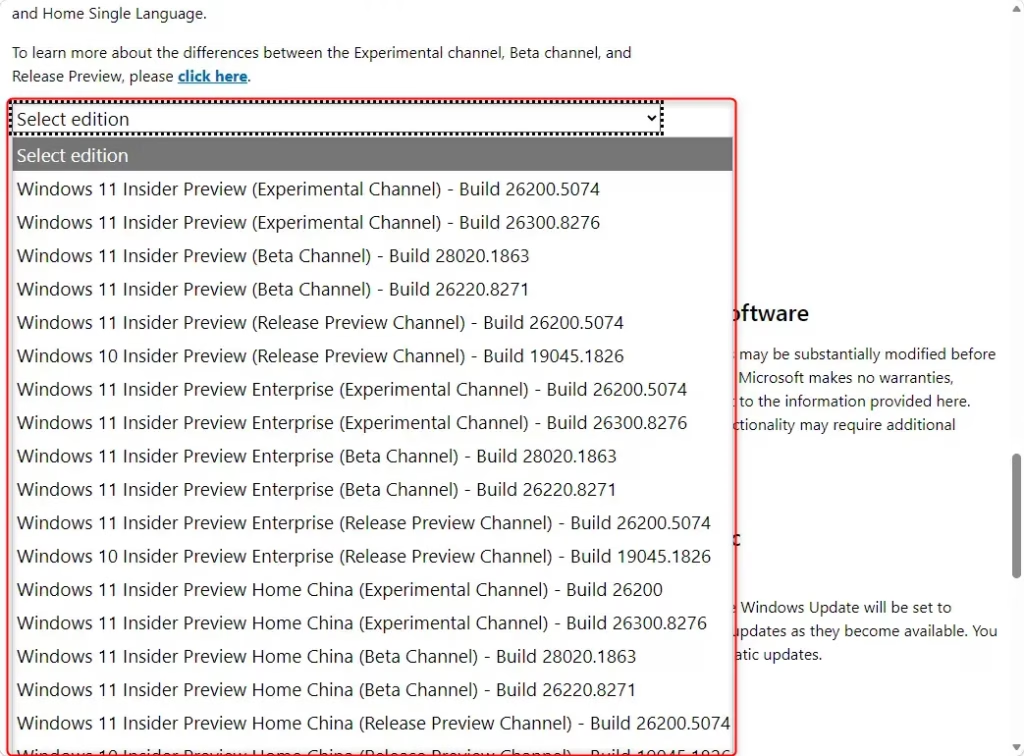
- Choose the Insider Preview channel (Canary, Dev, Beta, or Release Preview) and click Confirm.
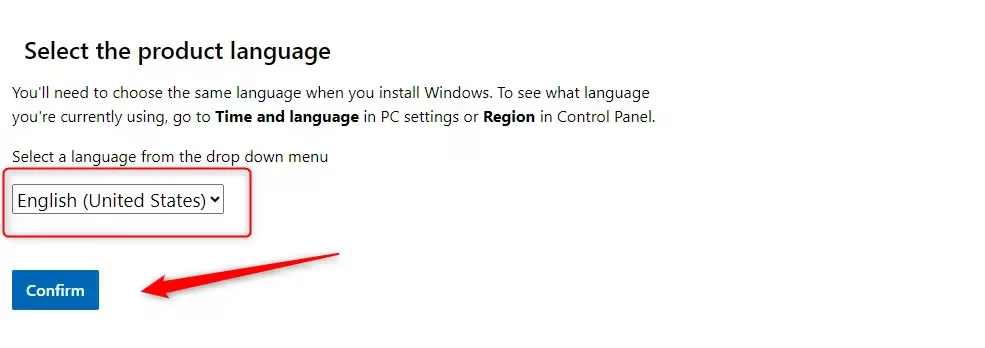
- Select your language and click Confirm.
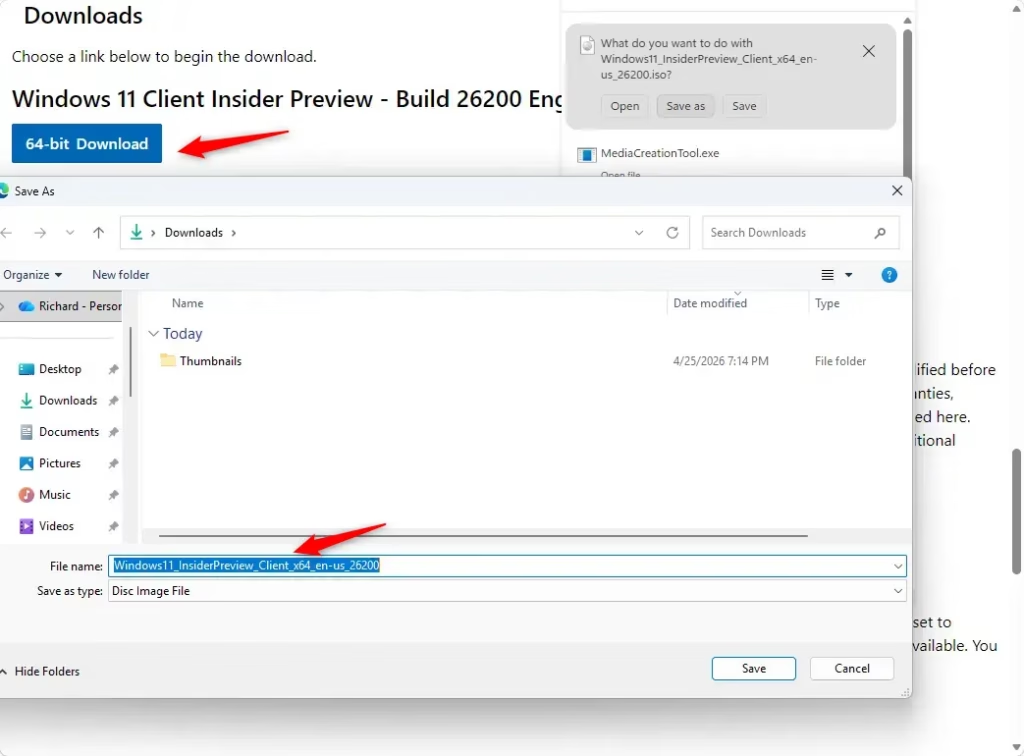
- Click the 64-bit Download button.
- Select your save location and click Save.

Option 4Windows Server Insider
- Go to the Download site.
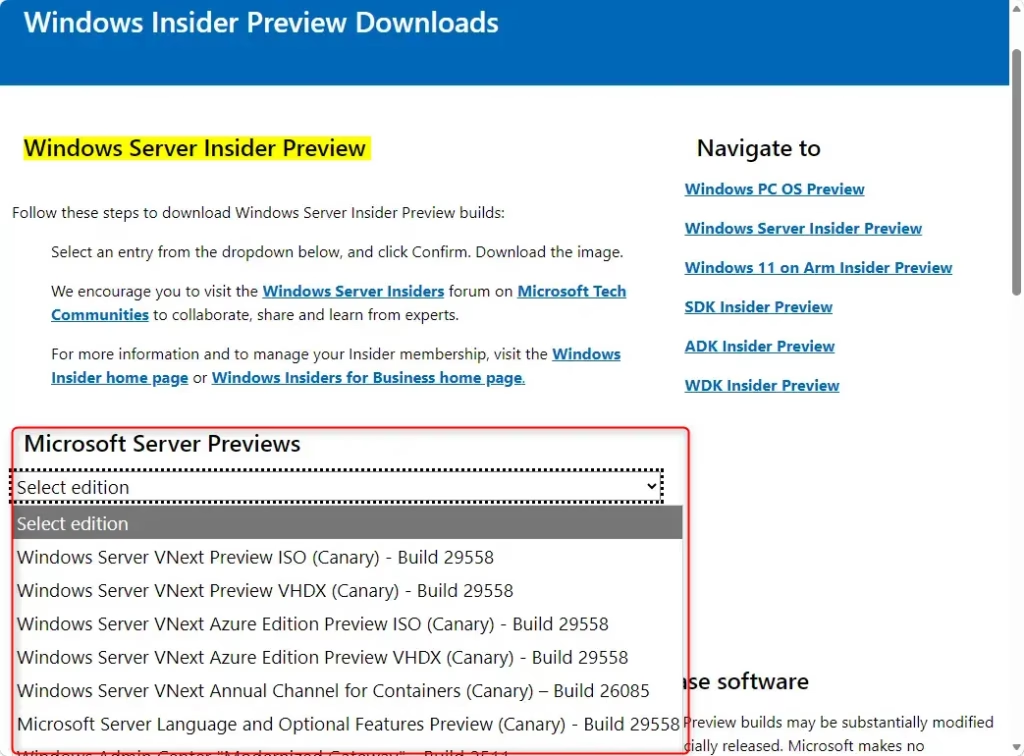
- Select the Windows Server version and click Confirm.
- Select your language and click Confirm.
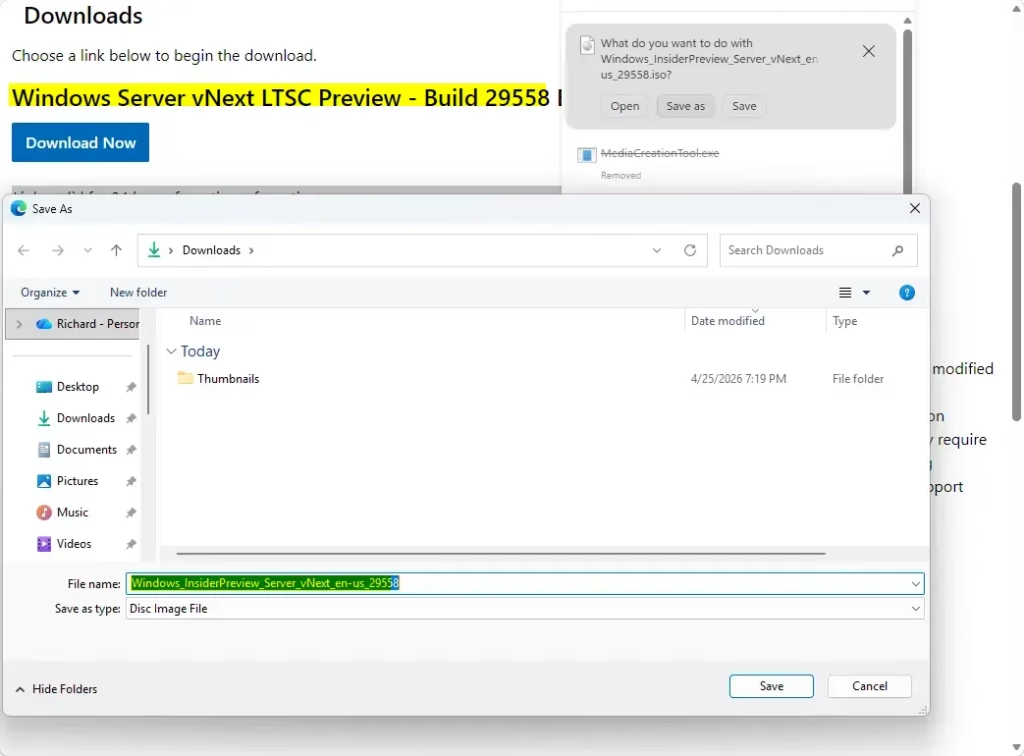
- Click Download Now.
- Select your save location and click Save.
Option 5Using UUP Dump
Summary
Downloading an official Windows 11 ISO file provides a dependable method for installing or reinstalling Windows. Whether you use the Media Creation Tool or download the ISO directly, picking the right version for your PC is key to a smooth setup.
How do I download 🪟 Windows 11 ISO directly from Microsoft?
To download the Windows 11 ISO directly from Microsoft, go to their official software download page. You can either use the Media Creation Tool and select the ISO option, or go to the ‘Windows 11 Disk Image (ISO)’ section to pick your edition and language.
Can you download 🪟 Windows 11 ISO for free?
Yes, you can download the Windows 11 ISO for free directly from the official Microsoft website. While the download is free, you will still require a valid product license key to activate the operating system after installation, unless you are using it for evaluation purposes within a permitted trial period.
Why can't i download 🪟 Windows 11 ISO from Microsoft?
If you’re having trouble downloading the Windows 11 ISO from Microsoft, first check that your internet is stable and you’re on the correct official site. Sometimes, browser extensions, ad blockers, or VPNs can block downloads, so try disabling them or using a different browser.
Why am I banned from downloading 🪟 Windows 11 ISO?
Microsoft doesn’t usually ban people from downloading Windows 11 ISO files. If you’re seeing an error, it’s more likely a temporary server issue, an old browser, or an IP address problem. Try switching networks or waiting a bit before trying again.
Was this guide helpful?

About the Author
Richard
Tech Writer, IT Professional
Richard, a writer for Geek Rewind, is a tech enthusiast who loves breaking down complex IT topics into simple, easy-to-understand ideas. With years of hands-on experience in system administration and enterprise IT operations, he’s developed a knack for offering practical tips and solutions. Richard aims to make technology more accessible and actionable. He's deeply committed to the Geek Rewind community, always ready to answer questions and engage in discussions.

No comments yet — be the first to share your thoughts!