How to Configure Widgets Language and Region in Windows 11

You adjust your Windows 11 Widgets language and region settings by changing your system’s regional format and language preferences.
These settings control what information and language appear on your Windows Widgets board, making sure it shows you relevant details based on where you are and what language you’ve chosen. For example, if you’re traveling or want to see news from a different country, adjusting these options lets you tailor the Widgets experience precisely.
Adjust your system’s language and region settings in Windows 11. Open the Widgets board by clicking the taskbar icon or pressing Windows key + W. Click your user account button, then select “Language and content” to choose your preferred language and region.
1Open the Widgets Board
Opening the Widgets board in Windows 11 is simple; just click the Widgets icon on your taskbar or press the Windows key plus W.
Tip: If you don’t see the Widgets icon on your taskbar, don’t panic! It might just be turned off. You can usually re-enable it by right-clicking your taskbar, selecting “Taskbar settings,” and then toggling “Widgets” to “On.”
2Access Your Account Settings
Once your Widgets board is open, look for your user account button. You’ll usually find it as a small icon or your profile picture in the top corner of the Widgets board. Click that.
3Find the Language and Content Options
To change your Windows 11 widgets language and content, click your user account icon within the Widgets board to find the ‘Language and content’ options.
Warning: The language and content on your Widgets board are linked to your Windows display language and region settings. If these are wrong in your main Windows settings, your Widgets might not behave as expected.
4Select Your Preferred Language
You can change your Windows 11 widgets language by clicking the dropdown menu under ‘Language and content’ and picking your desired language from the list.
Practical Tip: Sometimes, a language might not be fully installed on your system. If you select a language and it doesn’t work, you might need to go into your main Windows Settings (Settings > Time & language > Language & region) and add that language pack first.
5Confirm and Close
Your Windows 11 widgets language change takes effect immediately after you select it, so you can simply close the settings menu to see the updated content.
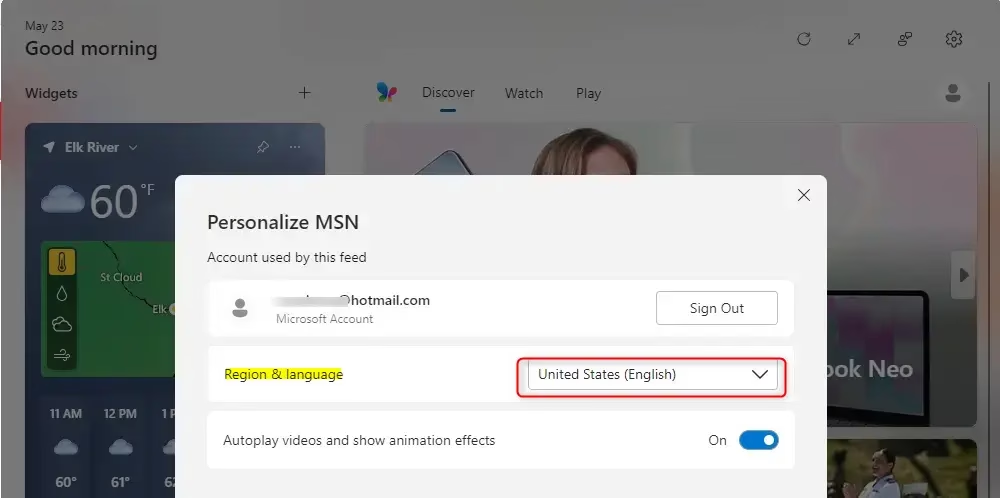
What to Expect: After changing your language and region, give your Widgets board a minute to update. You might see different news headlines, weather for a new location, or updated stock information. It’s all part of making your Widgets truly yours!
Troubleshooting Common Issues
If your Windows 11 widgets aren’t showing the correct language or region, check your main Windows region settings in the Settings app, as this often affects widget content.
Check Your Windows Region Settings
Your Widgets get a lot of information from your computer’s overall region settings. To make sure these are correct:
- Open your main Windows Settings app. You can search for it in the Start menu.
- Go to Time & language.
- Click on Region.
- Make sure your “Country or region” is set to your actual location. This helps Windows and your Widgets provide the most relevant local information.
Tip: If you travel a lot or want content from a different region, you can change this setting. Just remember it affects more than just your Widgets; it can influence things like the Microsoft Store and other regional services.
Sign Out and Back In
Sometimes, a simple refresh of your account’s connection can fix things. If you’re signed into Widgets with a Microsoft account, try signing out and then signing back in:
- Open the Widgets board.
- Click your user account button.
- Select Sign Out.
- Once signed out, you should see a “Sign in” option. Click it and sign back in with your Microsoft account.
Warning: Signing out of Widgets might reset some of your widget preferences. You might need to re-pin or re-configure some widgets after signing back in.
Restart Your PC
It’s a classic fix for a reason! If you’ve changed language and region settings, or even just signed out and back in, a full system restart can be the final step to make sure all changes are applied correctly across your entire operating system, including Widgets.
Action: Save any open work, then go to Start > Power > Restart.
By following these steps, you should have your Widgets board showing you exactly what you want, in the language you prefer, and from the region that makes sense for you. Happy widget-ing!
Reference:
Summary
Changing your Windows 11 widgets language and region is done through the Widgets board’s ‘Language and content’ settings, or by adjusting your main Windows display and region settings.
How do I change the language of widgets in 🪟 Windows 11?
To change the language of widgets in Windows 11, open the Widgets board and click your user account icon. Navigate to ‘Language and region settings’ and select your preferred display language. This ensures your widgets display content relevant to your chosen language and location.
Why are people leaving 🪟 Windows 11?
Reasons for users leaving Windows 11 can vary, including performance issues, hardware compatibility limitations, changes in user interface that disrupt workflow, and concerns about privacy or data collection. Some users may also prefer the stability or familiarity of older Windows versions.
How do I get additional display languages?
To get additional display languages in Windows 11, go to Settings > Time & language > Language & region. Click ‘Add a language,’ select your desired language from the list, and follow the prompts to install it. You can then set it as your primary display language.
How to change 🪟 Windows 11 display language?
To change the display language in Windows 11, navigate to Settings > Time & language > Language & region. Under ‘Windows display language,’ select your preferred language from the dropdown menu. You may need to sign out and back in for the changes to take effect.
Was this guide helpful?

About the Author
Richard
Tech Writer, IT Professional
Richard, a writer for Geek Rewind, is a tech enthusiast who loves breaking down complex IT topics into simple, easy-to-understand ideas. With years of hands-on experience in system administration and enterprise IT operations, he’s developed a knack for offering practical tips and solutions. Richard aims to make technology more accessible and actionable. He's deeply committed to the Geek Rewind community, always ready to answer questions and engage in discussions.


No comments yet — be the first to share your thoughts!