How to Find Your Product Key in Windows 11

A Windows 11 product key is a 25-character code that proves you own a legitimate copy of the operating system, allowing you to activate it.
This key is essential for verifying your Windows license with Microsoft, especially if you’re reinstalling or transferring it.
While many newer PCs use a digital license tied to your hardware or Microsoft account, knowing how to find your traditional 25-character product key remains valuable.
For instance, if you purchased a retail copy of Windows 11, your product key is likely printed on a sticker or included in a confirmation email.
You can find your Windows 11 product key using Command Prompt by typing wmic path softwarelicensingservice get OA3xOriginalProductKey, or by using the ShowKeyPlus app from the Microsoft Store. If you upgraded from Windows 10, you likely have a digital license and don’t need a physical key.
Where to look for your key
Finding your key depends on how you bought Windows:
- New computers: Look for a sticker on the back or side of your PC. It might also be on the box or a certificate included with your purchase.
- Authorized retailers: Check the physical box or the card that came with your purchase.
- Digital copies: Check the confirmation email you received when you bought the software.
- Upgrades: If you upgraded from an older version, you likely have a digital license instead of a key, which activates automatically.
Using Command Prompt to find your OEM Key
If your computer came with Windows pre-installed, the key is often stored in the UEFI firmware. This is known as an OEM embedded key. You can find this using the Command Prompt.
Note: This step requires administrative privileges.
- Click the Start menu and type cmd.
- Right-click Command Prompt and select Run as administrator.
- Type the following command and press Enter:
wmic path softwarelicensingservice get OA3xOriginalProductKey - If a key exists, it will appear below the command.
Checking status with slmgr
You can also check your activation status using the slmgr /dli command. This displays your license type and partial product key. It helps you see if you are using a Retail, OEM, or Volume license.
Using an app to find your key
If you cannot find your key physically, you can use a simple tool to reveal the one currently stored on your computer. Note: This process requires administrative privileges.
- Click the Microsoft Store icon on your taskbar.
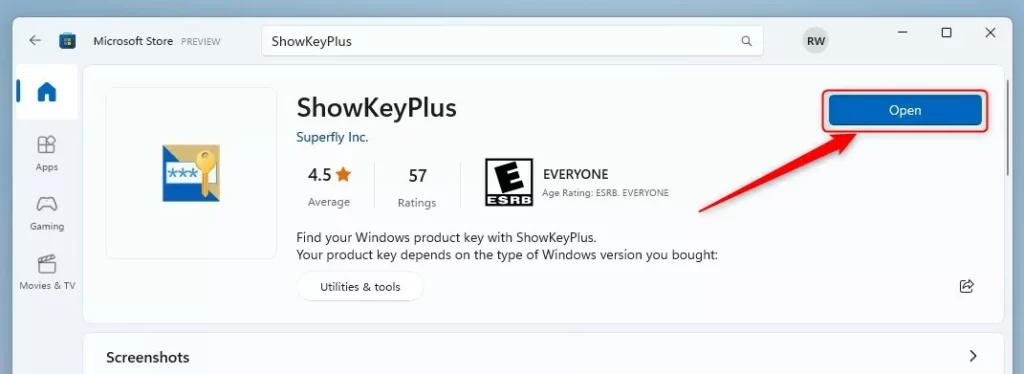
- Search for “ShowKeyPlus” and press Enter.
- Click the Get button to install the app.
- Once installed, click the Open button.
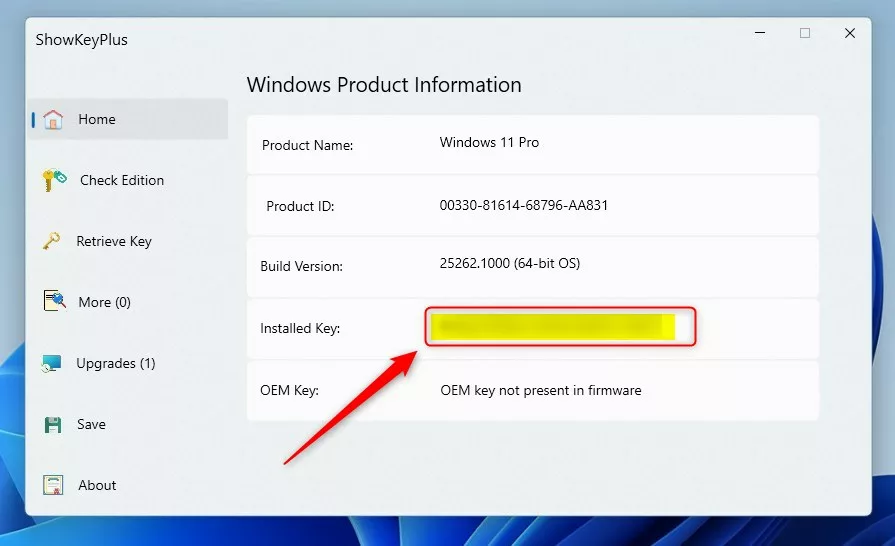
- The app will automatically display your product key on the screen.
Warning: Avoid third-party “key finder” websites. These often contain malware. Only use trusted tools from the Microsoft Store.
Activation Troubleshooting
If Windows is not activated, use the official Microsoft Activation Troubleshooter. This tool helps fix issues caused by hardware changes, such as replacing a motherboard.
Summary
Finding your Windows 11 product key is simple once you know where to look. Whether it is an OEM key in your UEFI, a digital license linked to your account, or a retail key from your email, you have several ways to verify your status. Use the Command Prompt or trusted apps like ShowKeyPlus to manage your license safely. Always use the official Microsoft Activation Troubleshooter if you run into any errors.
Do I need a product key if I upgraded from 🪟 Windows 10?
No. If you upgraded from Windows 10 to Windows 11, your device is granted a digital entitlement. This license is tied to your hardware ID and Microsoft account, meaning Windows will activate automatically without requiring a 25-character product key during reinstallation.
Why does my computer say ‘Windows is activated’ but show no key?
This happens because your system is activated via a digital license. The activation status is stored on Microsoft servers linked to your hardware. You do not need a physical key because your computer is recognized as a genuine device based on its unique hardware signature.
Can I find my product key if my motherboard was replaced?
If the motherboard was replaced, the original OEM key embedded in the UEFI firmware may be lost. If you had a retail license, you can re-activate Windows by signing into your Microsoft account and running the Activation Troubleshooter to transfer the license to the new hardware.
Was this guide helpful?

About the Author
Richard
Tech Writer, IT Professional
Richard, a writer for Geek Rewind, is a tech enthusiast who loves breaking down complex IT topics into simple, easy-to-understand ideas. With years of hands-on experience in system administration and enterprise IT operations, he’s developed a knack for offering practical tips and solutions. Richard aims to make technology more accessible and actionable. He's deeply committed to the Geek Rewind community, always ready to answer questions and engage in discussions.



[…] previous post showed you how to find your device’s product key. A Windows product key is a 25-character code used to activate Windows. The key is typically […]
[…] Not sure what your product key is? Check out our guide on how to find your Windows 11 product key. […]