How to Enable Microsoft Product Updates in Windows 11

You enable Microsoft product updates in Windows 11 via the Windows Update settings to ensure your Microsoft software, like Office and Edge, stays current.
This setting consolidates updates for various Microsoft applications alongside your core Windows 11 patches, simplifying the update process for you.
Keeping these updates enabled is crucial. It automatically patches security vulnerabilities and delivers new features for programs like Microsoft Office (versions 2016 and newer), preventing you from manually updating each application individually.
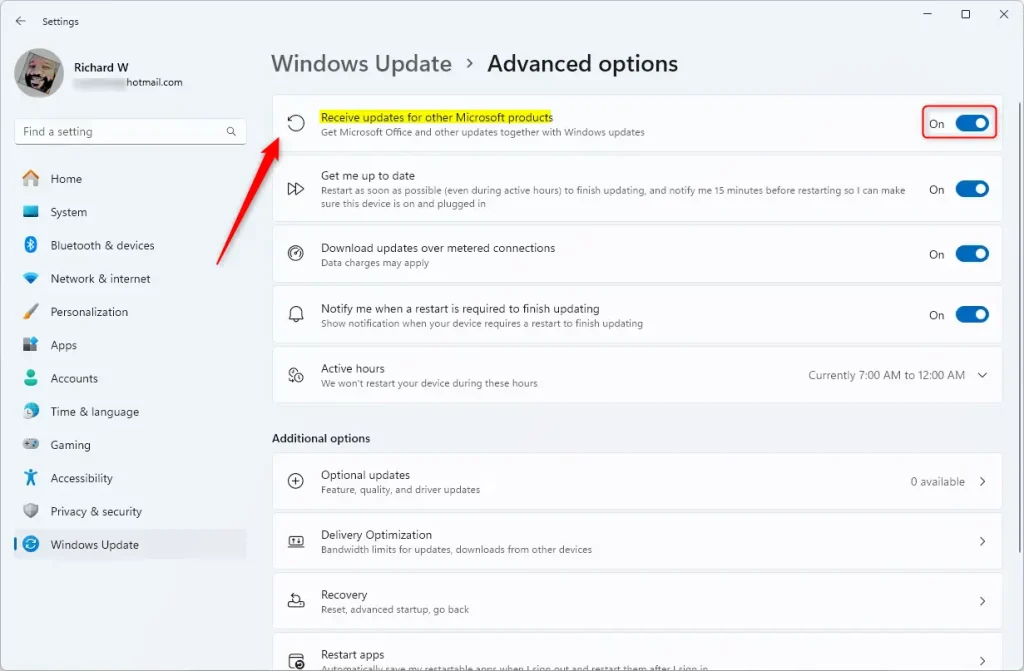
Go to Settings, select Windows Update, then Advanced options. Toggle the switch for “Receive updates for other Microsoft products” to On. This automatically installs updates for Office, Edge, and other Microsoft software.
How to enable updates via Settings
You can turn on updates for other Microsoft products, like Office, right from Windows 11 Settings. Just go to Windows Update, then Advanced options, and flip the switch for ‘Receive updates for other Microsoft products’ to ‘On’. This makes sure your Microsoft apps get the latest fixes automatically.
- Open the Windows Settings app.
- Select Windows Update on the left menu.
- Click on Advanced options on the right side.
On the Advanced options screen, look for the section labeled Receive updates for other Microsoft products. Flip the switch to ‘On’ to enable updates, or to ‘Off’ to disable them.
Understanding Windows Update Lifecycles and Channels
Windows 11 handles updates in a few ways to keep things running smoothly. There are big feature updates with new stuff and smaller quality updates for security and bug fixes. Most people use the standard channel, but businesses might use a special stable version called LTSC for extra reliability.
How to check your 🪟 Windows 11 version
To see your current build, press the Windows key, type winver, and press Enter. This displays your version and OS build number. Knowing your build helps you verify if you are running a supported version of Windows 11.
Manual Update Catalog Integration
If an update fails to install, you can manually download it from the Microsoft Update Catalog. Search for the specific KB (Knowledge Base) article ID, which is a unique number for a specific patch. Installing these manually can bypass temporary update service errors.
Managing updates using Terminal (Admin Required)
If you need more control, you can manage Microsoft product updates using the Windows Terminal, but you’ll need admin rights. Open the Terminal as an administrator, switch to the PowerShell tab, and then you can use specific commands to turn updates on or off for other Microsoft products.
Open the Terminal as an administrator and use the PowerShell tab to run these commands:
To enable updates, run this command:
(New-Object -com "Microsoft.Update.ServiceManager").AddService2("7971f918-a847-4430-9279-4a52d1efe18d",7,"")To disable updates, run this command:
(New-Object -com "Microsoft.Update.ServiceManager").RemoveService("7971f918-a847-4430-9279-4a52d1efe18d")Summary
Keeping your Microsoft products updated is important for security and making sure they run well. Turning on the setting in Windows 11 means your apps get the latest fixes automatically, either through the easy Settings toggle or by using the Terminal commands.- Why: Updating Microsoft products keeps your system secure and improves overall performance.
- What: Enabling these settings ensures your apps receive the latest fixes automatically.
- Settings: Use the Windows Settings app for a simple toggle switch.
- Terminal: Use PowerShell commands for quick, advanced control over your update preferences.
- Manual: Use the Microsoft Update Catalog to install specific KB patches if automatic updates fail.
How do I check if my 🪟 Windows 11 version is still supported?
To check if your Windows 11 version is still supported, visit Microsoft’s official lifecycle page. You can find your current OS build number by typing ‘winver’ in the search bar and comparing it to the list there. If your version is no longer supported, you need to update right away.
What is the difference between a quality update and a feature update?
A quality update, often called a cumulative update, provides security patches and bug fixes to keep your system stable. A feature update is a larger release that adds new tools, design changes, and major functionality to Windows 11. Quality updates happen monthly, while feature updates typically arrive once per year.
Was this guide helpful?

About the Author
Richard
Tech Writer, IT Professional
Richard, a writer for Geek Rewind, is a tech enthusiast who loves breaking down complex IT topics into simple, easy-to-understand ideas. With years of hands-on experience in system administration and enterprise IT operations, he’s developed a knack for offering practical tips and solutions. Richard aims to make technology more accessible and actionable. He's deeply committed to the Geek Rewind community, always ready to answer questions and engage in discussions.

No comments yet — be the first to share your thoughts!