How to Turn On or Off “Get me up to date” for Windows Update in Windows 11

This tutorial shows you how to turn on or off the “Get me up to date” feature for Windows Update in Windows 11.
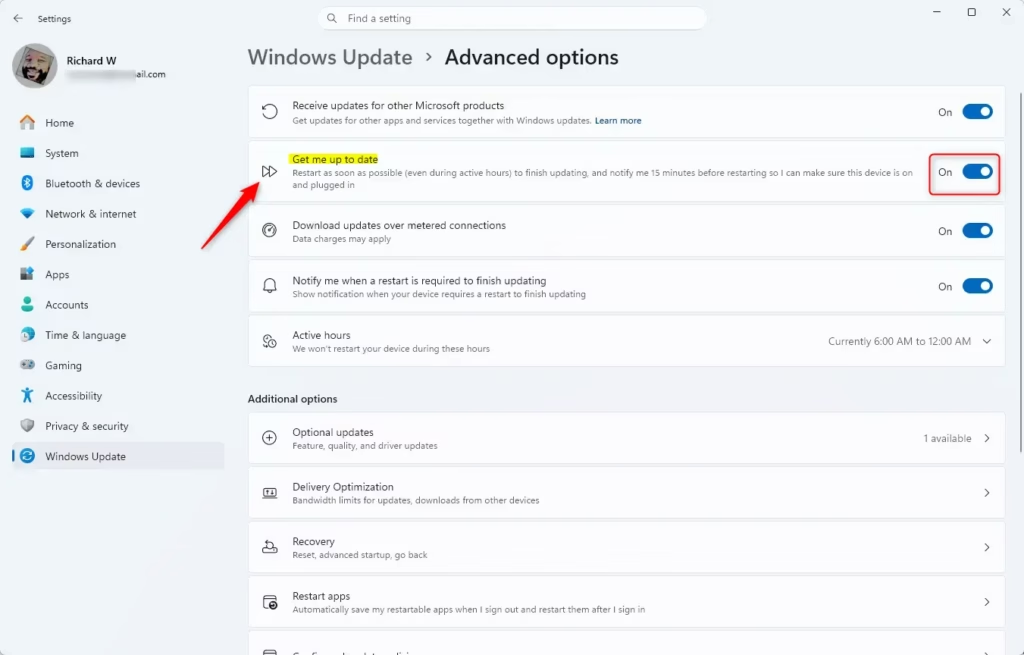
Open Settings, navigate to Windows Update, then Advanced options. Use the “Get me up to date” toggle to enable or disable the feature. This setting allows your device to restart quickly to install updates.
Why Update Your Windows?
Keeping your Windows 11 up to date is important because updates help your computer run smoothly and stay secure.
What Does “Get me up to date” Do?
The “Get me up to date” feature in Windows 11 helps finish your updates faster by restarting your computer sooner, even during your normal work time.
Option 1Use Settings
- Open Settings by pressing
Win+I. - Click on Windows Update on the left side. Then click on Advanced options on the right side.
- Turn On or Off (default) the Get me up to date toggle for what you want.
- You can now close Settings if you like.
Option 2Use Registry
⚠️ Important Note: You’ll need to be signed in as an administrator to use this option.
Open the Windows Terminal app and enter the following commands.
Turn On “Get me up to date” for Windows Update
reg add "HKLM\SOFTWARE\Microsoft\WindowsUpdate\UX\Settings" /v IsExpedited /t REG_DWORD /d 1 /f
Turn Off “Get me up to date” for Windows Update
This is the default setting.
reg add "HKLM\SOFTWARE\Microsoft\WindowsUpdate\UX\Settings" /v IsExpedited /t REG_DWORD /d 0 /f
Summary
The “Get me up to date” setting in Windows 11 speeds up updates by restarting your PC quickly after giving you a 15-minute warning.
How to get 🪟 Windows 11 up to date?
To check for updates now, select the Start button, and then go to Settings > Windows Update, and select Check for updates. You may also wish to visit your device manufacturer’s support site for any additional drivers that may be needed.
How do I enable Get Me Up to Date?
Click on ‘Options’, and you’ll see where you can enable the ‘Get me up to date’ feature. This setting allows your device to restart as soon as possible to finish updating, even during your active hours. You’ll get a notification about 15 minutes before it restarts.
Was this guide helpful?

About the Author
Richard
Tech Writer, IT Professional
Richard, a writer for Geek Rewind, is a tech enthusiast who loves breaking down complex IT topics into simple, easy-to-understand ideas. With years of hands-on experience in system administration and enterprise IT operations, he’s developed a knack for offering practical tips and solutions. Richard aims to make technology more accessible and actionable. He's deeply committed to the Geek Rewind community, always ready to answer questions and engage in discussions.



[…] How to Turn On or Off “Get me up to date” for Windows Update in Windows 11 […]