How to Turn On or Off “Get me up to date” for Windows Update in Windows 11

This tutorial shows you how to turn on or off “Get me up to date” for Windows Update in Windows 11.
Why Update Your Windows?
Windows 11 lets you choose when and how to get the latest updates. Updates keep your device running smoothly and securely. You’ll get the latest fixes and security improvements to help your device run efficiently and stay protected. In most cases, restarting your device completes the update.
What Does “Get me up to date” Do?
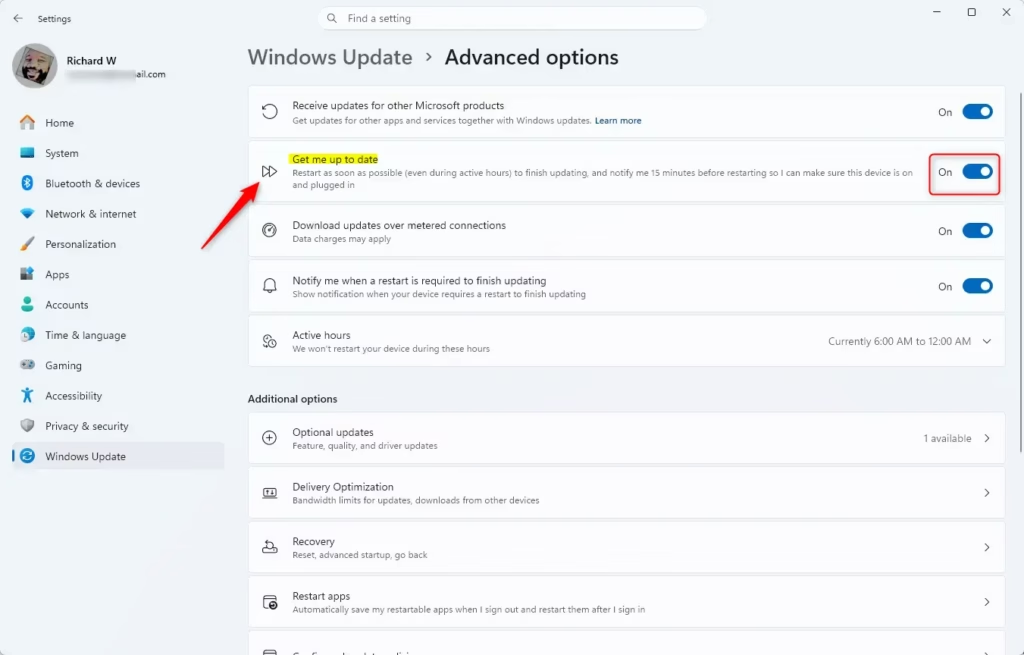
When you turn on “Get me up to date,” your device will restart as soon as possible (even during active hours) to finish updating. The system will notify you 15 minutes before restarting. This gives you time to make sure your device is on and plugged in.
Option 1Use Settings
- Open Settings by pressing
Win+I. - Click on Windows Update on the left side. Then click on Advanced options on the right side.
- Turn On or Off (default) the Get me up to date toggle for what you want.
- You can now close Settings if you like.
Option 2Use Registry
⚠️ Admin Required: You must be signed in as an administrator to use this option.
Open the Windows Terminal app and run the commands below.
Turn On “Get me up to date” for Windows Update
reg add "HKLM\SOFTWARE\Microsoft\WindowsUpdate\UX\Settings" /v IsExpedited /t REG_DWORD /d 1 /f
Turn Off “Get me up to date” for Windows Update
This is the default setting.
reg add "HKLM\SOFTWARE\Microsoft\WindowsUpdate\UX\Settings" /v IsExpedited /t REG_DWORD /d 0 /f
Summary
“Get me up to date” is a Windows 11 feature that speeds up your updates. When turned on, your device will restart quickly to complete updates, with a 15-minute warning before restarting. You can control this setting through Settings or the Windows Registry. The Settings method is easiest for most users. The Registry method requires administrator access but gives you direct control.
Was this guide helpful?

About the Author
Richard
Tech Writer, IT Professional
Richard, a writer for Geek Rewind, is a tech enthusiast who loves breaking down complex IT topics into simple, easy-to-understand ideas. With years of hands-on experience in system administration and enterprise IT operations, he’s developed a knack for offering practical tips and solutions. Richard aims to make technology more accessible and actionable. He's deeply committed to the Geek Rewind community, always ready to answer questions and engage in discussions.


[…] How to Turn On or Off “Get me up to date” for Windows Update in Windows 11 […]